
How do I add a new user and which role do I choose?

Robert Oosterloo
Updated on · 4 min read
Do you want a colleague to also be able to work on the website? Then give him or her their own account instead of sharing your password. This way, you can see who did what, and you can revoke access later.
In short
- Go to Users → Add User.
- Fill in a username and email address and choose a Role.
- Choose the least privileged role that suffices: usually Editor (editor), not Administrator.
- With Send User Notification, the colleague will receive an email to set a password.
Nog geen website op leflite?
Wij bouwen hem samen met jou. Daarna pas je alles zelf aan, precies zoals in dit artikel.
- Online binnen een week
- Hosting, SSL en back-ups inbegrepen
- Vanaf €49,95 per maand

What do you need?
- An account with the role Administrator. Only administrators can add users.
- The email address of your colleague.
Step 1: Go to Users → Add User
Click on Users in the left menu and then on Add User. You will see a form.
Step 2: Fill in the details
- Username: required. Choose something recognizable, like the first name. A username cannot be changed later.
- Email: required. This is where the invitation and later the email to reset a password will be sent.
- First name and Last name: not required, but useful.
- Password: WordPress will generate a strong password automatically. You don’t need to provide it; the colleague will choose one via email.
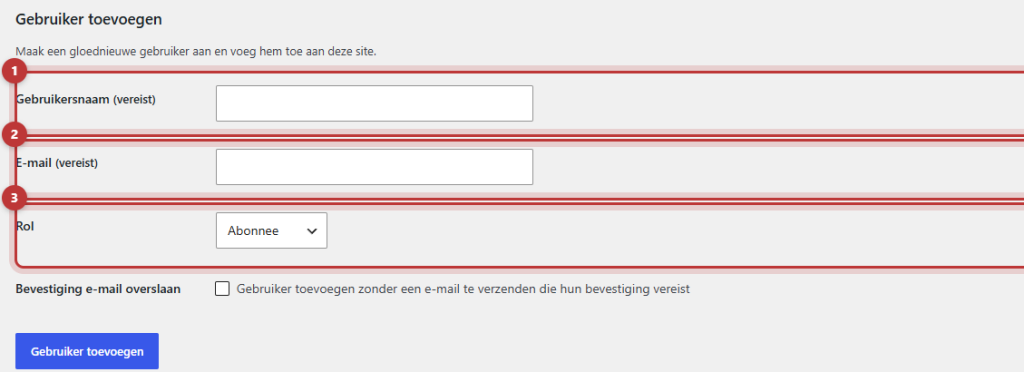
Step 3: Choose the role
The role determines what someone is allowed to do. Always choose the least privileged role that allows someone to do their job.
The difference between the roles
- Administrator: can do everything, including adding and removing users and adjusting the menu. Only give this role to someone who truly manages the entire site.
- Editor (editor): can create, edit, and publish all pages and posts, including those of others, and can access General options. They cannot manage users and do not see Menus and Widgets. This is usually the right choice for a colleague who maintains texts and pages.
- Author: can write and publish their own posts, but cannot edit pages.
- Contributor: can write their own posts, but cannot publish them. Someone with higher rights will publish them.
- Subscriber: can only log in and edit their own profile.
If you have a webshop, there are also roles for customers and for a shop manager, who manages orders and products.
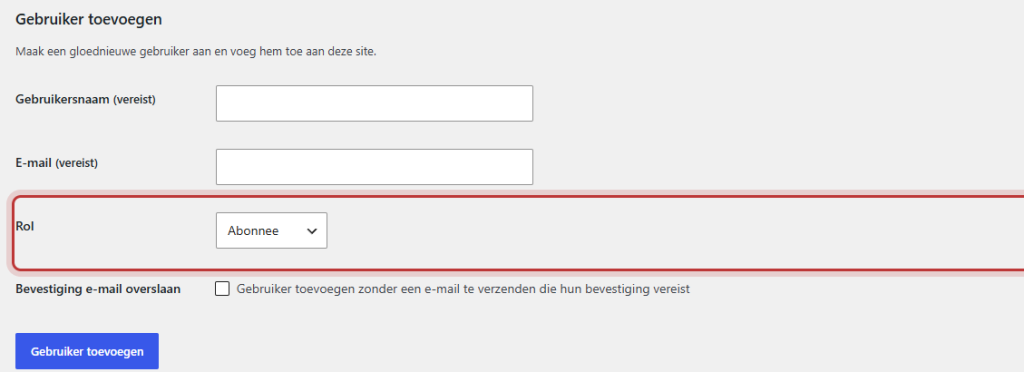
⟦T0Note: do not give everyone the Administrator role. An administrator can delete other users and access technical settings. The fewer administrators there are, the smaller the chance that something goes wrong accidentally.
Step 4: Send the invitation
Keep the checkbox for Send User Notification checked: then your colleague will receive an email with a link to choose their own password. Then click on Add User. The new user will now appear in the list under Users.
What does the new user receive?
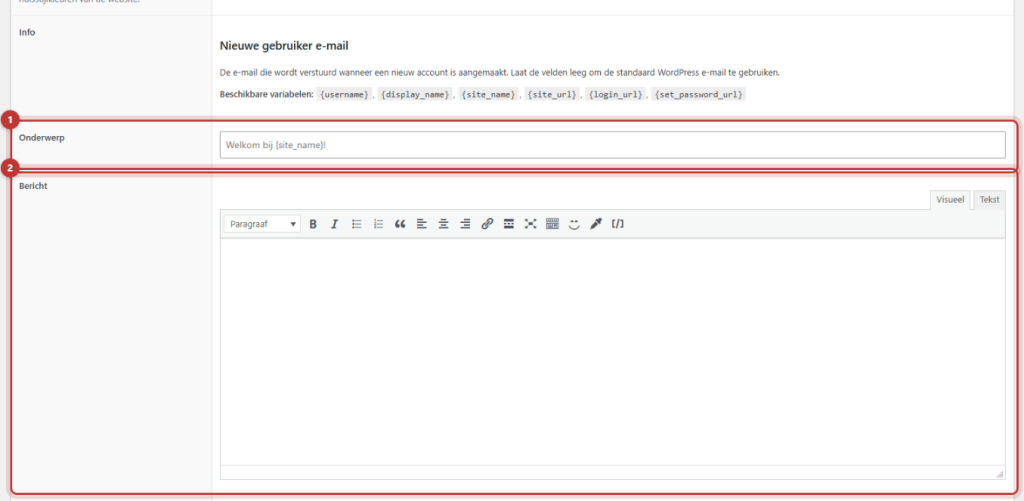
Your colleague will receive a welcome email with the username and a link to set a password. You can customize what is in that email under General options → Emails, in Subject and Message. If you leave those fields empty, WordPress will send the default email. You can read how that works in customizing emails for new users.
Good to know: when your colleague logs in for the first time, the website will ask him or her to confirm that location via an email. This is an extra security measure; see confirm your login via email.
Revoke someone’s access
If a colleague leaves, remove their access immediately. Go to Users, hover over the name and click on Delete. WordPress will ask what should happen to this user’s pages and posts: choose to assign them to another user, or they will disappear. If you want to keep the account for a while, change the role to Subscriber; then they cannot make any changes.
Having trouble?
- You do not see the Users menu: you are not an administrator. Ask an administrator of your website or us.
- A notification that the email address is already in use: there is already an account with that address. Look it up in the list and change the role there.
- The colleague does not receive an email: have them check their spam. Or have them request a new password on the login screen (see logging in and forgetting password).
- The colleague sees less than you: that is correct if they have a lighter role. See the overview above, and why you do not see everything in the dashboard.
Frequently Asked Questions
Editor (editor). They can edit pages and posts, but cannot manage users.
Share this article
Robert Oosterloo
Robert Oosterloo is eigenaar en UX/UI-designer van Lef Creative in Kollum. Hij ontwerpt websites, webshops en software voor ondernemers in Noord-Nederland.
Read also
Finding your way in the dashboard
Page or post?
This is how your leflite website is structured






Want a website like this?
Here you can read how easy it is to maintain a leflite site yourself. Want one too? We will think along with you, no strings attached.
Prefer direct contact? Call Robert at 06 35 66 47 73 or send a WhatsApp.