
How do I add a WhatsApp button to my website?

Robert Oosterloo
Updated on · 3 min read
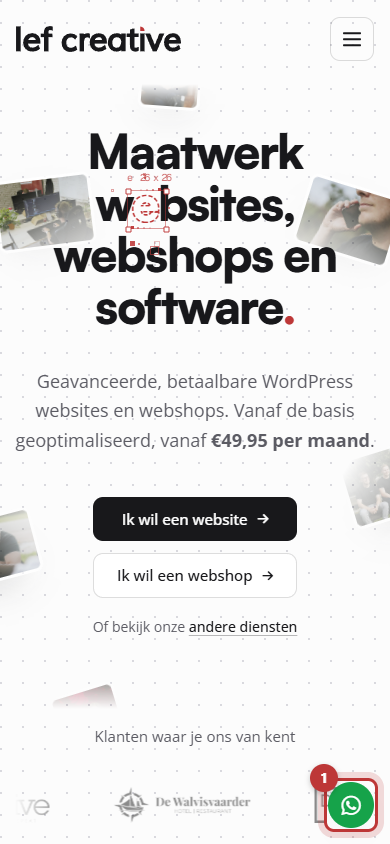
Many people prefer to send a message rather than call. With a WhatsApp button, visitors can send you a message directly. It is a green round button at the bottom of the screen, on every page. You can activate it in five steps.
In short
- Go to General options → Company details, tab Social media.
- Enter your number at WhatsApp, starting with +31 and without spaces.
- Turn on Show WhatsApp button and choose left or right.
- Optionally, enter a pre-filled message.
Nog geen website op leflite?
Wij bouwen hem samen met jou. Daarna pas je alles zelf aan, precies zoals in dit artikel.
- Online binnen een week
- Hosting, SSL en back-ups inbegrepen
- Vanaf €49,95 per maand

What do you need?
- A phone number with WhatsApp (or WhatsApp Business) that you monitor.
Step 1: Go to Company details → Social media
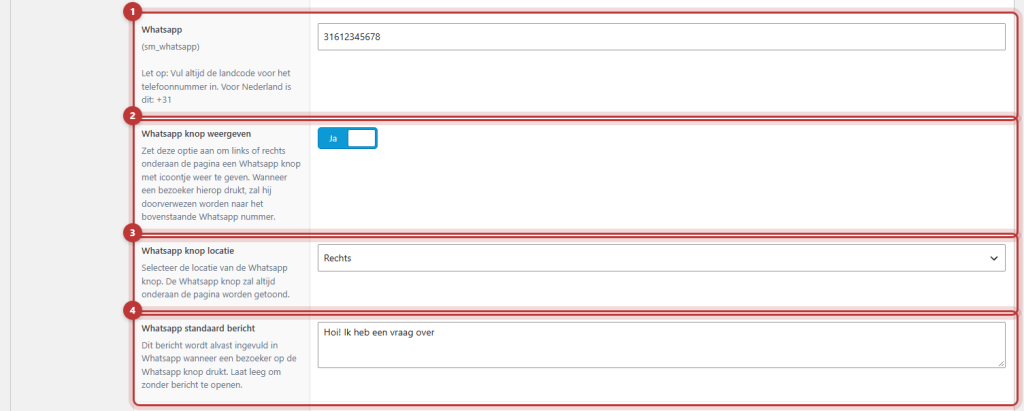
Click on General options, then at the top on Company details, and open the tab Social media. At the top is the field WhatsApp.
Step 2: Enter your number starting with +31
Next to the field, it says: ‘Note: Always enter the country code for the phone number. For the Netherlands, this is: +31’. Leave out the 0 at the beginning. Type the number without spaces or dashes, for example +31612345678. The button uses the number exactly as you type it. It won’t work with spaces.
Step 3: Turn on Show WhatsApp button
Once a number is entered, Show WhatsApp button will appear. Turn this on. The button will then appear at the bottom of the screen on every page.
Step 4: Choose left or right
At WhatsApp button location, choose Left or Right. By default, it is on the right.
Step 5: A pre-filled message
At WhatsApp default message, type a text that will already be in WhatsApp when someone presses the button, for example ‘Hello, I have a question about …’. The visitor can still edit that text. If you leave the field empty, WhatsApp will open without a message. Click on Update.
Does it clash with the Back to top button?
Do you also have the Back to top button turned on (in General options, tab Footer)? That is also at the bottom right. Then set the WhatsApp button to Left, or turn one of the two off. See adjust the footer.
WhatsApp link in text
Do you want a link to WhatsApp in text or in the footer? Use [theme_option field="sm_whatsapp"]. This creates a link with the word ‘WhatsApp’. With icon="true", the WhatsApp icon will appear before it. You can read more about these shortcodes in linking your social media.
Tip: test the button yourself on your phone AND on your computer. On a computer, WhatsApp Web or the WhatsApp app will open. Respond quickly to messages: a visitor who messages expects a reply within a few hours. You manage your other contact details in Company details.
Not working?
- You do not see the switch. First, fill in the WhatsApp field. After that, the other options will appear.
- WhatsApp reports that the number is invalid. Check the number: with +31, without the 0 at the end, without spaces or dashes.
- The button is overlapping another button. Move it to the other side, or turn off the Back to top button.
- You do not see the button. Click on Update and refresh your website. Clear the cache if necessary.
- Can’t figure it out? contact us.
Frequently asked questions
Yes, always with the country code and without the 0 at the end, for example +31612345678. Do not use spaces.
Share this article
Robert Oosterloo
Robert Oosterloo is eigenaar en UX/UI-designer van Lef Creative in Kollum. Hij ontwerpt websites, webshops en software voor ondernemers in Noord-Nederland.
Read also
Automatically inserting phone number in text
Giving a section a background color
A search function on your website






Want a website like this?
Here you can read how easy it is to maintain a leflite site yourself. Want one too? We will think along with you, no strings attached.
Prefer direct contact? Call Robert at 06 35 66 47 73 or send a WhatsApp.