
How do I log in to my website (and what if I lost my password)?

Robert Oosterloo
Updated on · 4 min read
To adjust your website, log in to the WordPress admin. In this article, you will read what address to use, what to fill in, and how to set a new password yourself if you have lost it.
In short
- The login screen is at yourdomain.nl/wp/wp-login.php.
- Enter your Username or email address and your Password, then click Login.
- Forgot your password? Click Forgot your password? and you will receive an email with a link.
- If you enter the wrong combination, you will always see the same message: The entered details are incorrect.
What do you need?
- The address of your website.
- Your username or the email address of your account.
- Your password, or access to your account’s mailbox to set a new password.
Step 1: Go to the login screen
Type the address of your website in your browser with /wp/wp-login.php at the end, so for example yourdomain.nl/wp/wp-login.php. Your website runs on a setup where WordPress is in the folder /wp/, which is why that part is in the address.
Usually, yourdomain.nl/login/ and yourdomain.nl/wp-admin/ also work: they redirect you to the same login screen. Save the address in your bookmarks, so you don’t have to remember it.
Nog geen website op leflite?
Wij bouwen hem samen met jou. Daarna pas je alles zelf aan, precies zoals in dit artikel.
- Online binnen een week
- Hosting, SSL en back-ups inbegrepen
- Vanaf €49,95 per maand

Step 2: Fill in your details
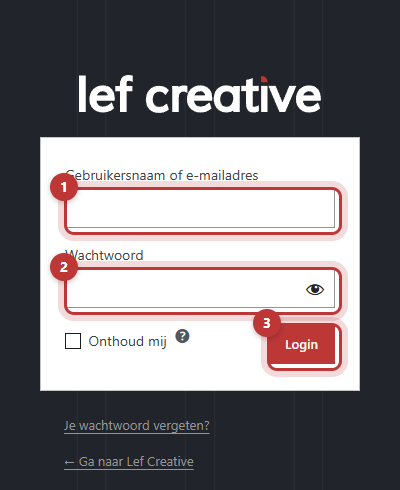
- In the Username or email address field, enter your username or the email address of your account.
- In the Password field, enter your password. With the eye icon on the right in the field, you can see what you are typing.
- Check Remember me if you are working on your own computer. This way, you will stay logged in longer.
- Click on Login.
You will now enter the dashboard. How it works, you can read in finding your way in the WordPress dashboard.
Step 3: Confirm a new location (only if prompted)
If you log in from a place where you haven’t logged in before, for example at home instead of at the office, the login screen may notify you that you have received an email with a confirmation link. This is an extra security measure for your website. Open the email, choose how long you trust this location, and then log in again. Everything about this is explained in why you sometimes confirm your login via email.
Forgot your password? Here’s how to set a new one
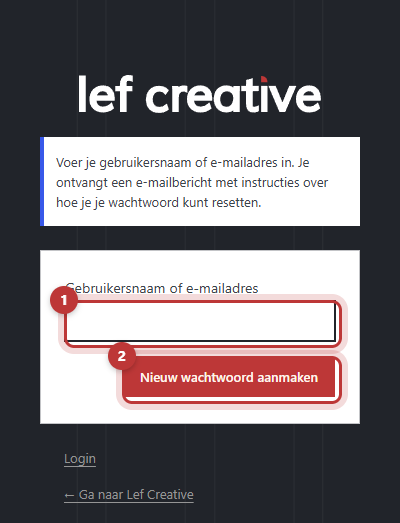
- Click on the login screen on Forgot your password?
- Enter your Username or email address.
- Click on Create new password.
- Open the email you receive and click on the link in it.
- Choose a new password and save it. Then log in with your new password.
Tip: choose a long password that you don’t use anywhere else, and store it in a password manager. The text of the recovery email may differ from website to website: the administrator adjusts it under General options → Emails (see adjusting emails for new users and password recovery).
Not working?
“The entered details are incorrect.”
You will receive this message for every error: an incorrect password, a typo in your username, or an email address that does not belong to an account. This is intentional. This way, someone trying to break in cannot deduce which part is correct.
- Check your details: is Caps Lock on? Are you using the correct email address? Also try your username instead of your email address.
- Still not working? Request a new password via Forgot your password?. If you also receive the message that the details are incorrect there, then the address probably does not belong to an account.
- Did not receive an email: check your spam or junk mail folder, and wait a few minutes. If nothing comes, please contact us; we will check if the email from your website is being sent correctly.
- Red bar “You are trying to log in to a development/staging environment”: you are on a test version of your website. Changes there will not appear on your live site. Log in at the address of your live website.
- Message about a new IP address: this is not an error. Confirm the location via the email; see confirming your login via email.
- You really don’t remember the login address or your account does not exist: please contact us. Call 06 35 66 47 73 or email info@lefcreative.nl.
Frequently asked questions
Usually yourdomain.nl/wp/wp-login.php. If that doesn’t work, ask us.
Check your spam. If it’s not there, please contact us: we will check the email from your website.
Share this article
Robert Oosterloo
Robert Oosterloo is eigenaar en UX/UI-designer van Lef Creative in Kollum. Hij ontwerpt websites, webshops en software voor ondernemers in Noord-Nederland.
Read also
Finding your way in the dashboard
Page or post?
This is how your leflite website is structured






Want a website like this?
Here you can read how easy it is to maintain a leflite site yourself. Want one too? We will think along with you, no strings attached.
Prefer direct contact? Call Robert at 06 35 66 47 73 or send a WhatsApp.