
How do I restore a backup of my website?

Robert Oosterloo
Updated on · 4 min read
Did something go wrong with your website, for example after an update, an incorrect change, or a hack? Then a backup can restore your website to how it was before. But often that’s not even necessary. In this article, you’ll read when an earlier version of a single page is enough, and how to restore a full backup.
In short
- Is it about a single page? Then restore an earlier version (revision) of that page.
- Backups of the entire website are not included in the theme, but belong to the hosting.
- If you host your website with us, we will restore the backup for you.
- Everything that happened after the backup moment will be lost: including form submissions and orders.
First: is a revision enough?
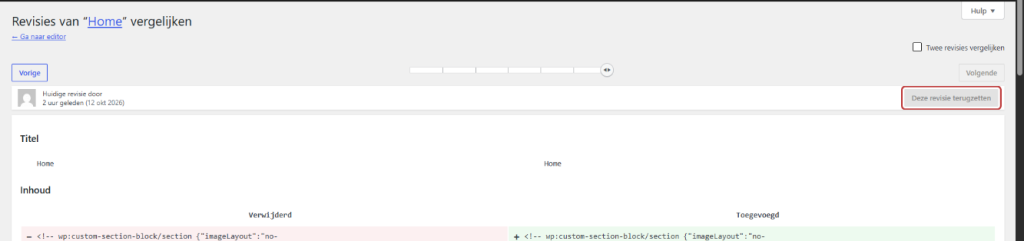
WordPress keeps earlier versions of every page, every post, and every builder: revisions. Did you accidentally delete some text or mess up a section? Then you can restore just that page without affecting the rest of your website.
- Open the page in the editor.
- Open the Revisions in the sidebar on the right.
- Use the slider to choose the version before the mistake.
- Click on Restore this revision.
You can read how this works in drafts, examples, and previous versions.
Good to know: settings such as General options, menus, and the media library do not have revisions. If something went wrong there, a backup is the solution.
Nog geen website op leflite?
Wij bouwen hem samen met jou. Daarna pas je alles zelf aan, precies zoals in dit artikel.
- Online binnen een week
- Hosting, SSL en back-ups inbegrepen
- Vanaf €49,95 per maand

Where are your backups?
Backups of your entire website (files and database) are not in your theme or in a plugin. They are created by the hosting.
- Do you host your website with us? Then we make the backups. You can read more about what is included in the hosting at web hosting.
- Do you host your website elsewhere? Then your hosting provider manages the backups. Ask them how to restore a backup.
Have us restore a backup
Contact us and provide as much detail as possible:
- What went wrong (a page, the entire website, a form, the webshop).
- When it was last working correctly, as accurately as possible: date and approximately the time.
- Whether there have been orders, submissions, or new pages added since then that you want to keep.
We will then check which backup moment fits best and restore it. If you have WordPress maintenance
with us, it falls under the maintenance. How often backups are made and how long they are kept depends on your package. Ask us if you want to know.
What will be lost?
A backup restores your website to exactly the moment of the backup. Everything that happened after that is gone:
- pages, posts, and photos that you added or changed afterwards;
- form submissions that came in afterwards;
- orders and customer accounts in your webshop from after that moment;
- users that were added afterwards.
Therefore, export the submissions and orders you want to keep before restoring, or let us know that we should pay attention to that. You can read how to export submissions in viewing and exporting submissions.
Note: do not try to repair the website yourself if you suspect it has been hacked. Contact us immediately, so we can prevent further damage.
Is it not working?
- I don’t see any Revisions on my page. The page has never been saved again, so there is no earlier version.
- The error is in the General options or in a menu. There are no revisions for that. Contact us for a backup.
- I don’t know when it went wrong. Check the revisions of a few pages to see when something last changed. That helps us choose the right backup moment.
- After restoring, I miss an order or submission. That came in after the backup moment. Let us know, sometimes it can still be retrieved from the newer situation.
You can read more about working safely in keeping your website safe and up-to-date.
Can’t figure it out? Call us at 06 35 66 47 73, email to info@lefcreative.nl or contact us.
Share this article
Robert Oosterloo
Robert Oosterloo is eigenaar en UX/UI-designer van Lef Creative in Kollum. Hij ontwerpt websites, webshops en software voor ondernemers in Noord-Nederland.
Read also
The default plugins of your website
Confirm your login via email
Logging in to your website






Want a website like this?
Here you can read how easy it is to maintain a leflite site yourself. Want one too? We will think along with you, no strings attached.
Prefer direct contact? Call Robert at 06 35 66 47 73 or send a WhatsApp.