
How to work safely on a page: draft, preview, and previous versions

Robert Oosterloo
Updated on · 4 min read
You don’t have to worry about breaking anything. WordPress lets you save a draft first, preview your changes before they go live, and restore any saved version. Here you can read how to use those safety nets.
In short
- Saving a draft keeps your work without visitors seeing it.
- With Preview you can see the page as it will appear online.
- When you click Publish, you can choose to publish now or set a date and time to schedule it.
- Under Revisions, you can restore a previous version with Restore this revision.
Save as draft
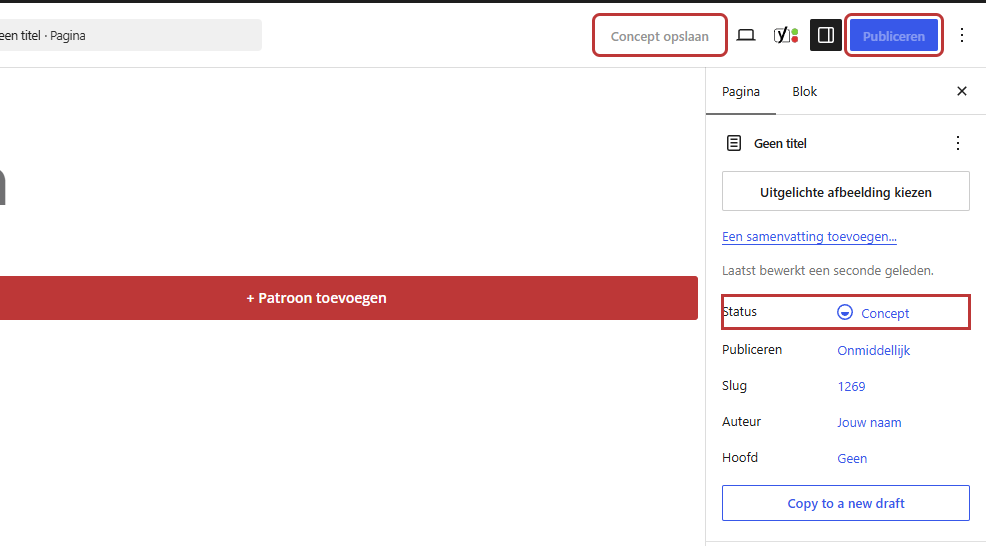
Are you working on a new page that isn’t finished yet? Click on Save draft in the top right. The page will then appear in your list with the status Draft, but visitors won’t see it. You can continue later.
For a page that is already live, Updating works differently: your changes will go live immediately. Do you want to work on a live page without visitors seeing the unfinished work? First, make a copy; see copying a page, with the option to rewrite a live page and publish it later.
View a preview
Click on Preview (the screen icon) in the top right and choose Preview in new tab. You will see the page as it will appear on the site, including header and footer, while it is not yet published. Also, check the preview on your phone: sections and columns behave differently there.
Nog geen website op leflite?
Wij bouwen hem samen met jou. Daarna pas je alles zelf aan, precies zoals in dit artikel.
- Online binnen een week
- Hosting, SSL en back-ups inbegrepen
- Vanaf €49,95 per maand

Publish or schedule
- Click on the date under Publish or Post in the sidebar on the right. By default, it says Immediately.
- Leave it like this to publish immediately, or choose a date and time in the future.
- Click on Publish. For a future date, the button will be called Schedule and the page will have the status Scheduled.
Do you want to take a published page offline again? Then click on Switch to draft.
Visibility: public, private, or password protected
Under Visibility, you choose who can see the page:
- Public: everyone. This is the default.
- Private: only logged-in administrators and editors.
- Password protected: visitors must first enter a password. They will then see the message “Enter the password below to view this content”. In leflite, there is no “Protected:” before the title of such a page.
Note: a password on a page is not real security for confidential information. It is useful to shield something from a small group, such as a page for members. Do not put privacy-sensitive information on your website.
Restore a previous version (revisions)
Every time you save a page or post, WordPress saves the previous version. This way, you can always go back.
Step 1: Open Revisions
Open the page in the editor. Click on Revisions (with the number of versions next to it) on the right sidebar. If you don’t see it, first click on the settings icon in the top right and choose the Page tab.
Step 2: Compare
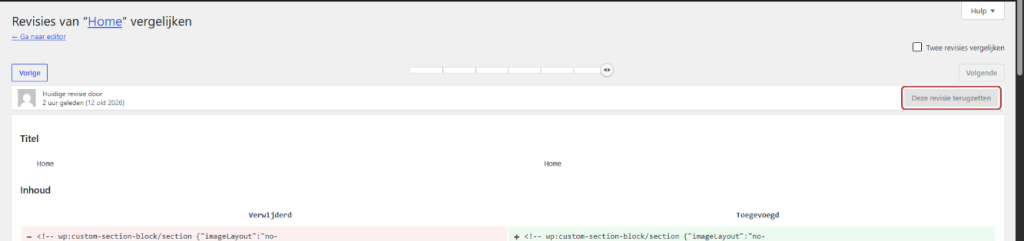
You will see two versions side by side: the older one on the left, the newer one on the right. What has been removed is red, what has been added is green. Use the slider at the top to scroll through all versions. The date and who made the change are also shown.
Step 3: Restore
Have you found the version you want? Click on Restore this revision. The page is now back to that version. Your current version is not lost: it is also in the revisions, so you can always go back.
Be careful with synced patterns and General options
- Synced patterns: a section that is set as a synchronized pattern on your page pulls its content from a Builder. That content is not in the revisions of your page. If you want to restore such a section, open the Builder itself and use the revisions there. See editing a synced pattern.
- General options: settings like your logo, header, footer, and company details do not have revisions. Note what was there before you change anything.
- A deleted page cannot be restored with revisions, but from the trash. See deleting a page.
Can’t do it?
- You see no Revisions: the page has only been saved once. Revisions appear after the second save.
- The preview does not show your change: refresh the preview tab, or click Preview again. Your change will only be included if it is in the editor.
- Your change is online, but you don’t see it: refresh the page with Ctrl+F5 (Mac: Cmd+Shift+R). Your browser or cache may still show the old version.
- A scheduled page does not appear: check the date and time under Publish. If it remains Scheduled after the time, please contact us.
Frequently asked questions
As far back as revisions have been saved. Each time you save or update, one is added.
Share this article
Robert Oosterloo
Robert Oosterloo is eigenaar en UX/UI-designer van Lef Creative in Kollum. Hij ontwerpt websites, webshops en software voor ondernemers in Noord-Nederland.
Read also
Finding your way in the dashboard
Page or post?
This is how your leflite website is structured






Want a website like this?
Here you can read how easy it is to maintain a leflite site yourself. Want one too? We will think along with you, no strings attached.
Prefer direct contact? Call Robert at 06 35 66 47 73 or send a WhatsApp.