
A new service page that looks just like an existing one? Then you don’t have to start over. You can copy the page and just adjust the text. Your website has the Yoast Duplicate Post plugin for that. With it, you can also quietly rewrite a live page and publish the new version all at once later.
In short
- Go to Pages and hover your mouse over the page you want to copy.
- Clone immediately creates a copy as a draft; New Draft makes a copy and opens it.
- Then adjust the title and the address (slug) of the copy.
- Rewrite & Republish allows you to edit a live page without visitors seeing it.
Nog geen website op leflite?
Wij bouwen hem samen met jou. Daarna pas je alles zelf aan, precies zoals in dit artikel.
- Online binnen een week
- Hosting, SSL en back-ups inbegrepen
- Vanaf €49,95 per maand

What do you need?
- The plugin Yoast Duplicate Post. It is included by default in your leflite website (see which plugins are included in your website).
- Permissions to edit pages.
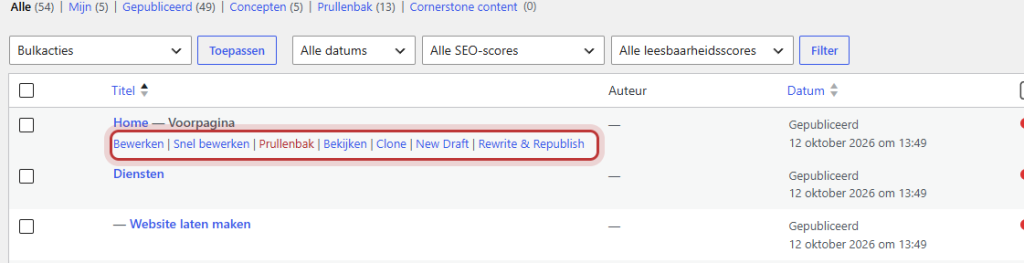
The buttons below are in Dutch. If you see them in English, they are called Clone, New Draft, and Rewrite & Republish.
Step 1: Go to Pages
Click on Pages (or Posts for a post) in the left menu. Hover your mouse over the title of the page you want to copy. Links will appear under the title.
Step 2: Clone or New Draft
- Clone: a copy will immediately appear in the list, with the status Draft. You stay in the list. Handy if you want to make multiple copies.
- New Draft: a copy will be created and it will open immediately in the editor.
You can also do this for multiple pages at once: check them in the list and choose Bulk Actions for cloning.
Step 3: Adjust title and address
Open the copy. The title is the same as the original. Give the page a new title and check the address (the slug) in the sidebar to ensure it fits the new page. See change the URL of your page. Adjust the content and publish the page when it is ready.
Rewriting a live page (Rewrite & Republish)
Do you want to make significant changes to a page that is already online? If you just edit and update it, your changes will go live immediately. With Rewrite & Republish, you work on a copy:
- Hover your mouse over the page in the list and click Rewrite & Republish.
- You will get a copy in the editor. At the top, there will be a notification that you are editing a rewrite copy. The original remains unchanged online.
- Adjust the copy at your own pace. You can save it in between.
- When you’re ready, click Republish. The new version will replace the original at the same address and the copy will disappear.
⟦T0Note: the Yoast title and description will be carried over. A copy receives the same SEO title and meta description as the original. Two pages with the same title in Google can be confusing. Adjust them in the copy; see how to write a good page title and meta description.
Good to know
- Patterns: if there is a synced pattern on the page, it will remain linked to the same Builder in the copy. If you adjust the pattern, it will change on both pages.
- Main page: the copy is under the same main page as the original.
- Menu: a copy does not automatically appear in the menu.
Having trouble?
- You don’t see the links under the title: hover your mouse over the title; the links will only appear then. If you still don’t see them, the plugin may be off or you may not have the rights. Please contact us.
- The address of the copy ends with -2: WordPress makes addresses unique. Adjust the slug to the address you want.
- The rewrite copy appears as a separate page: use the button to republish, not the regular Publish button of a new page.
Share this article

Robert Oosterloo
Robert Oosterloo is eigenaar en UX/UI-designer van Lef Creative in Kollum. Hij ontwerpt websites, webshops en software voor ondernemers in Noord-Nederland.
Read also
More space between blocks
Tabs with Section tabs
Automatically display subpages as tiles






Want a website like this?
Here you can read how easy it is to maintain a leflite site yourself. Want one too? We will think along with you, no strings attached.
Prefer direct contact? Call Robert at 06 35 66 47 73 or send a WhatsApp.