
How do I automatically display all my subpages as tiles?

Robert Oosterloo
Updated on · 4 min read
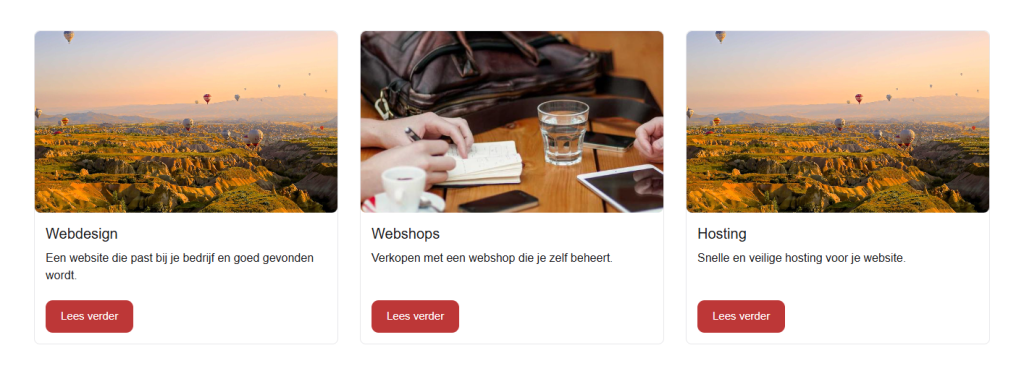
Do you have a Services page with a page for each service underneath? Then you can display an overview on the Services page with a tile for each service. If you later add a service, the tile will automatically be included. You use the block Highlight with the option All underlying pages.
In short
- Set your service pages as subpages under one main page.
- Give each subpage a featured image and a Summary.
- On the main page, place the block Highlight with Highlight type: All underlying pages.
- The order of the tiles is the order of the pages.
- A new subpage will automatically appear as a tile.
Nog geen website op leflite?
Wij bouwen hem samen met jou. Daarna pas je alles zelf aan, precies zoals in dit artikel.
- Online binnen een week
- Hosting, SSL en back-ups inbegrepen
- Vanaf €49,95 per maand

The idea: one main page, tiles of all subpages
Your website has a structure: a main page, such as Services, with subpages underneath, like Web Design and Hosting. The Highlight block can retrieve all subpages of a page. So you don’t have to create and maintain the tiles manually.
What do you need?
- A main page, for example, Services.
- A subpage for each service, published.
- For each subpage, a photo and a short text.
Step 1: Place your service pages under a main page
Open each service page and select the main page in the page settings on the right, for example, Services. You can read how to do this in creating a subpage under a main page.
Step 2: Give each subpage an image and summary
The tile pulls its content from the subpage itself:
- Title: the title of the page.
- Text: the Summary of the page, shortened to about 30 words.
- Photo: the featured image of the page.
Open each subpage and set a featured image in the page settings on the right. Also fill in the summary: one or two sentences about the service. Choose photos in the same ratio, so the tiles will be of equal height. See uploading images in the correct format.
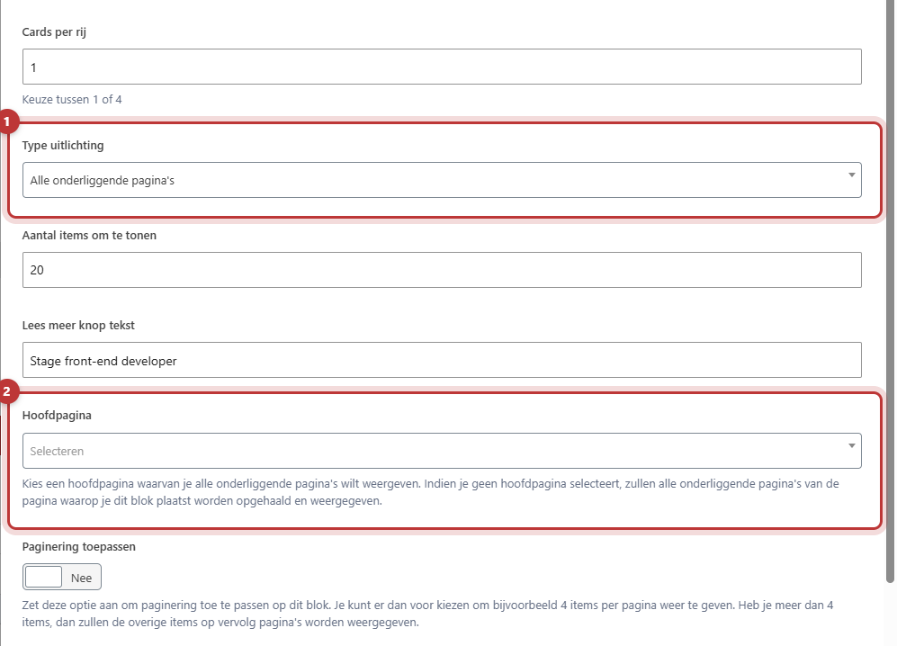
Step 3: Add Highlight with All underlying pages
- Open the main page, for example, Services.
- Add the block Highlight in a column.
- Select the option Highlight type: All underlying pages.
- Leave Main page empty: then the block will take the subpages from the page it is on. Do you want to display the tiles on a different page, for example, your homepage? Then select the Services page for Main page.
- Choose the Card template, for example, Card-default, and the number of Cards per row.
- Set Number of items to display high enough for all your services. If it’s set to 4 and you have 6 services, you will only see 4.
Step 4: Determine the order
The tiles are arranged in the order of your pages. You set this order for each subpage using the field Order in the page settings: lower numbers appear first. For example, if you give your services 10, 20, and 30, you can easily insert one in between later with 15. See creating a subpage.
A different tile text than the page title?
The title on the tile is always the title of the page. If you want a shorter text, adjust the page title. Note: this will also change the title at the top of the page and in the menu. If you want the text on the tile to be different, adjust the Summary; that appears only on the tile. Do you want to fully control what appears on each tile? Then create the tiles manually using the Card block. See a card with image, text, and button.
Tip: do you want the tiles to appear as a slider instead of in rows? Turn on the option in the block Enable slider display. You can read more about all the options of this block in automatically displaying posts or pages with Highlight.
Not working?
- There are no tiles. The page has no published subpages, or the block is on a different page and Main page is empty. Please choose the main page.
- There are missing tiles. Increase Number of items to display. Also, check if the missing page is published and has the correct main page.
- A tile has no photo. Set a featured image for that subpage.
- The text on a tile is empty or messy. Fill in a Summary for that subpage.
- The order is incorrect. Adjust the Order field for the subpages.
- Can’t figure it out? Contact us.
Share this article
Robert Oosterloo
Robert Oosterloo is eigenaar en UX/UI-designer van Lef Creative in Kollum. Hij ontwerpt websites, webshops en software voor ondernemers in Noord-Nederland.
Read also
Automatically display posts or pages
Setting up a slider
Using the Text block






Want a website like this?
Here you can read how easy it is to maintain a leflite site yourself. Want one too? We will think along with you, no strings attached.
Prefer direct contact? Call Robert at 06 35 66 47 73 or send a WhatsApp.