
How do I use the Text block (headings, formatting, color, and icons)?

Robert Oosterloo
Updated on · 5 min read
The block Text is used for almost all text on your website: headings, paragraphs, lists, and links. After this article, you will know how to format text, what to do with text from Word, and how to give a word a color or an icon.
In short
- Add the block Text in a column.
- Choose Paragraph from the formatting list for regular text or Heading 1 to Heading 5 for a heading.
- Subtitle is a small line above or below a heading.
- Text that you paste will always come in without formatting.
- With Add color and Add icon you can give a word a brand color or insert an icon into the text.
Step 1: Add the Text block
Click on the + (Add block) in a column, type ‘text’ and click on Text. The editing window will open with one large field: Text. Above it is a toolbar like the one you know from Word.
Want to change something later? Click on the block and then on Edit, or double-click on the block. Close the window with Done and click on Save in the top right.
Step 2: Choose a format
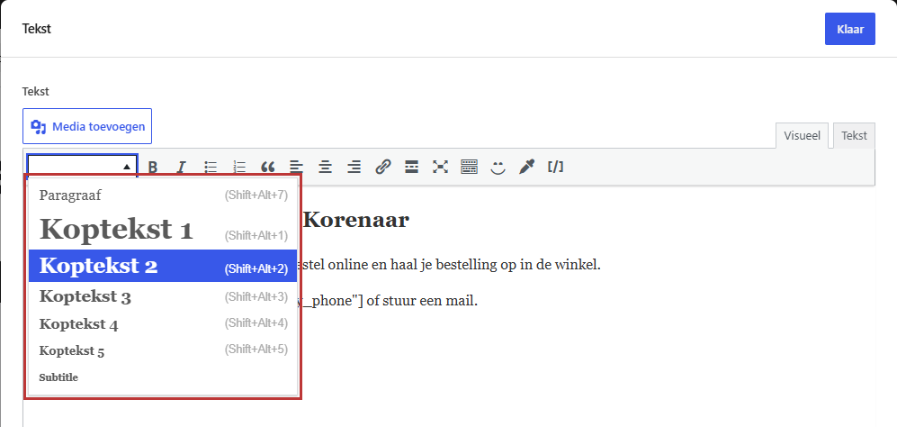
Place your cursor in a line and open the dropdown list on the left in the toolbar. You have these options:
- Paragraph: regular text.
- Heading 1 to Heading 5: headings, from large to small.
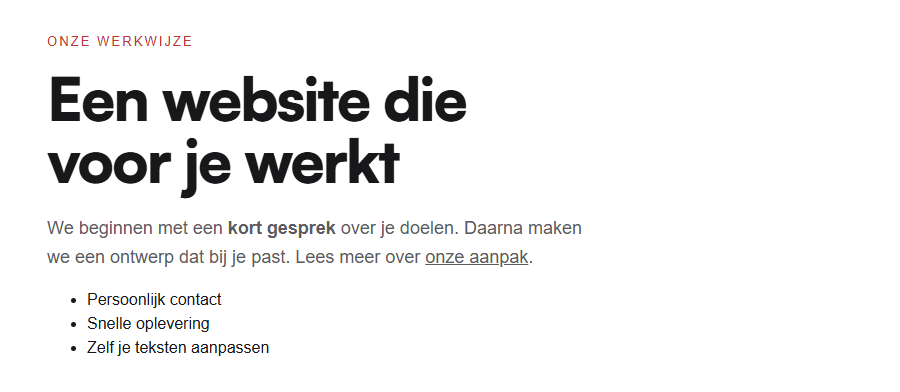
- Subtitle: a small, prominent line. How it looks depends on your brand style.
Nog geen website op leflite?
Wij bouwen hem samen met jou. Daarna pas je alles zelf aan, precies zoals in dit artikel.
- Online binnen een week
- Hosting, SSL en back-ups inbegrepen
- Vanaf €49,95 per maand

Which heading do you use?
Headings give your page structure, for your visitors and for Google. Use them in order:
- Heading 1: once per page, for the main title at the top.
- Heading 2: for the main topics on the page.
- Heading 3: for sections within a Heading 2.
So choose a heading not based on size, but on its place in the structure. More explanation can be found in using headings effectively.
Step 3: Bold, italic, lists, and centering
Select the text and click on B (bold) or I (italic) in the toolbar. With the buttons for a bullet list or a numbered list, you can turn lines into a list. With the alignment buttons, you can set text to the left, center, or right.
Do you want a list with checkmarks or icons? Then use the List block. See creating a list with checkmarks or icons.
Step 4: Adding a link
Select the word that should become a link and click on the chain icon (or press Ctrl+K). Paste a web address, or type part of the name of your own page to search for it. How to do this best is explained in adding a link to another page.
Pasting from Word or an email
Text that you paste into the block will always come in as plain text. Bold, colors, fonts, and tables from Word will disappear. This is intentional: this way, no hidden clutter enters your website, and everything remains in your brand style. After pasting, recreate the headings, bold words, and links using the toolbar.
Tip: first place a long text in the block and then choose the format for each line. Start at the top with the heading, then the subheadings. This way, you can immediately see if the structure is correct.
Step 5: Give a word a color or background color
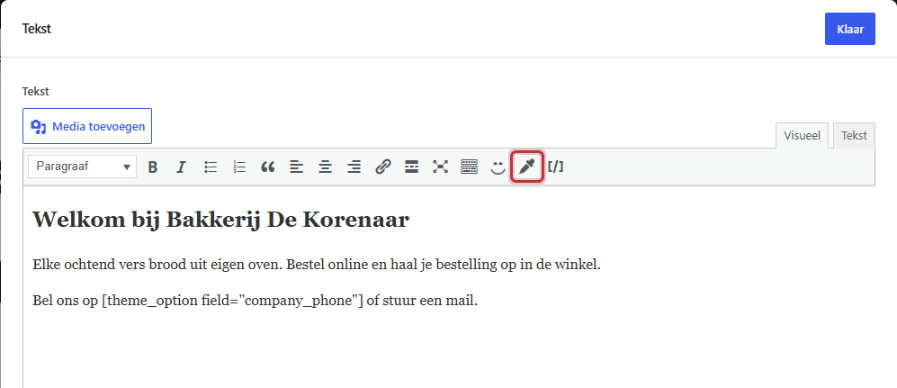
Select a word and click on Add color in the toolbar. In the Select color window, choose a color for Text color or Background color. You will only see the colors from your brand style. With Remove color you can take the color away again.
Step 6: Insert an icon into the text
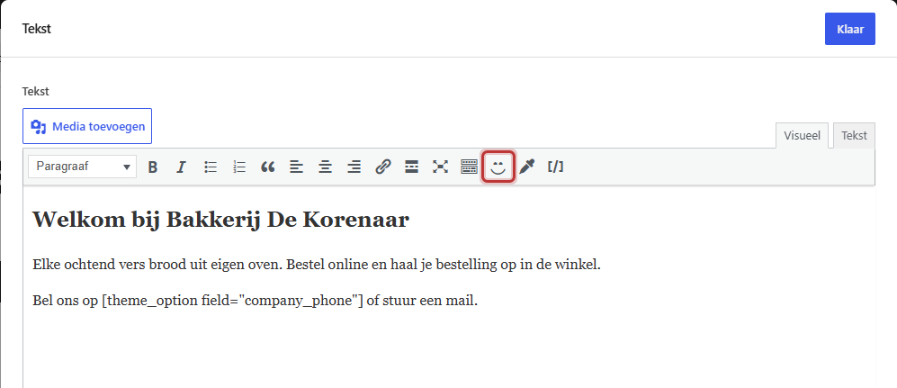
Place your cursor where the icon should go and click on Add icon. In the Select icon window, search for an icon, for example ‘phone’ or ‘check’. The icons have English names. Click on an icon to insert it. The icon will take the same size and color as the surrounding text.
Shortcodes in your text
With the button Add theme option, you can insert information such as your phone number, email address, or opening hours into the text. These come from one central place, so if your number changes, it will be correct everywhere. How this works is explained in automatically adding your phone number to text.
Be sparing with color: why?
Colors and icons in running text stand out. Therefore, they only work if you use them sparingly. Too many colored words make text restless and harder to read. If you color one important word in a heading, it will stand out. For a list with icons, you prefer to use the List block. You can read which colors are in your brand style in colors and fonts of your website.
Having trouble?
- The formatting from Word is gone. That’s correct: pasting goes in as plain text. Recreate the formatting using the toolbar.
- You don’t see the toolbar. Click in the text field. If the editing window is closed, click on the block and then on Edit.
- A heading is too big or too small. Choose the heading based on the structure, not on size. The size belongs to your brand style.
- A color doesn’t disappear. Select the colored word precisely and choose Remove color.
- Your change is not on the site. Click on Done and then on Save. Refresh the page on the website.
- Can’t figure it out? Contact us.
Frequently asked questions
Pasting intentionally goes in as plain text, so that no clutter enters your site. Recreate the formatting afterwards using the toolbar.
No. Fonts and sizes belong to your brand style and are consistent everywhere. You do choose whether a line is a heading or regular text.
Share this article
Robert Oosterloo
Robert Oosterloo is eigenaar en UX/UI-designer van Lef Creative in Kollum. Hij ontwerpt websites, webshops en software voor ondernemers in Noord-Nederland.
Read also
Automatically display posts or pages
Setting up a slider
Automatically inserting phone number in text






Want a website like this?
Here you can read how easy it is to maintain a leflite site yourself. Want one too? We will think along with you, no strings attached.
Prefer direct contact? Call Robert at 06 35 66 47 73 or send a WhatsApp.