
How do I add a link to another page?

Robert Oosterloo
Updated on · 4 min read
Links help your visitor navigate further and show Google which pages are related. In leflite, you insert a link in text using the link window of the Text block, and in a button using the link field of the Button block. You can link to your own pages, to other websites, to a spot on the page, or to your phone number and email address.
In short
- Select text and press Ctrl+K (Mac: Cmd+K), or click on the link icon.
- Type a few letters to search for your own page, or paste a URL.
- Choose a link text that indicates where the link goes, never “click here”.
- Link from every page to a few other relevant pages.
Step 1: Select the text
Click in the Text block and select the words that will become the link. Press Ctrl+K (on a Mac Cmd+K), or click on the link icon in the toolbar. A small window will appear with the field Paste URL or type to search.
Step 2: Find the page or paste a URL
- Your own page: type a few letters of the title. You will see a list of pages and posts; click on the correct one.
- Another website: paste the full address, including
https://.
Press Enter or click on the arrow. The link is in.
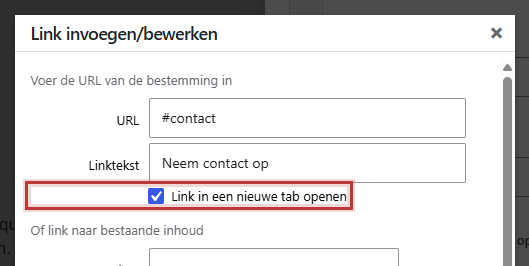
Open in a new tab?
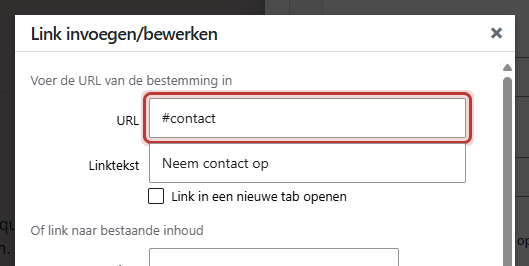
Click on the gear in the link window for Link settings. In the window Insert/Edit Link you will find the checkbox Open link in a new tab. Use that only for links to other websites, or to a PDF. Links to your own pages should open in the same tab: this way the back button works properly.
Nog geen website op leflite?
Wij bouwen hem samen met jou. Daarna pas je alles zelf aan, precies zoals in dit artikel.
- Online binnen een week
- Hosting, SSL en back-ups inbegrepen
- Vanaf €49,95 per maand

A link in a button
A button has its own link field. Click on the Button block and open the link field in the settings. You can search in your own pages or paste a URL, fill in a button text, and choose to open in a new tab. Read adding a button.
A link to a spot on the page, your phone, or email
- To a spot on the page: give a section an anchor and link to
#name-of-anchor. Read a link to a spot on the page. - Calling:
tel:0612345678will directly open the call screen on a phone. - Emailing:
mailto:name@yourcompany.comwill open a new email.
You prefer not to manually enter your phone number and email address in your texts. With the shortcode from the theme options, they are displayed correctly everywhere, even if they change once. Read automatically include your phone number in text.
A good link text
The link text is the text you click on. It indicates where the link goes, even when read separately:
- Not: “Want to know more? Click here.”
- Yes: “Read more about our rates for bike repairs.”
A descriptive link text helps visitors who scan the page, people with screen readers, and Google: it uses the link text to understand what the page behind the link is about.
Internal links and SEO
Links between your own pages are called internal links. They help Google discover your site and show which pages are important. A few rules of thumb:
- Link from every page to two to five other pages that your visitor can benefit from.
- Link more often to your most important pages, such as your services.
- A new page? Add links to it from existing pages, otherwise no one will find it.
Remove a link
Click on the link. In the window that appears, click on the pencil icon to edit it, or on Remove link (the icon with the crossed-out link) to remove the link. The text will remain.
Good to know: If you delete a page or change the URL, links to it will no longer work. Read set up a redirect. More about findability: everything about SEO. Everything about the Text block: using the Text block.
Having trouble?
- Your own page does not appear in the search list. Is the page published? Drafts do not appear. Try typing a different word from the title.
- The link goes to a strange URL. You probably pasted an address without
https://. Adjust the link and enter the full address. - Ctrl+K does nothing. First select the text. Otherwise, click on the link icon in the toolbar.
Still can’t figure it out? Contact us, call 06 35 66 47 73 or email info@lefcreative.nl.
Share this article
Robert Oosterloo
Robert Oosterloo is eigenaar en UX/UI-designer van Lef Creative in Kollum. Hij ontwerpt websites, webshops en software voor ondernemers in Noord-Nederland.
Read also
Using the Text block
Display a breadcrumb trail
Share buttons for social media






Want a website like this?
Here you can read how easy it is to maintain a leflite site yourself. Want one too? We will think along with you, no strings attached.
Prefer direct contact? Call Robert at 06 35 66 47 73 or send a WhatsApp.