
How do I set up a slider (number of slides, autoplay, arrows)?

Robert Oosterloo
Updated on · 4 min read
Different blocks can display their content as a slider: a row of items that you can scroll through with arrows, your mouse, or your finger. The settings are the same everywhere. In this article, you will read what each setting does and how to configure the slider differently on mobile than on a large screen.
In short
- The settings are located in the section Slider settings of the block.
- Tab General + desktop devices: for large screens.
- Tab Mobile devices: for phones and tablets.
- With Items in slider you choose how many slides you see at once, including halves, like 1.25.
- You can enable arrows with Show previous and next buttons.
Where can you find the slider settings?
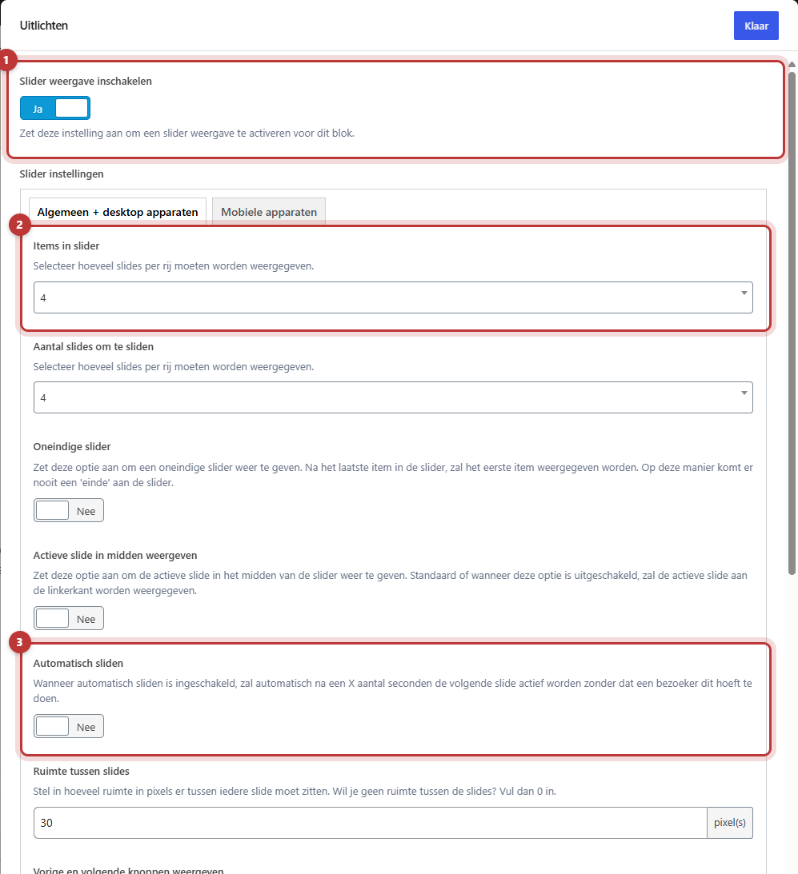
- Highlighting: first enable Enable slider display. Then Slider settings will appear. See automatically display posts or pages.
- Image slider: the settings are always there. See create a slider with photos.
- Highlight products (only with a webshop): first enable the slider. See highlight products.
The settings are divided over two tabs. You can make a slider work differently on a phone than on a large screen.
Tab General + desktop devices
Items in slider and Number of slides to slide
Items in slider determines how many slides you see at once: from 1 to 6. You can also choose, for example, 2.5: then you see two slides fully and the third half. This way, you immediately see that there is more. By default, there are 4.
Number of slides to slide determines how many slides advance per click on an arrow: 1 to 6, or All (a whole row at once).
Infinite slider and Active slide in the center
- Infinite slider: after the last slide, the first one comes back. So there is never an end. This only works on large screens.
- Show active slide in the center: the slide you are on is in the center instead of on the left. Looks nice in combination with, for example, 2.5 items.
Automatic sliding
Enable Automatic sliding to let the slider scroll by itself. With Automatic sliding after X seconds you choose how fast; by default, it is 5 seconds. Don’t choose too fast: visitors need time to read a slide.
Space between slides
In Space between slides you fill in the space in pixels. Default is 30. Fill in 0 if the slides should be right next to each other.
Previous and next buttons
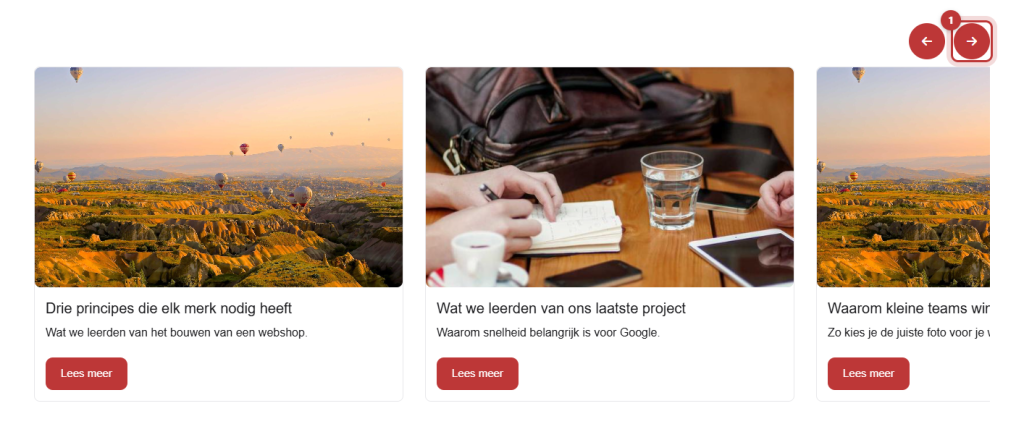
Enable Show previous and next buttons for arrows. In Previous and next buttons location you choose where they are: Top left, Top right, Bottom left, Bottom right or Center in the middle of slides (left and right over the slides).
Nog geen website op leflite?
Wij bouwen hem samen met jou. Daarna pas je alles zelf aan, precies zoals in dit artikel.
- Online binnen een week
- Hosting, SSL en back-ups inbegrepen
- Vanaf €49,95 per maand

Tab Mobile devices
On the tab Mobile devices you set the same for small screens:
- Items in mobile slider: 1 to 4, including half values. Default is 1.
- Number of slides to slide on mobile: 1 to 4, or All.
- Show active slide in the center on mobile.
- Automatic sliding on mobile, with Automatic sliding after X seconds on mobile.
- Space between slides on mobile: default 15.
- Show previous and next buttons on mobile.
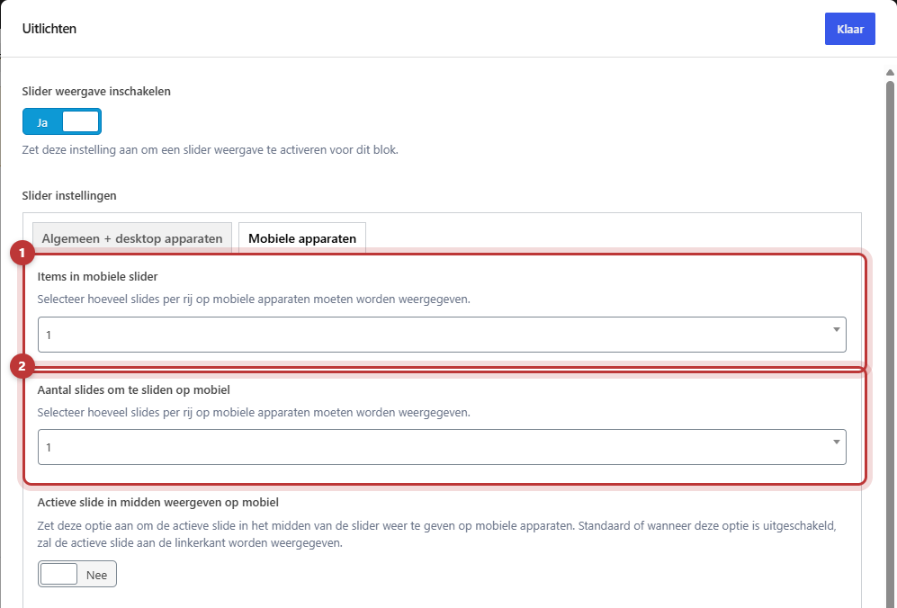
Tip: choose 1.25 on mobile for Items in mobile slider. Then you will see one slide fully and a bit of the next one. This way, everyone understands that you can swipe, even without arrows.
Dragging with the mouse or swiping with a finger always works, even if the arrows are turned off. Dots under the slider that indicate which slide you are on are not included.
Is it not working?
- You don’t see slider settings. First enable Enable slider display under Highlighting or Highlight products.
- The slider does not loop on my phone. Correct: Infinite slider only works on large screens.
- The arrows are missing on mobile. Enable Show previous and next buttons on mobile on the Mobile devices tab.
- The slider is sliding too fast. Increase the number of seconds, or turn off Automatic sliding.
- The slides are too narrow. Choose fewer Items in slider.
- Can’t figure it out? Contact us.
Reviews in a slider? See display reviews on your website.
Frequently asked questions
Not through the settings. Contact us if you want that.
Share this article
Robert Oosterloo
Robert Oosterloo is eigenaar en UX/UI-designer van Lef Creative in Kollum. Hij ontwerpt websites, webshops en software voor ondernemers in Noord-Nederland.
Read also
Automatically display posts or pages
Using the Text block
Automatically inserting phone number in text






Want a website like this?
Here you can read how easy it is to maintain a leflite site yourself. Want one too? We will think along with you, no strings attached.
Prefer direct contact? Call Robert at 06 35 66 47 73 or send a WhatsApp.