
How do I create a slider with photos (or video)?

Robert Oosterloo
Updated on · 3 min read
With the block Image slider, you can display photos in a carousel: visitors can scroll through with arrows, or the slider will automatically advance. A slide can also contain a video. In this article, you will fill in the slides and set up the slider.
In short
- Add the block Image slider in a column.
- For each photo, add a row under Slides and choose the Image.
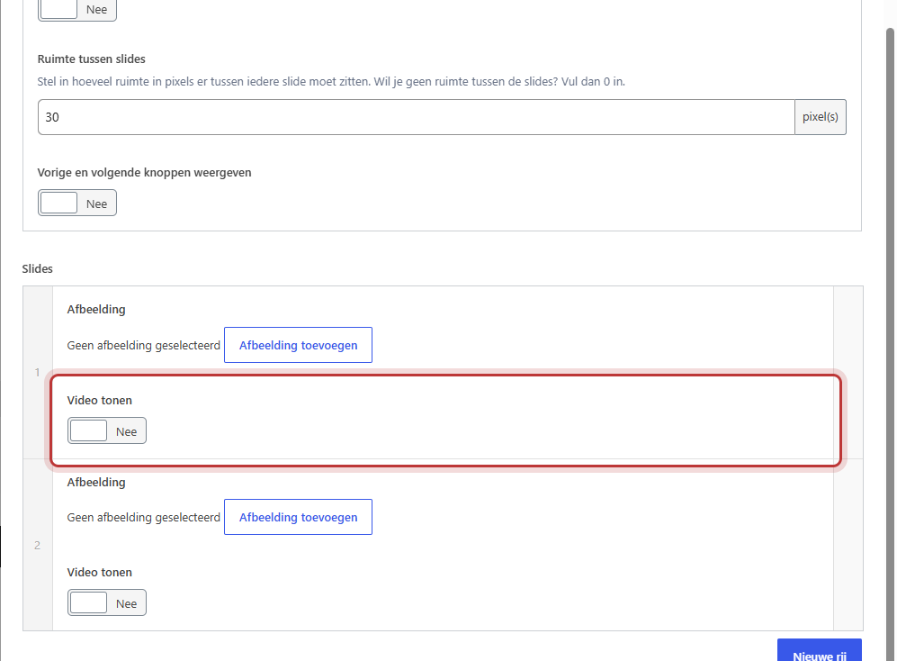
- With Show video, the photo becomes a thumbnail for a video.
- You can set the number of slides, automatic sliding, and arrows in Slider settings.
- Use photos with the same aspect ratio: the slider will crop them accordingly.
Step 1: Add the Image slider block
Click on the plus sign in a column, search for slider, and choose Image slider (“Create a slider from images”).
Step 2: Add slides
Click on the button to add a row under Slides. Choose the photo under Image. Repeat this for each slide. You can change the order by dragging the rows.
Nog geen website op leflite?
Wij bouwen hem samen met jou. Daarna pas je alles zelf aan, precies zoals in dit artikel.
- Online binnen een week
- Hosting, SSL en back-ups inbegrepen
- Vanaf €49,95 per maand

A video in a slide
Enable Show video for a slide and paste the link of a YouTube or Vimeo video under Video. The chosen photo will then be the thumbnail for the video. Your visitor will see the photo with a dark overlay and a play button. Only after a click will the video appear and start playing. Therefore, always choose a photo for a video slide as well.
Step 3: Choose the Image size
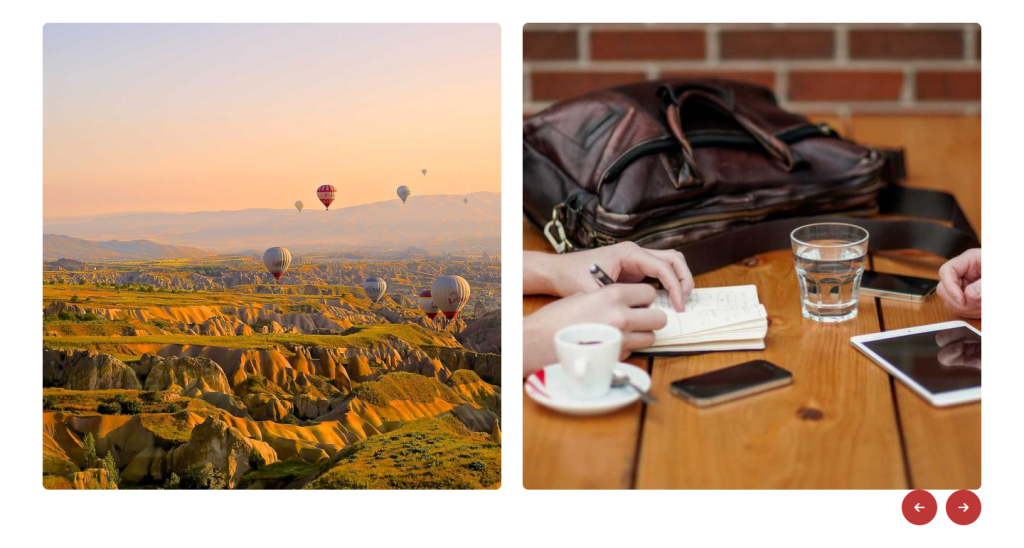
Under Image size, choose which version of the photos the slider will use. If the slider shows multiple photos side by side, then Medium large or Large is sufficient. For one large photo per slide, choose Full size, with photos up to 1920 pixels wide.
Step 4: Set up the slider
In Slider settings, you determine how the slider behaves. There are two tabs: General + desktop devices and Mobile devices. The main options are:
- Items in slider: how many photos are visible at the same time (default 4). A value like 1.5 will show half of the next photo.
- Automatic sliding and Automatically slide after X seconds (default 5).
- Infinite slider: after the last photo, the first one comes back.
- Show previous and next buttons and their position under Previous and next buttons location.
All options are explained in setting up a slider.
Tip: the slider crops photos accordingly, so all slides are the same height. Use photos with the same aspect ratio, so nothing important gets cut off.
Slider or gallery?
- Do you want the visitor to see everything at a glance and view photos in large size? Choose the Gallery.
- Do you want to use little space, show photos one after another, or include a video? Choose the Image slider.
- To place a standalone video without a slider, use the block Video, see placing a video from YouTube or Vimeo.
- You can also create a moving row of logos with the slider, see a row of logos from customers or partners.
Do you want to show the difference between two photos? Then the before-and-after slider is the right block.
Having trouble?
- A video slide only shows the photo. That’s correct until you click: the video starts only after a click. If it still shows nothing after a click, check the link under Video.
- A video slide is empty. Also choose an Image for that slide: the video uses the photo as a thumbnail.
- Photos are cropped oddly. Use photos with the same aspect ratio.
- I don’t see any arrows. Turn on Show previous and next buttons, and for phones, also the mobile variant.
- On mobile, there are too many photos next to each other. Set that in the tab Mobile devices under Items in mobile slider.
Can’t figure it out? Contact us.
Share this article
Robert Oosterloo
Robert Oosterloo is eigenaar en UX/UI-designer van Lef Creative in Kollum. Hij ontwerpt websites, webshops en software voor ondernemers in Noord-Nederland.
Read also
Setting up a slider
A video as a background
A photo as the background of a section






Want a website like this?
Here you can read how easy it is to maintain a leflite site yourself. Want one too? We will think along with you, no strings attached.
Prefer direct contact? Call Robert at 06 35 66 47 73 or send a WhatsApp.