
How do I display reviews and my average score on my website?

Robert Oosterloo
Updated on · 4 min read
You have added reviews. Now you can display them on your website: as individual cards or in a slider with the block Highlight. And with a shortcode, you can include your average score and the number of reviews in any text, always up-to-date.
In short
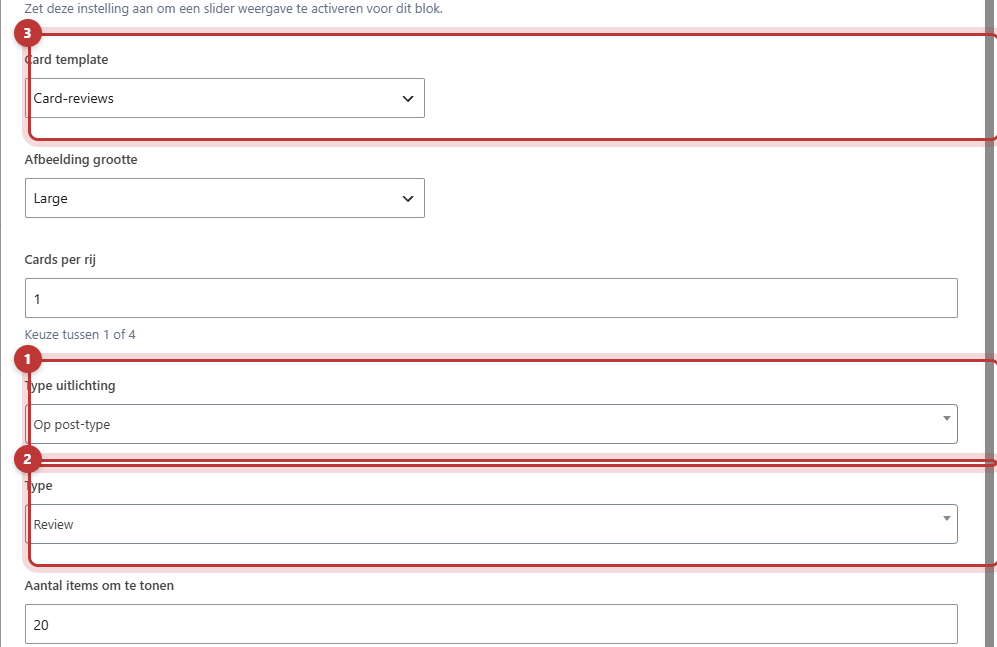
- Add the block Highlight and select By post type and Type Review.
- Choose Card template the option Card-reviews.
- Enable Slider display for a slider.
- You can set your average score with
[review_information]in a Text block. - You can set the number of reviews with
[total_reviews]in a sentence.
Reviews as cards or slider
Highlight: Type Review and Card-reviews
- Add the block Highlight in a column. More about this block: show latest posts or pages with Highlight.
- Choose Highlight type the option By post type.
- Choose Type the option Review.
- Choose Card template the option Card-reviews.
- Fill in Number of items to display for how many reviews you want to show, and at Cards per row how many are displayed side by side.
- Choose Order how the reviews are sorted. With Random visitors will see different reviews each time.
A review card shows the stars, the name, and the text. There is no button, and the card is not clickable: a review does not have its own page.
As a slider
Enable Slider display in the same block. Visitors can then swipe through the reviews. Under Slider settings you can determine how many reviews are displayed at once and whether the slider automatically advances. See setting up a slider.

Your average score in a text
The shortcode review_information
Place the shortcode Text block [review_information]. Your average score (for example, “4.8 / 5”), stars, and the phrase “Based on 12 reviews” will then appear on your website. The score is calculated from all reviews in the module and automatically adjusts when you add a review.
You can customize the shortcode with these options (place them between the brackets, after review_information):
display_average="false": hides the number.display_stars="false": hides the stars.display_based_on="false": hides the phrase “Based on … reviews”.based_on_label="All %1$s satisfied customers": a custom phrase;%1$swill be the number of reviews.based_on_next_average="true": places that phrase next to the number instead of below it.based_on_link="https://…": makes that phrase a link, for example to a page with all your reviews.multiply_stars="true": shows the score on a scale of 10 instead of 5.
An example: [review_information display_based_on="false" multiply_stars="true"] shows only your number on a scale of 10 with the stars.
The shortcode total_reviews
Do you want to show only the number of reviews in a sentence, such as “Already 37 customers went before you”? Then use [total_reviews] in place of the number. You can read how shortcodes work in texts in automatically placing your phone number in a text.
Tip: never type numbers about your reviews manually in a text. Always use the shortcodes. This way, it will be correct everywhere, even if a review is added.
Good to know: if there are no reviews yet, then [review_information] will show nothing. First, add reviews.
Nog geen website op leflite?
Wij bouwen hem samen met jou. Daarna pas je alles zelf aan, precies zoals in dit artikel.
- Online binnen een week
- Hosting, SSL en back-ups inbegrepen
- Vanaf €49,95 per maand

Reviews and Google (schema)
The review cards and the shortcode [review_information] provide Google with the ratings in a format that Google understands (schema). Google decides for itself whether it does anything with it, such as showing stars in search results. Google has its own rules for this; don’t count on it. What’s more important is that visitors see the reviews.
Having trouble?
- Review is not in the list under Type. First, enable the Reviews module under General options.
- The cards look like regular post cards. Choose Card template the option Card-reviews.
- You see the shortcode text on the website. Check the brackets and the spelling. Note: the options are really called display_average and custom_average (with an a).
- The score shows nothing. There are no published reviews yet.
Can’t figure it out? Contact us or call 06 35 66 47 73. We are happy to help.
Share this article
Robert Oosterloo
Robert Oosterloo is eigenaar en UX/UI-designer van Lef Creative in Kollum. Hij ontwerpt websites, webshops en software voor ondernemers in Noord-Nederland.
Read also
Automatically display posts or pages
Placing a quote
Display categories as buttons or cards






Want a website like this?
Here you can read how easy it is to maintain a leflite site yourself. Want one too? We will think along with you, no strings attached.
Prefer direct contact? Call Robert at 06 35 66 47 73 or send a WhatsApp.