
How do I display categories as buttons, links, or cards?

Robert Oosterloo
Updated on · 4 min read
With categories, you help visitors quickly find the topic or products they are looking for. Leflite has two blocks to display categories on a page: as a row of buttons or links, or as tiles with the subcategories underneath. Each button or tile links to the overview of that category.
In short
- Highlight taxonomy terms: categories as Button, Link or Card.
- Highlight category/taxonomy: tiles per main category, with a list of subcategories.
- Choose which categories: all categories of one type, or a custom selection.
- Empty categories are not displayed by default.
- A click goes to the overview of that category.
Which block do you choose?
| You want | Block |
|---|---|
| A row of buttons above your blog overview | Highlight taxonomy terms (Button) |
| A calm row of text links | Highlight taxonomy terms (Link) |
| Tiles with main categories and their subcategories, for example in a webshop | Highlight category/taxonomy |
‘Taxonomy’ is the collective term used by WordPress for categories, tags, and for example product categories. A ‘term’ is one category or tag within that.
Highlight taxonomy terms
Click in a column on the + (Add block), type ‘taxonomy’ and choose Highlight taxonomy terms.
All terms or a selection
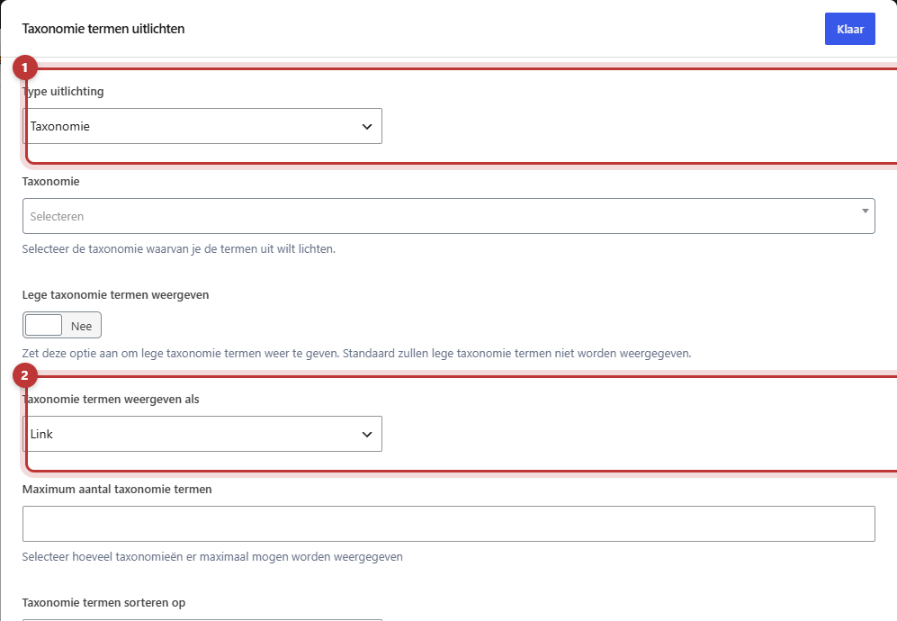
In Type of highlighting you choose:
- Taxonomy: all categories of one type. Choose in Taxonomy which, for example Category (category) for your blog or Category (product_cat) for your webshop.
- Taxonomy terms: choose in Taxonomy terms which categories you want to display.
Display as Button, Link or Card
In Display taxonomy terms as you choose:
- Button: a row of buttons. In Taxonomy term button color you choose the color.
- Link: a row of regular text links.
- Card: a tile per category with a button. In Number of taxonomy terms per row you choose how many side by side, and in Category view button text the text on the button. Empty means ‘View’.

Nog geen website op leflite?
Wij bouwen hem samen met jou. Daarna pas je alles zelf aan, precies zoals in dit artikel.
- Online binnen een week
- Hosting, SSL en back-ups inbegrepen
- Vanaf €49,95 per maand

Sorting, maximum, and empty terms
In Type of highlighting Taxonomy you have two more settings:
- Maximum number of taxonomy terms: how many categories will be displayed at most.
- Sort taxonomy terms by: among others Term name ascending (A-Z), Number of products linked descending (the largest categories first) or Random order.
Categories without posts or products will not be displayed. If you still want to see them, turn Show empty taxonomy terms on.
Highlight category/taxonomy
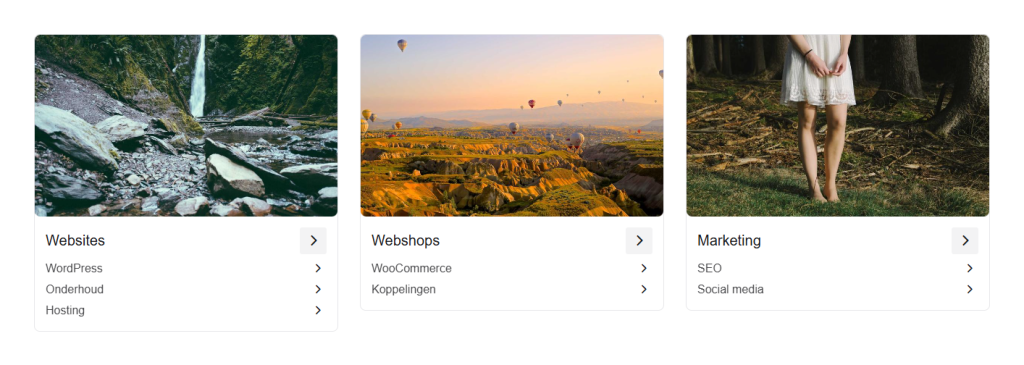
This block shows a tile per main category, with an image, the name, and links to the subcategories underneath. Handy as a starting point for a webshop or a knowledge base. Add the block Highlight category/taxonomy in a column.
The four highlighting options
In Highlight option you choose:
- Highlight main category items with a list of subcategories: all main categories, each with their subcategories.
- Highlight only main category items: only the main categories.
- Manually select categories with a list of subcategories: you choose the main categories in Terms; the subcategories will automatically appear below.
- Full manual selection: you choose both the Main category term and the Subcategory terms for each tile.
In the first two, you also choose the Category (the type) and in Number of terms to display how many. Enter 0 for all.
Terms per row and small image
- Terms per row: 1 to 4 tiles side by side.
- Hide empty terms: turn on to exclude categories without content. By default, they will be displayed.
- Display reduced category/taxonomy image: the image will be smaller (maximum 260 by 180 pixels). Handy for product photos or logos.
An image for a category
The tiles and cards use the image of the category itself. For product categories of a webshop, you set that in Products → Categories: open the category and choose a thumbnail. If a category has no image, you will see a gray area. For regular blog categories, there is no image field by default; it’s better to use buttons or links there.
A text and quick links at the top of a category page of your webshop are set elsewhere. See quick category links and text on a category page.
Tip: place category buttons directly above an overview of your posts. This way, a visitor can immediately filter by topic. You create the overview with the Highlight block. How to assign categories to posts is explained in writing a blog post.
Not working?
- No categories are appearing. They are empty. Turn Show empty taxonomy terms on, or first give the categories posts or products.
- You see the wrong type of categories. Check in Taxonomy if Category which type is selected: blog (category) or webshop (product_cat).
- There is a gray area in a tile. The category has no image.
- There are no subcategories under a tile. That category has no subcategories, or you chose Highlight only main category items.
- Can’t figure it out? Contact us.
All blocks can be found in all blocks in a row.
Share this article
Robert Oosterloo
Robert Oosterloo is eigenaar en UX/UI-designer van Lef Creative in Kollum. Hij ontwerpt websites, webshops en software voor ondernemers in Noord-Nederland.
Read also
Automatically display posts or pages
Setting up a slider
Using the Text block






Want a website like this?
Here you can read how easy it is to maintain a leflite site yourself. Want one too? We will think along with you, no strings attached.
Prefer direct contact? Call Robert at 06 35 66 47 73 or send a WhatsApp.