
All about blocks: which blocks does your leflite website have?

Robert Oosterloo
Updated on · 5 min read
A page on your leflite website consists of sections, columns, and blocks. The blocks are the content: text, a button, a photo, a list with checkmarks. In this article, you will see what blocks are available, what you use them for, and where you can find the explanation for each block.
In short
- Blocks are always in a column. A column is located in a section.
- You add a block using the + in a column.
- The blocks are grouped into General blocks and Cards, and for a webshop, also Webshop blocks.
- Text is always placed in the block Text. The standard WordPress blocks like Paragraph are not included.
- Unsure which block you need? Check the table at the bottom.
Where can you find the blocks?
Only in a column
Leflite works with a fixed structure: a section is a horizontal band across the page, containing one or more columns, and in each column, you place blocks. A block can never stand alone on the page. Don’t have a section yet? First, read how to add a section and divide it into columns.
Click on the + (Add block) in a column. You will then see all the blocks you can use. Type part of the name in the search field, for example, ‘button’, and click on the block. The block’s editing window will open immediately. The steps are also in how to add a block.
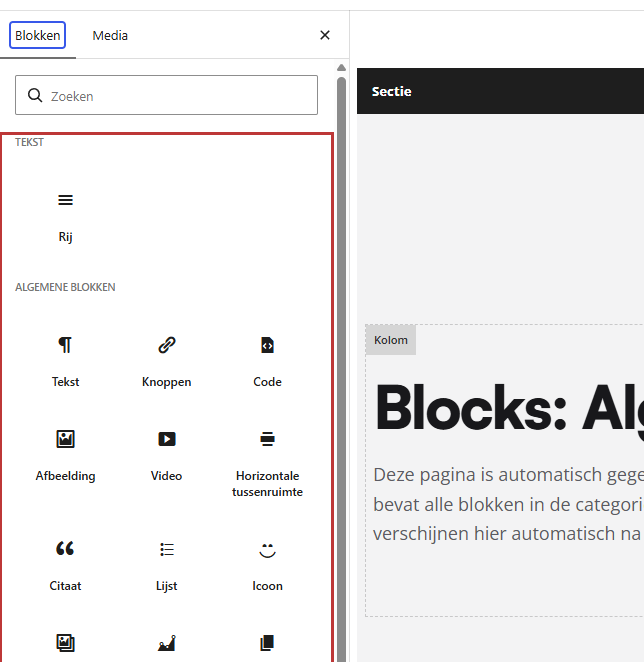
General blocks, Cards, and Webshop blocks
The blocks are divided into three groups:
- General blocks: almost everything, from Text to Section tabs.
- Cards: Normal Card (with image) and Simple Card (without image).
- Webshop blocks: only if your website has a webshop, for example, Highlight Products.
Some blocks only appear if the corresponding module is enabled. Highlight Frequently Asked Questions will only be visible if the Frequently Asked Questions module is activated. You can read more about this in which modules leflite has.
Text and formatting
With the Text block, you can place headings, paragraphs, lists, and links on your page. It is the block you will use most often. In the toolbar, you can also color a word, insert an icon in the text, or add your phone number. Everything about this block is explained in using the Text block.
For information that appears frequently on your site, such as your phone number and address, use the Add theme option button. See your phone number automatically in text.
Nog geen website op leflite?
Wij bouwen hem samen met jou. Daarna pas je alles zelf aan, precies zoals in dit artikel.
- Online binnen een week
- Hosting, SSL en back-ups inbegrepen
- Vanaf €49,95 per maand

Buttons, lists, and icons
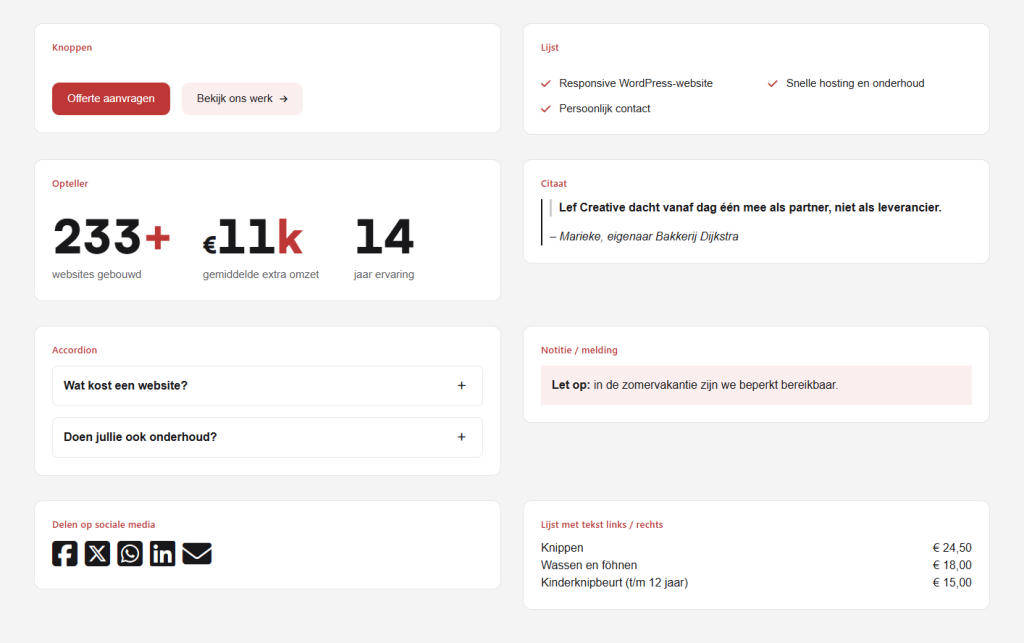
- Buttons: one or more buttons with a link, a color, and possibly an icon. See add a button.
- List: a list with circles, numbers, checkmarks, or text on the left and right. See a list with checkmarks or icons.
- Icon: one large icon, for example, above a service. See place a large icon.
- Quote: a statement with a name underneath. See place a quote.
Image: picture, gallery, sliders, video
- Image: one photo, with a caption or link. See place an image.
- Gallery: multiple photos in a grid. See create a photo gallery.
- Image slider: photos (or videos) that you can flip through. See create a slider with photos.
- Before & after slider: two photos that you compare with a slider. See the before-and-after slider.
- Video: a video from YouTube or Vimeo. See place a video.
Cards and highlights
- Normal Card and Simple Card: a tile that you fill yourself with a title, text, and button. See create a card.
- Highlight: automatically displays posts, pages, or reviews as cards or sliders. See automatically display posts or pages and subpages as tiles.
- Highlight taxonomy terms and Highlight Category / taxonomy: categories as buttons or tiles. See display categories.
Interactive: accordion, section tabs, counter, countdown
- Accordion: titles that expand when clicked. See collapsible blocks.
- Section tabs: tabs that show a different section when clicked. See create tabs.
- Counter: numbers that add up, such as ‘250+ customers’. See let numbers add up.
- Countdown: counting down to a date. See place a countdown.
Other: code, note, share, breadcrumbs, menu, spacing
- Code: a Google Maps map or other embed code. See place a map or code.
- Note / notification: text in a colored box. See text in a colored box.
- Share on social media: share buttons. See add share buttons.
- Breadcrumbs: the breadcrumb trail to the current page. See display a breadcrumb trail.
- Restaurant menu: a menu or price list. See create a menu.
- Horizontal spacing: extra space between two blocks. See create more space between blocks.
- Highlight sidebar and Menu: a sidebar with widgets or a menu in a column. See fill the footer or a sidebar.
Which block should I choose?
| What do you want? | Block |
|---|---|
| A heading and a piece of text | Text |
| A button to another page | Buttons |
| USPs with checkmarks | List (Simple list with icons) |
| A price list | List (text left/right) or Restaurant menu |
| Three services with a tile | Normal card, or Highlight with underlying pages |
| Your latest blog posts | Highlight |
| Frequently asked questions | Accordion, or Highlight frequently asked questions |
| A prominent attention box | Note / notification |
| A map with your location | Code |
| Key figures | Counter |
Tip: is a block in the wrong place? You can move, duplicate, and delete blocks. Read how to move or copy a block.
Having trouble?
- You don’t see a + to add a block. You are probably not in a column. First, click in a column of a section, or add a section with + Add Section.
- Can’t find a block? Search for part of the name. If you still don’t see it, it might belong to a module or the webshop.
- You are looking for the Paragraph or Heading block. You don’t use that in leflite. Use the Text block; there you can choose a heading or regular text yourself.
- You want a block that isn’t included. Please contact us. We will see what is possible.
Frequently Asked Questions
In leflite, you use the Text block. In it, you can place headings, paragraphs, lists, and links. This way, the formatting remains consistent everywhere.
No. The blocks are part of the theme, so everything stays in your brand style. If you miss something, please contact us.
Share this article
Robert Oosterloo
Robert Oosterloo is eigenaar en UX/UI-designer van Lef Creative in Kollum. Hij ontwerpt websites, webshops en software voor ondernemers in Noord-Nederland.
Read also
Automatically display posts or pages
Setting up a slider
Using the Text block






Want a website like this?
Here you can read how easy it is to maintain a leflite site yourself. Want one too? We will think along with you, no strings attached.
Prefer direct contact? Call Robert at 06 35 66 47 73 or send a WhatsApp.