
How do I place text in a prominently colored box?

Robert Oosterloo
Updated on · 3 min read
Sometimes one piece of text needs to stand out: a notice, a temporary promotion, or a short summary. With the block Notice / alert, you can place that text in a box with a background color from your brand style. The box ‘In short’ at the top of this article is an example of this.
In short
- Add the block Notice / alert in a column.
- Choose the background color under Color. If you choose nothing, the box will be white.
- Write your text in Notice text. You can also use headings, bold text, and links there.
- A notification on every page is set elsewhere: under General options → Notification.
Nog geen website op leflite?
Wij bouwen hem samen met jou. Daarna pas je alles zelf aan, precies zoals in dit artikel.
- Online binnen een week
- Hosting, SSL en back-ups inbegrepen
- Vanaf €49,95 per maand

Step 1: Add the Notice / alert block
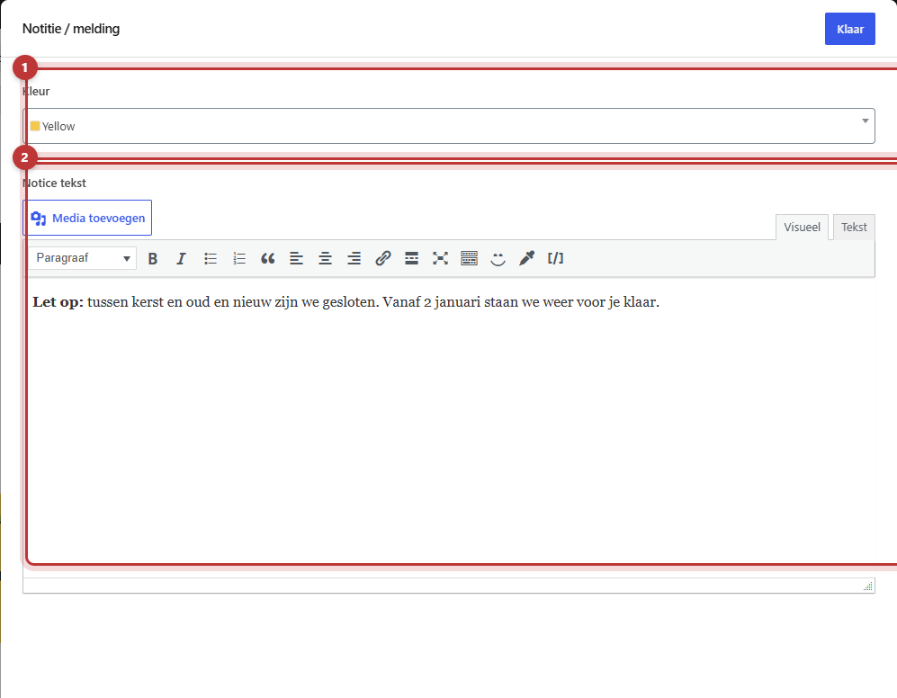
Click on the + (Add block) in a column, type ‘notice’ or ‘alert’ and choose Notice / alert. The editing window will open with two fields.
Step 2: Choose the background color
Under Color, you will see the colors from your brand style, each with a colored square. Choose a color that stands out, but on which the text remains easily readable. A light color with dark text usually works well. If you choose nothing, the box will be white. On a white section, you won’t see the box; in that case, choose a color.
Step 3: Write the Notice text
The field Notice text works the same as the Text block. You can use a heading, bold words, a list, and links. Start a notice, for example, with a bold word: ‘Notice: …’. See using the Text block for all formatting.
Click on Done and then on the top right Save.

The box has space around the text and the color you chose. The box is as wide as the column it is in. If you want a narrower box, place it in a narrower column.
Notice, card column, or alert at the top?
There are three ways to place something in a box. Here’s how you choose:
- Notice / alert: one piece of text in a colored box, in the middle of your page. Quick and simple.
- A column as a card: the entire column becomes a box, with everything inside: text, an image, buttons. Handy if the box contains more than just text. See a column as a card.
- Alert at the top of your website: a bar at the top of every page, for example, for different opening hours. You set this under General options → Notification. See an alert at the top of your website.
⟦T0Tip: use a colored box sparingly. One box on a page stands out; five boxes on a page all blend in. Always use the same color for the same type of message.
Having trouble?
- You can’t see the box. The box is white on a white section. Choose a different color under Color.
- The text is poorly readable. Choose a lighter or darker background color. You can read about the available colors in colors and fonts of your website.
- You want rounded corners or a border. That is not possible with this block. Use a column as a card.
- You want the same alert on every page. Use the Notification under General options instead of this block.
- Can’t figure it out? Contact us.
Share this article
Robert Oosterloo
Robert Oosterloo is eigenaar en UX/UI-designer van Lef Creative in Kollum. Hij ontwerpt websites, webshops en software voor ondernemers in Noord-Nederland.
Read also
Automatically display posts or pages
Setting up a slider
Using the Text block






Want a website like this?
Here you can read how easy it is to maintain a leflite site yourself. Want one too? We will think along with you, no strings attached.
Prefer direct contact? Call Robert at 06 35 66 47 73 or send a WhatsApp.