
How do I turn a column into a card (and make it overlap)?

Robert Oosterloo
Updated on · 4 min read
A card is a box with its own background, rounded corners, and space around the content. You create one from an entire column, with all the blocks inside it. Such a card can also extend over the edge of the previous or next section: a beautiful effect under a large photo.
In short
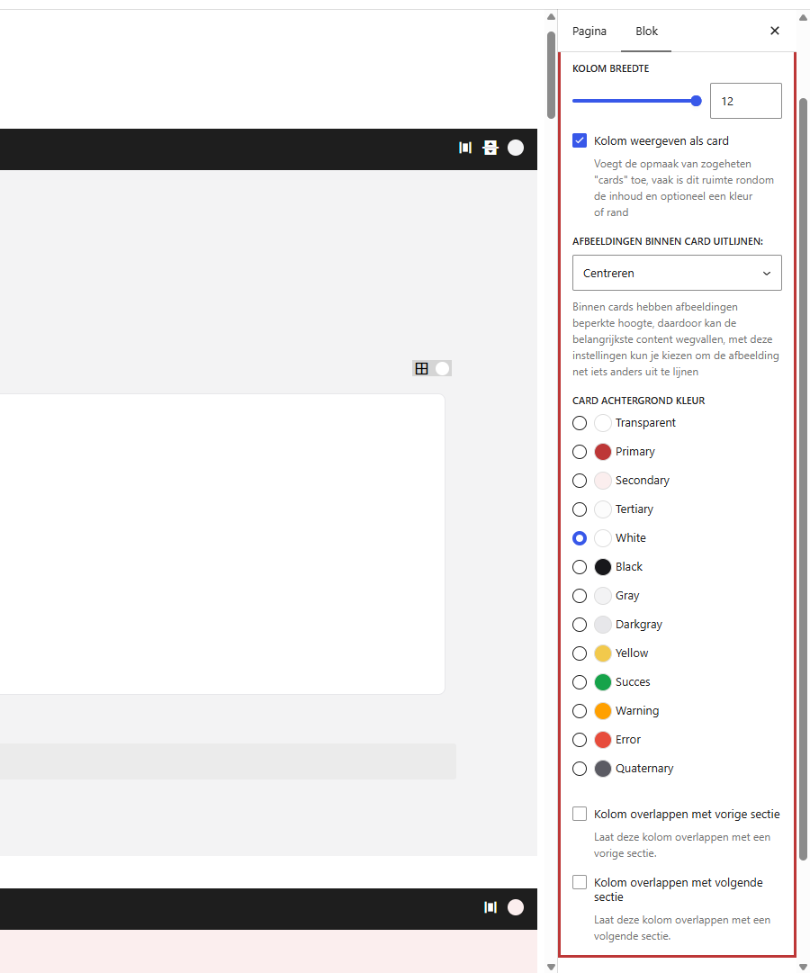
- Select the column and check the box in Column settings for Display column as card.
- Choose a Card background color; by default, this is White.
- With Overlap column with previous section or next section, the card extends out.
- The overlap also applies on mobile. Check the result there.
Nog geen website op leflite?
Wij bouwen hem samen met jou. Daarna pas je alles zelf aan, precies zoals in dit artikel.
- Online binnen een week
- Hosting, SSL en back-ups inbegrepen
- Vanaf €49,95 per maand

Step 1: Select the column
Click in the column next to the blocks, or choose Column in the list view. The panel Column settings will appear on the right.
Step 2: Turn on Display column as card
Check Display column as card. The column will now take on the appearance of a card from your brand style: rounded corners, a thin border, and space around the content.
Step 3: Choose the Card background color
Under the checkbox, Card background color will appear. Click on a color from your brand style. Just like with a section, the text color will automatically change: white text on a dark card. A white card on a light gray section gives a calm, neat effect.
Overlap with the previous or next section
If the column is a card, two extra checkboxes will appear:
- Overlap column with previous section: the card slides up, over the section above.
- Overlap column with next section: the card slides down, over the section below.
You choose one of the two. Then set with Overlap with pixels how much the card shifts (0 to 1000). In the editor, you will see the text “Extends on the site … px into the previous section” by the card.
The card shifts from the place where it normally stands, and the section has its own space above and below. If you want it to really extend into the previous section, choose more pixels than that space. Start with 150, for example, and see how it turns out on your site.
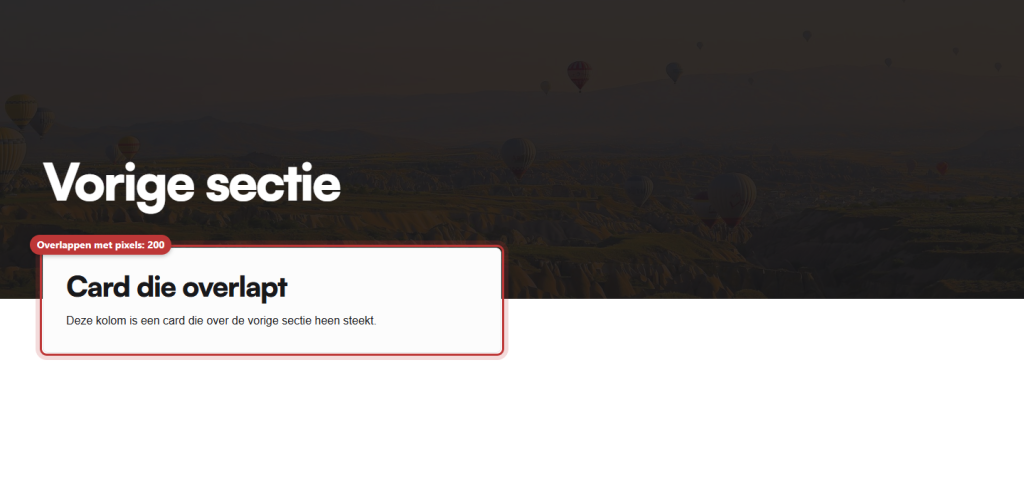
Note: the overlap also applies on mobile. On a phone, columns are stacked, and the card shifts just as far. As a result, it may overlap text or a button in the previous section. Check the page on your phone. If it looks bad, make the overlap smaller or use a separate section for mobile (see sections and columns on mobile).
Card column or Card block?
There are two ways to create a card:
- A column as a card (this article): you place blocks in the column yourself, such as Text, List, and Buttons. Freely arranged and suitable for overlapping.
- The block Card normal or Card simple: a fixed structure with an image, title, text, and button. Quickly made, and the entire card is clickable. See a card with an image, text, and button.
A column as a card is not entirely clickable: only the buttons and links inside it. If you want an entire tile to be clickable, read making a column or card fully clickable.
If you place three card columns next to each other, choose Stretch for the section so they become the same height; see making columns the same height.
Not working?
- You don’t see card settings: you have selected the section or a block. Select the column.
- The overlap checkboxes are missing: they only appear when Display column as card is turned on. If one of the two is on, the other is hidden.
- The card does not extend: choose more pixels for Overlap with pixels; the space above in the section is removed first.
- The card falls behind the next section: with overlap with the next section, that section can fall over the card. Preferably use overlap with the previous section, or ask us for help.
- The card and the section have the same color: then you can hardly see the card. Choose a different Card background color.
Share this article
Robert Oosterloo
Robert Oosterloo is eigenaar en UX/UI-designer van Lef Creative in Kollum. Hij ontwerpt websites, webshops en software voor ondernemers in Noord-Nederland.
Read also
More space between blocks
Tabs with Section tabs
Automatically display subpages as tiles






Want a website like this?
Here you can read how easy it is to maintain a leflite site yourself. Want one too? We will think along with you, no strings attached.
Prefer direct contact? Call Robert at 06 35 66 47 73 or send a WhatsApp.