
How do I automatically display my latest posts or pages (Highlight)?

Robert Oosterloo
Updated on · 4 min read
Do you want your latest blog posts on the homepage, or a row of your services that updates automatically? Then use the Highlight block. It fetches the items itself and displays them as cards or in a slider. When you write a new post, it will appear immediately.
In short
- Add the Highlight block in a column.
- Choose at Type of highlight where the items come from.
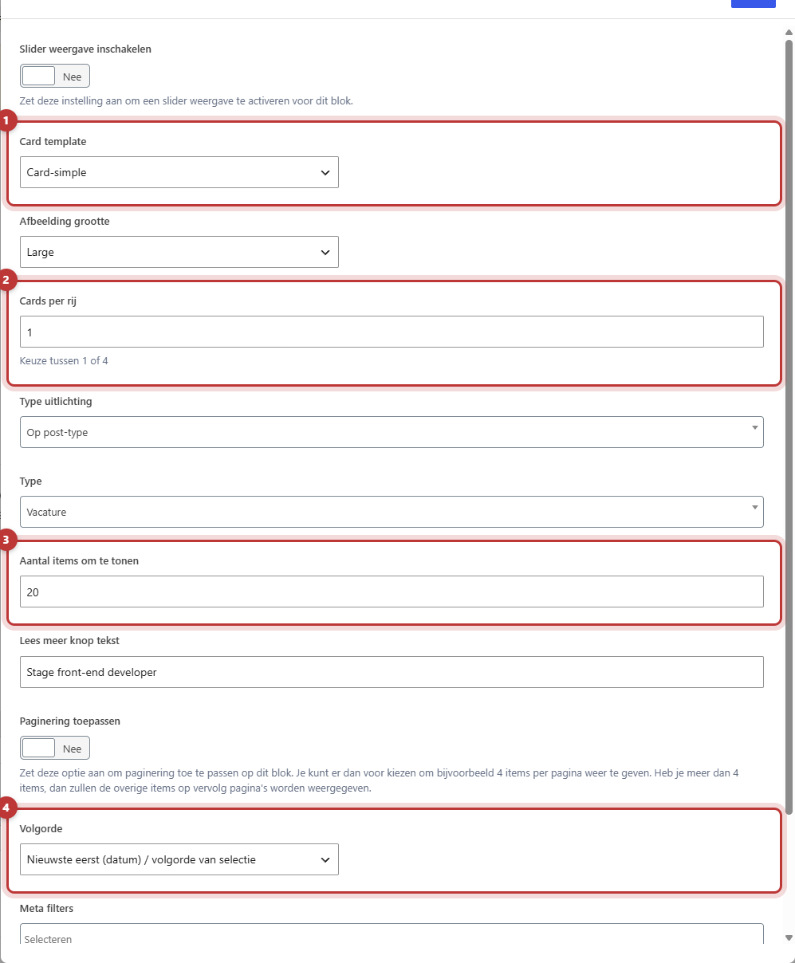
- Set Number of items to display, Cards per row, and Order.
- Choose a Card template for the appearance.
- Title, text, and image come from the post or the page itself.
Nog geen website op leflite?
Wij bouwen hem samen met jou. Daarna pas je alles zelf aan, precies zoals in dit artikel.
- Online binnen een week
- Hosting, SSL en back-ups inbegrepen
- Vanaf €49,95 per maand

What can you do with it?
- Your latest blog posts on the homepage.
- All posts from one category, for example, ‘News’.
- A custom selection of pages, in the order you choose.
- All subpages of a page as tiles. See all your subpages automatically as tiles.
- Reviews or frequently asked questions, if those modules are enabled. See show reviews.
Step 1: Add the Highlight block
Click on the + (Add block), type ‘highlight’ and choose Highlight. Place the block in a wide column, for example, a section with one column across the full width.
Step 2: Choose the Type of highlight
At Type of highlight you determine where the items come from. There are four choices.
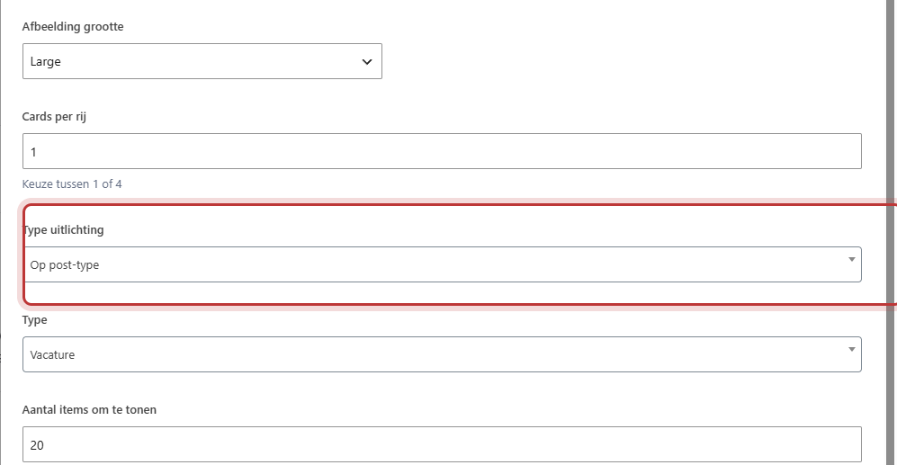
By post type
Displays items of one type. Choose at Type for example Post for your blog or Page. The types you see depend on your website; with the modules enabled, you will also see Review and Frequently asked question.
By taxonomy (e.g., one category)
Displays only items from one category. Choose at Taxonomy the category, for example, ‘[Categorie] News’.
Self-selecting
Choose at Self highlighting exactly which posts or pages you want to display. They will appear in the order you choose. Handy for three highlighted services on your homepage.
All underlying pages
Displays all subpages of a main page, which you choose at Main page. If you leave that field empty, the block will take the subpages of the page it is on.
Step 3: Number, cards per row, and order
- Number of items to display: how many items will be shown at most. Default is 4.
- Cards per row: 1 to 4 next to each other. If you choose 1, you will get horizontal cards stacked on top of each other, like a list.
- Order: Newest first (date) / order of selection, Oldest first (date) / reverse order of selection or Random.
- Read more button text: the text on the button in each card. Empty means ‘Read more’.
Step 4: Choose the Card template
At Card template you choose how each item looks:
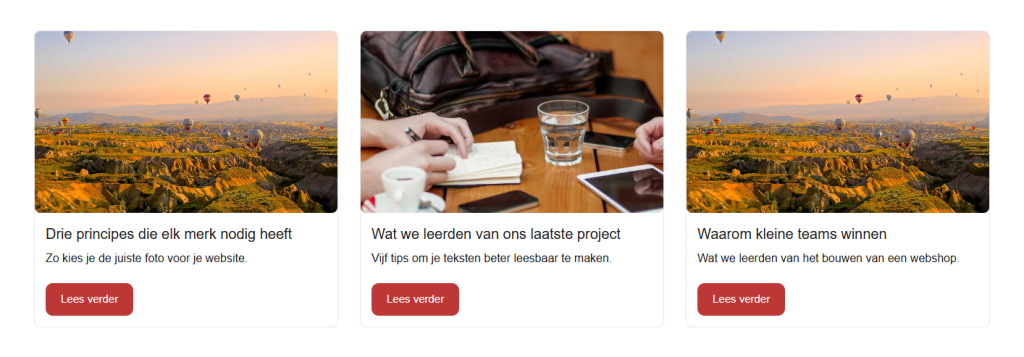
- Card-default: image, title, short text, and button. The most used.
- Card-simple: without image.
- Card-portfolio: a square photo with the title over it, for projects.
- Card-reviews: for reviews, with stars.
At Image size you choose which version of the photo is loaded. Leave it on Large unless the cards are very small.
Pagination
Enable Apply pagination if you have more items than you display at once. Buttons to the next pages will then appear under the cards. With 4 items at a time and 10 posts, for example, you will get three pages. Pagination only works without a slider.
Show as slider
Enable Enable slider display to show the items in a slider instead of in rows. A block Slider settings will appear, where you can choose how many items you see at once and whether the slider scrolls automatically. All settings are in setting a slider.
Where do the title, text, and image come from?
- Title: the title of the post or page.
- Text: the Summary of the post or page, shortened to about 30 words. Fill in that summary yourself for a good text.
- Image: the featured image. Without a featured image, you will see a gray area.
To adjust a text or photo, you do so in the post or page itself, not in the block. How to create a post with an image and summary is explained in writing and publishing a blog post.
Tip: do you want categories as buttons above your blog overview? There is a separate block for that. See show categories as buttons or cards.
Not working?
- It says ‘There are currently no … available’. There are no published items that match your choice. Check the type or category.
- A card has no photo. The post or page has no featured image.
- The text in the card is empty or strange. Fill in a Summary in the post or page.
- You see no pagination. Enable Apply pagination and turn off the slider. You must also have more items than the number you display.
- The order is incorrect. With Self-selecting, the order is based on how you choose them. Drag them into the Self highlighting field.
- Can’t figure it out? Contact us.
Frequently asked questions
The card uses the featured image from the post or page. Set that in the post or page itself.
Share this article
Robert Oosterloo
Robert Oosterloo is eigenaar en UX/UI-designer van Lef Creative in Kollum. Hij ontwerpt websites, webshops en software voor ondernemers in Noord-Nederland.
Read also
Setting up a slider
Using the Text block
Automatically inserting phone number in text






Want a website like this?
Here you can read how easy it is to maintain a leflite site yourself. Want one too? We will think along with you, no strings attached.
Prefer direct contact? Call Robert at 06 35 66 47 73 or send a WhatsApp.