
How do I place a quote or customer statement?

Robert Oosterloo
Updated on · 3 min read
A customer who shares how satisfied they are convinces more than your own words. With the block Quote, you can place such a statement along with the name on your page. In this article, you will learn how and when it is better to use the Reviews module.
In short
- Add the block Quote in a column.
- Fill in the statement under Quote and the name under Author.
- On the website, the quote appears bold with a line to the left and the name below it.
- Multiple customer reviews with stars? Use the Reviews module.
Step 1: Add the Quote block
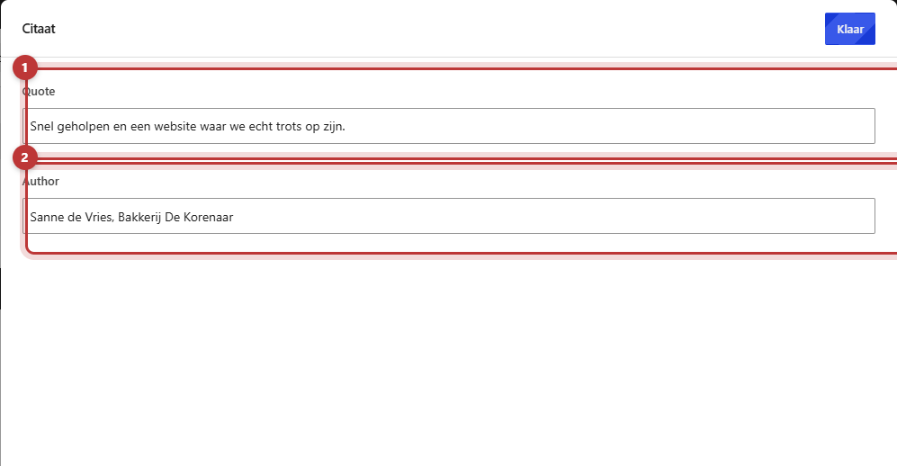
Click on the + (Add block) in a column, type ‘quote’ and select Quote. The editing window will open with two fields.
Step 2: Fill in Quote and Author
- Quote: the statement itself. This is a plain text field, without formatting. Do not type quotation marks: the statement will already stand out on the site.
- Author: who said it. For example, ‘Marieke, owner of Bakery Dijkstra’.
Click on Done and then on Save.
Nog geen website op leflite?
Wij bouwen hem samen met jou. Daarna pas je alles zelf aan, precies zoals in dit artikel.
- Online binnen een week
- Hosting, SSL en back-ups inbegrepen
- Vanaf €49,95 per maand

What does it look like?
On the website, the statement appears in bold with a thin line next to it. Below that is the name, with a dash in front. If you leave Quote empty, the block will show nothing.

Quote or review?
The Quote block is useful for one statement in a fixed place, for example, next to the description of a project or service. You type the text yourself in the block.
Do you want to show multiple customer reviews, with stars and an average score? Then use the Reviews module. You add each review once and display them on every page you want, for example, in a slider. Read adding customer reviews and showing reviews and your average score.
Tips for a strong quote
- Short. One or two sentences read best. Choose the strongest part from a longer response.
- Concrete. ‘We receive twice as many inquiries’ says more than ‘Very satisfied!’.
- Real. Only use statements that were actually made, and ask the customer if you may mention their name.
- With name and position or company. This makes it more credible.
- In the right place. Place a quote next to the service or project it is about.
Tip: do you want the statement next to a photo of the customer? Create a section with two columns: an Image block on the left, and the Quote block on the right.
Not working?
- The quote is not on the website. The field Quote is empty. Fill it in.
- You cannot make any words bold or italic. Correct: the Quote field has no formatting. If you need that, use the Text block. See using the Text block.
- There are double quotation marks. Remove the quotation marks from your text.
- You want stars with the statement. Use the Reviews module.
- Can’t figure it out? Contact us.
You can find more blocks in all blocks in one place.
Share this article
Robert Oosterloo
Robert Oosterloo is eigenaar en UX/UI-designer van Lef Creative in Kollum. Hij ontwerpt websites, webshops en software voor ondernemers in Noord-Nederland.
Read also
Automatically display posts or pages
Setting up a slider
Using the Text block






Want a website like this?
Here you can read how easy it is to maintain a leflite site yourself. Want one too? We will think along with you, no strings attached.
Prefer direct contact? Call Robert at 06 35 66 47 73 or send a WhatsApp.