
How do I add customer reviews to my website?

Robert Oosterloo
Updated on · 3 min read
Customer reviews from satisfied clients convince new visitors better than what you write about your company. With the Reviews module, you can display reviews on your website: the customer’s name, the number of stars, and the text.
In short
- Enable the module under General options → Reviews.
- Go to Reviews → Add new review.
- The title is the customer’s name.
- Choose the Number of stars and enter the text in the Review field.
- Use only genuine reviews, with the customer’s permission.
Nog geen website op leflite?
Wij bouwen hem samen met jou. Daarna pas je alles zelf aan, precies zoals in dit artikel.
- Online binnen een week
- Hosting, SSL en back-ups inbegrepen
- Vanaf €49,95 per maand

Step 1: Enable the Reviews module
Is Reviews not yet in the left menu? Go to General options → Reviews, enable Enable Reviews and click Update. See also enabling modules.
Step 2: Add a new review
Go to Reviews → Add new review.
Step 3: Name, stars, and text
- Title: the customer’s name, for example, “Sanne de Vries” or “Sanne, Dokkum”. Use a full name only if the customer agrees.
- Number of stars: choose from ★ to ★★★★★. The field starts at one star, so always choose the correct number yourself.
- Review: the customer’s text. You can use formatting, but stick to the customer’s words.
Click Publish.
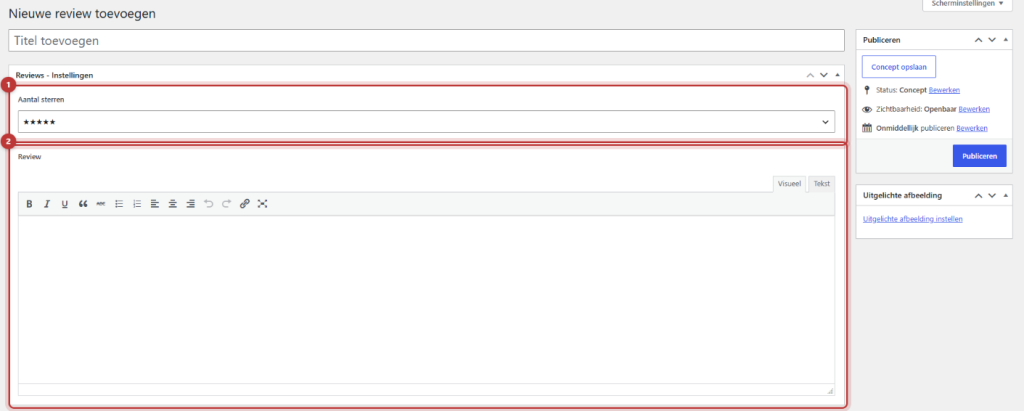
Note: the number of stars counts towards your average score. If you forget to choose it, the review will be saved as one star and your average will drop. Check it in the overview.

Good to know: on the website, a review shows the stars, the name, and the text. A photo or date does not appear in the review card. Reviews do not have their own page; they appear where you place them. You can read how this works in showing reviews and your average score.
Genuine reviews: what should you pay attention to?
- Only genuine reviews. Never post fabricated reviews on your website. That is misleading and not allowed.
- Ask for permission. If you receive a compliment via email or WhatsApp, ask if you can post it as a review and under which name.
- Keep the customer’s words intact. You may correct a typo, but do not change the content.
- A four is also good. A mix of four and five stars comes across as more credible than only fives.
- Short is fine. Optionally extract the strongest sentences from a long story, with permission.
Reviews from Google or Kiyoh?
The Reviews module in leflite works with reviews that you add yourself. There is no automatic connection with Google, Kiyoh, or other review sites. The average that you display with a shortcode in a text is calculated from the reviews in this module. Do you still want reviews from another platform on your website? Then take over a few reviews (with permission) and mention where they come from, or discuss with us what is possible.
A single statement from one customer, for example in a case, is better placed with the block Quote. See placing a quote or customer statement.
Having trouble?
- The Reviews menu is not there. Enable the module under General options → Reviews.
- A new review is not showing on the website. Is it published? And does your page show reviews with the Highlight block? See showing reviews.
- Your average score is lower than expected. Check if each review has the correct number of stars.
Can’t figure it out? Contact us or call 06 35 66 47 73. We are happy to help.
Share this article
Robert Oosterloo
Robert Oosterloo is eigenaar en UX/UI-designer van Lef Creative in Kollum. Hij ontwerpt websites, webshops en software voor ondernemers in Noord-Nederland.
Read also
Automatically display posts or pages
Placing a quote
Display categories as buttons or cards






Want a website like this?
Here you can read how easy it is to maintain a leflite site yourself. Want one too? We will think along with you, no strings attached.
Prefer direct contact? Call Robert at 06 35 66 47 73 or send a WhatsApp.