
How do I move, copy, or delete a block?

Robert Oosterloo
Updated on · 5 min read
Is a block in the wrong place, or do you want to reuse a column? In the editor, you can move, copy, and delete blocks, columns, and entire sections with just a few clicks. Read here how to do it, and how to undo a mistake.
In short
- Click on a block to select it. A toolbar will appear above the block.
- With the arrows in the toolbar, you can move the block up or down.
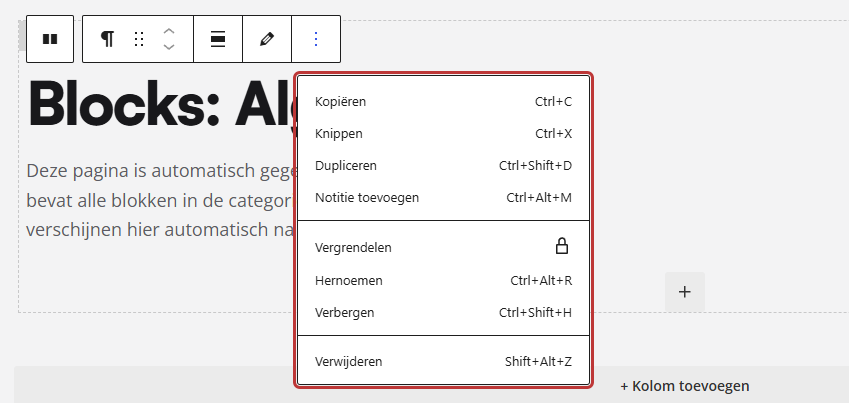
- Through the three dots (Options), you can choose Duplicate or Delete.
- In the List view, you can drag a block to another column.
- Something went wrong? Ctrl+Z (Mac: Cmd+Z) will undo it.
What do you need?
- A page or post that you are editing in the editor.
- A bit of knowledge about the structure: a block is in a column, a column is in a section. See sections and columns.
Step 1: Select the block (or the surrounding section)
Click once on the block. A toolbar will appear above the block with, among other things, two arrows, the Edit button, and three dots (Options).
Do you want to move not the block but the column or the entire section? Then click on the far left in the toolbar on the icon of the parent block (Select parent block). Clicking once selects the column, and clicking again selects the section.
Note: if you double-click on a block, the edit window opens. You can adjust the content there. Close the window with Done if you only want to move it.
Nog geen website op leflite?
Wij bouwen hem samen met jou. Daarna pas je alles zelf aan, precies zoals in dit artikel.
- Online binnen een week
- Hosting, SSL en back-ups inbegrepen
- Vanaf €49,95 per maand

Step 2: Move the block with the arrows
Click on the arrow up or down in the toolbar (Move up / Move down). The block will then swap places with the block above or below it, within the same column.
You can also grab the block by the drag icon (six dots) in the toolbar and drag it to another location. This works well within a column, but between columns, the list view is easier.
Step 3: Use the list view for larger moves
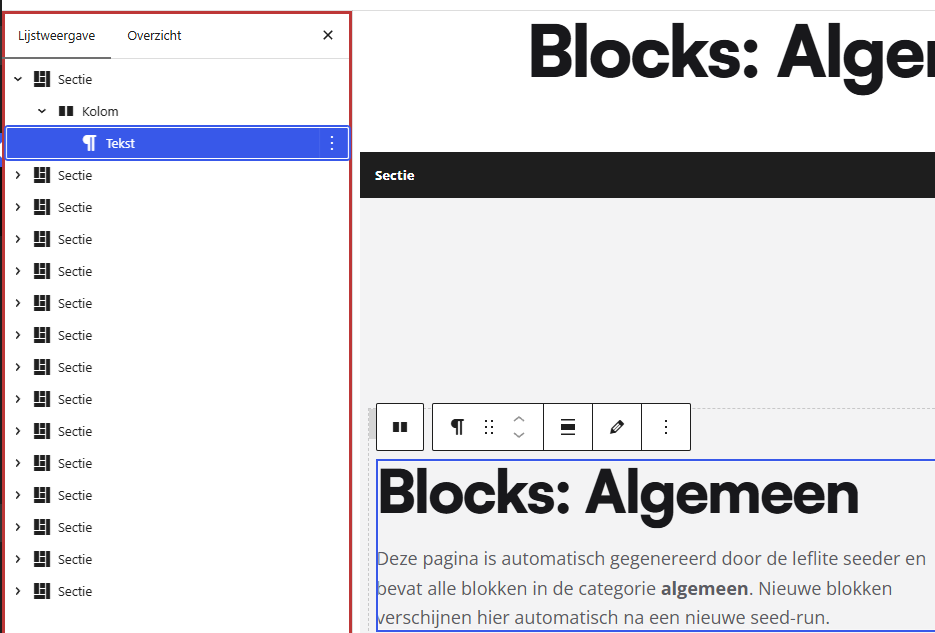
In the top left of the editor, there is the Document overview button (three lines). Click on it and choose the List view tab. You will then see your page as a tree: sections, below that columns, below that blocks.
- Expand the section and column where the block is currently located.
- Grab the block and drag it to the column where it needs to go. A blue line will show where it will land.
- Release it and check the result on the page.
In the list view, you can also immediately see which blocks are in a column. Handy if a page is long.
Step 4: Duplicate a block, column, or section
Select what you want to copy and click on the three dots in the toolbar (Options). Choose Duplicate. The copy will appear directly below the original, with the same content and settings. Shortcut: Ctrl+Shift+D (Mac: Cmd+Shift+D).
Duplicating is the fastest way to create three identical cards or columns: finish one completely, duplicate it twice, and then just adjust the text.
Do you want to use a section on multiple pages? Then make it a pattern instead of copying it each time. See creating a pattern from a section.
Step 5: Delete a block
Select the block, click on the three dots (Options), and choose Delete. If you select the column or the section, you will delete it along with everything inside.
Note: if you delete a section, all columns and blocks inside it will also be gone. Are you in doubt? Save first, so you can always revert to the previous version.
Oops: undo
Accidentally deleted or moved something? Press Ctrl+Z (Mac: Cmd+Z) or click the arrow at the top Undo. You can go back multiple steps. With Redo, you can step forward again.
Have you already saved the page and want to revert to an earlier version? You can do this with revisions. Read how to restore an earlier version.
Editing or moving: what’s the difference?
The blocks of leflite show a preview in the editor of how they appear on the site. One click selects the block: then you can move, duplicate, and delete. You adjust the content in the edit window. You open it with the Edit button in the toolbar or by double-clicking on the block. Click Done to close the window.
Don’t forget to save: click on Save (or Publish for a new page) in the top right.
Having trouble?
- The arrows do nothing. The block is already at the top or bottom of its column. Use the list view to drag it to another column.
- You keep selecting the section instead of the block. Click precisely on the content of the block, or choose the block in the list view.
- The edit window opens while you want to move. You double-clicked. Click Done and then click once on the block.
- A block won’t drop into a column. Blocks only fit in a column, not directly in a section. Drag it in the list view under a column.
- You lost work after saving. Restore an earlier revision, or contact us.
Share this article
Robert Oosterloo
Robert Oosterloo is eigenaar en UX/UI-designer van Lef Creative in Kollum. Hij ontwerpt websites, webshops en software voor ondernemers in Noord-Nederland.
Read also
Automatically display posts or pages
Setting up a slider
Using the Text block






Want a website like this?
Here you can read how easy it is to maintain a leflite site yourself. Want one too? We will think along with you, no strings attached.
Prefer direct contact? Call Robert at 06 35 66 47 73 or send a WhatsApp.