
How do I fill the footer or a sidebar with widgets?

Robert Oosterloo
Updated on · 4 min read
Widgets are the blocks in your footer and sidebars of your website. You manage them in one place: Widget’s. What you change there will be reflected on every page where that area appears.
In short
- Go to Widget’s and expand an area, for example Footer section 1.
- Add a block: Text, Buttons, Code, Horizontal spacer, Menu, Latest posts or Filter.
- Use one block per widget. A heading above a menu is a separate Text widget.
- A sidebar on a page is displayed with the block Highlight sidebar.
Nog geen website op leflite?
Wij bouwen hem samen met jou. Daarna pas je alles zelf aan, precies zoals in dit artikel.
- Online binnen een week
- Hosting, SSL en back-ups inbegrepen
- Vanaf €49,95 per maand

Step 1: Go to Widget’s
Click on Appearance in the left menu and then on Widgets. You will see a list of areas. Click on the name of an area to expand it.
Step 2: Choose the area
- Footer section 1, 2, and so on: the columns of your footer. You can set how many there are in the footer settings.
- Search page sidebar: the sidebar on the search results page. It only appears if Search page sidebar is enabled in General options, tab Footer.
- An archive sidebar, such as Post archive sidebar: appears next to the overview of your posts, for example, as soon as you place a widget in it.
- A sidebar for each type of content, such as Page sidebar or Post sidebar: is displayed on a page with the block Highlight sidebar (see below).
Step 3: Add a block
Click on the plus sign in the expanded area and choose a block. In widget areas, you can use these blocks: Text, Buttons, Code, Horizontal spacer, Menu, Latest posts, and Filter. Click on Update in the top right to save.
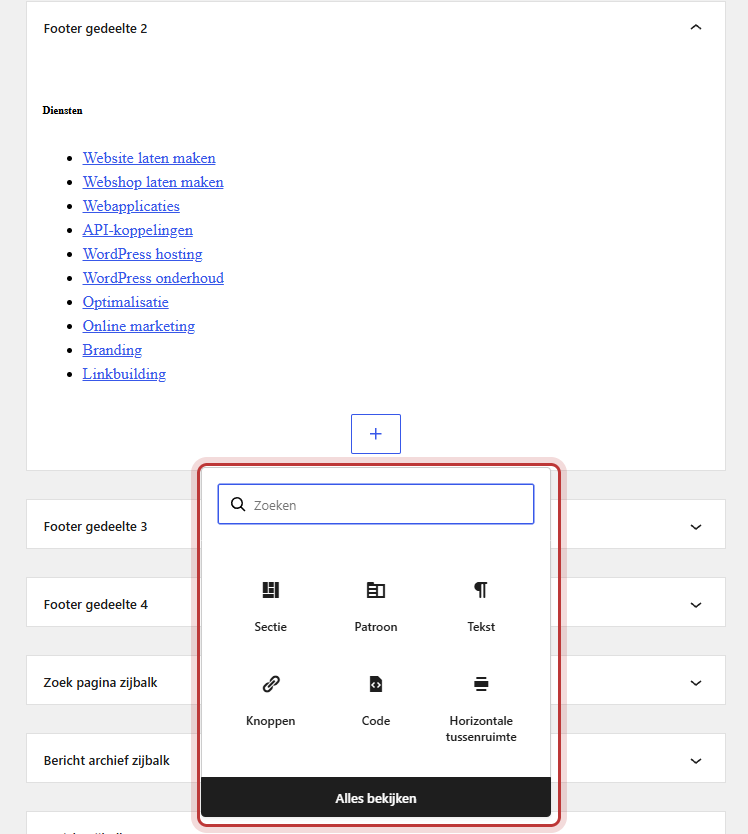
Text
The Text block works just like on your pages: headings, bold, links, and shortcodes. Insert your contact details using the shortcodes, such as [theme_option field="company_phone"]. See change your business details site-wide.
Menu
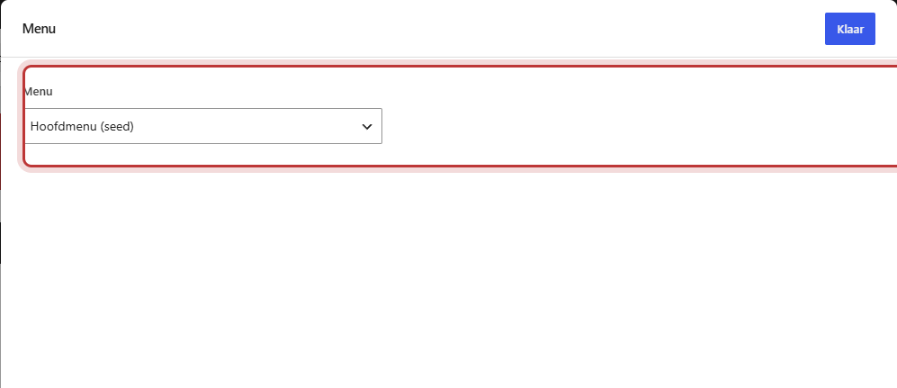
The block Menu displays a menu from Menus. Choose the menu from the dropdown Menu. If it says Choose a menu, then nothing has been selected. Create a separate, short menu for the footer.
Latest posts
The block Latest posts displays the newest items of one type of content. Choose under Highlight post type for example Post and fill in Number of posts to highlight with a number. If you leave that empty, it will default to 4. You can read how to write posts in writing a blog post.
Filter
The block Filter belongs in an archive sidebar, for example next to your products. Choose under Type of filter what the filter does: categories, price, sorting, searching, or a reset button. For a webshop, read more in setting up the product filter. If you see a widget with the message ‘This widget is outdated!’, replace it with the block Filter.
One block per widget
Each widget contains one block. If you want a heading above a menu, first place a Text widget with the heading and below it a Menu widget. They will be neatly stacked in the same column in the footer.
A sidebar on a page: Highlighting a sidebar
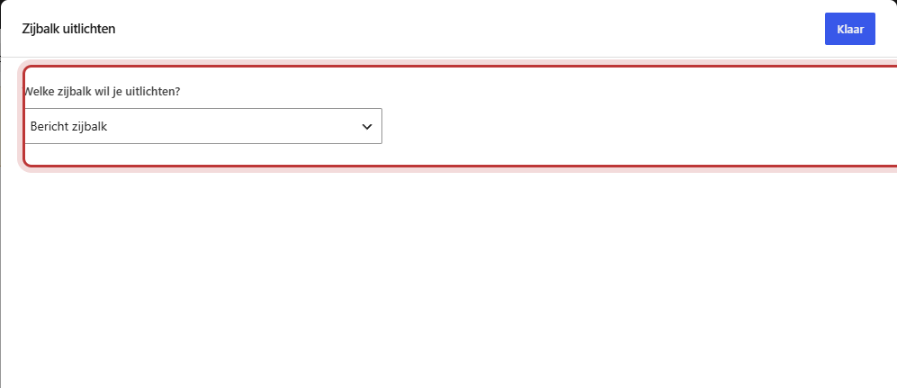
Do you want a sidebar next to the text of a page? Create a section on the page with two columns. Place the block Highlight sidebar in the narrow column and choose under Which sidebar do you want to highlight? the area, for example Page sidebar. Fill in the content in Widgets. This way, you can use the same sidebar on multiple pages.
Having trouble?
- You are missing a footer area. Increase Number of footer widget areas in General options → Footer and refresh the widget page.
- A second block in a widget disappears. Use one block per widget. Add a new widget for the next block.
- The menu block shows nothing. It still says Choose a menu. Choose a menu and click Update.
- The search page has no sidebar. Turn on Search page sidebar in General options → Footer and fill in the Search page sidebar.
- You cannot find the block you are looking for. Only the mentioned blocks are available in widget areas. Other blocks are used on a page.
- Can’t figure it out? contact us.
Read more about the components that appear on every page in everything about menus, header, and footer.
Share this article
Robert Oosterloo
Robert Oosterloo is eigenaar en UX/UI-designer van Lef Creative in Kollum. Hij ontwerpt websites, webshops en software voor ondernemers in Noord-Nederland.
Read also
Create a subpage
An anchor link to a section
A search function on your website






Want a website like this?
Here you can read how easy it is to maintain a leflite site yourself. Want one too? We will think along with you, no strings attached.
Prefer direct contact? Call Robert at 06 35 66 47 73 or send a WhatsApp.