
How do I set up the filter on the shop page?

Robert Oosterloo
Updated on · 5 min read
With a filter, visitors can find what they’re looking for faster: only T-shirts, only size L, only under €50. In leflite, the filter is located in the sidebar of your shop and category pages. You build it using filter widgets: one per filter. In this article, you’ll read how.
In short
- The filter is in the sidebar Woocommerce sidebar, in Widgets.
- Add a widget Filter for each filter and choose the Type of filter.
- You can make your own features filterable with General options → Meta filters.
- A category can have its own filter with Custom filter.
Where is the filter located?
On the shop page and on the pages of product categories, tags, and attributes, leflite displays a sidebar on the left: the Woocommerce sidebar. If there are widgets in it, the filter appears, and the products are displayed three per row next to it. If the sidebar is empty, the products span the full width.
Step 1: Open the Woocommerce sidebar
- Go to Widgets.
- Expand the sidebar Woocommerce sidebar. The description states: “The widgets in this sidebar are displayed on the shop page and on the archive pages of product categories, product tags, and other product taxonomies.”
You can read more about widgets in general in filling a footer or a sidebar with widgets.
Nog geen website op leflite?
Wij bouwen hem samen met jou. Daarna pas je alles zelf aan, precies zoals in dit artikel.
- Online binnen een week
- Hosting, SSL en back-ups inbegrepen
- Vanaf €49,95 per maand

Step 2: Add a Filter widget for each filter
- Click on the + in the sidebar and search for Filter.
- Fill in the Filter label with the title that visitors will see, such as “Category” or “Price”.
- Choose the Type of filter (see below) and fill in the corresponding fields.
- Repeat this for each filter. The order in the sidebar is the order on your site.
- Click on Update.
Type of filter
- Category and/or taxonomy filter: filter by a product category or an attribute, such as color or size. Choose at Category to filter which one. With Hide child items until parent is active, you will only see subcategories when the main category is clicked.
- Meta filter: filter by a custom attribute (see below). Choose it at Select a meta filter.
- Price filter (only on shop page): filter by price. Turn on Show price slider for a slider.
- Sort filter: a dropdown for the order, such as ascending price. It starts with the Default sort option that you set on the Shop tab.
- Search filter: a search field within your products. With Search field placeholder, you set the gray example text.
- Reset filter button: a button that clears all filters. Place it at the top or bottom.
Selection method
For a category or taxonomy filter, you choose at Selection method how visitors select: Checkbox field (multiple at once), Dropdown / select field (a dropdown list, takes up little space) or Radio field (one choice).
Custom attributes: Meta filters
Do you want to filter by something that is not a category or attribute, such as “in stock” or a custom field? That’s called a meta filter. Go to General options → Meta filters and add a row:
- Meta name to filter by: the technical name of the field.
- Use meta in the filter: turn on to be able to choose it as a filter.
- Display name: the name that visitors see.
- Meta filter display: a checkbox (Checkbox) or a Text input field.
- Meta operator and Meta value: the condition, for example “must equal (=)” yes.
Then you choose the filter in a Filter widget at Select a meta filter. The same meta filters can be used in the block Highlight Products.
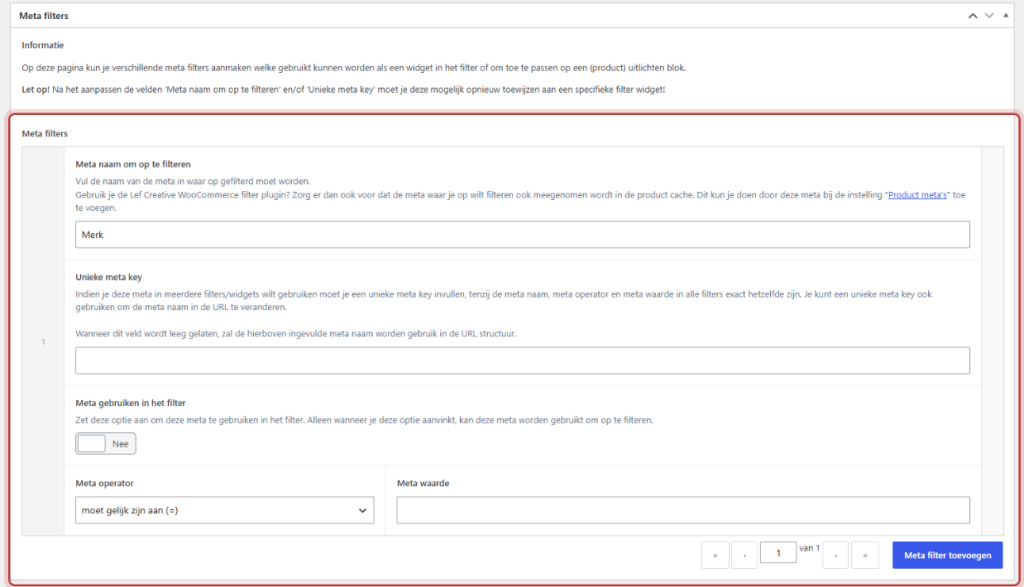
Note: You won’t easily find the technical meta name in the management. If you don’t know what name a field has, please ask us; an incorrect name will result in an empty filter. If the Lef Creative WooCommerce filter plugin is on your site, the meta must also be in the product cache of that plugin (under Product metas).
A custom filter per category
Open at Products → Categories a category and turn on Custom filter. After saving, an extra sidebar will appear in Widgets, such as “Woocommerce sidebar – Product categories: T-shirts”. Fill that with your own Filter widgets; for that category, it will replace the general sidebar. See also category links and category text.
On mobile
On a phone, the filter is collapsed behind a button so that the products are immediately visible. Do you want it to always be open? Turn on Do not expand filter on mobile devices in the Products tab, see setting product cards.
Replace old filter widgets
Do you see a widget in the sidebar with the message “This widget is outdated!”? Those are the separate filter widgets from an older version. They still work, but the new widget Filter does everything in one block and is faster. Add a Filter widget with the same settings, check your site, and then remove the old widget.
Not working?
- There is no filter on the shop page. Are the widgets in the Woocommerce sidebar? Widgets in other sidebars, such as Product archive sidebar, do not appear on the shop page.
- The price filter does not appear on a category. Correct: the price filter only works on the shop page.
- A filter shows no choices. For a category filter: are there products in that category or with that attribute? For a meta filter: is the meta name correct and is Use meta in the filter turned on?
- One category has a different (or empty) filter. That category has Custom filter turned on. Fill the custom sidebar or turn it off again.
Can’t figure it out? Contact us, call 06 35 66 47 73 or email to info@lefcreative.nl.
Share this article
Robert Oosterloo
Robert Oosterloo is eigenaar en UX/UI-designer van Lef Creative in Kollum. Hij ontwerpt websites, webshops en software voor ondernemers in Noord-Nederland.
Read also
Display categories as buttons or cards
How do I set how products are displayed in the overview?
How do I customize the sidecart?






Want a website like this?
Here you can read how easy it is to maintain a leflite site yourself. Want one too? We will think along with you, no strings attached.
Prefer direct contact? Call Robert at 06 35 66 47 73 or send a WhatsApp.