
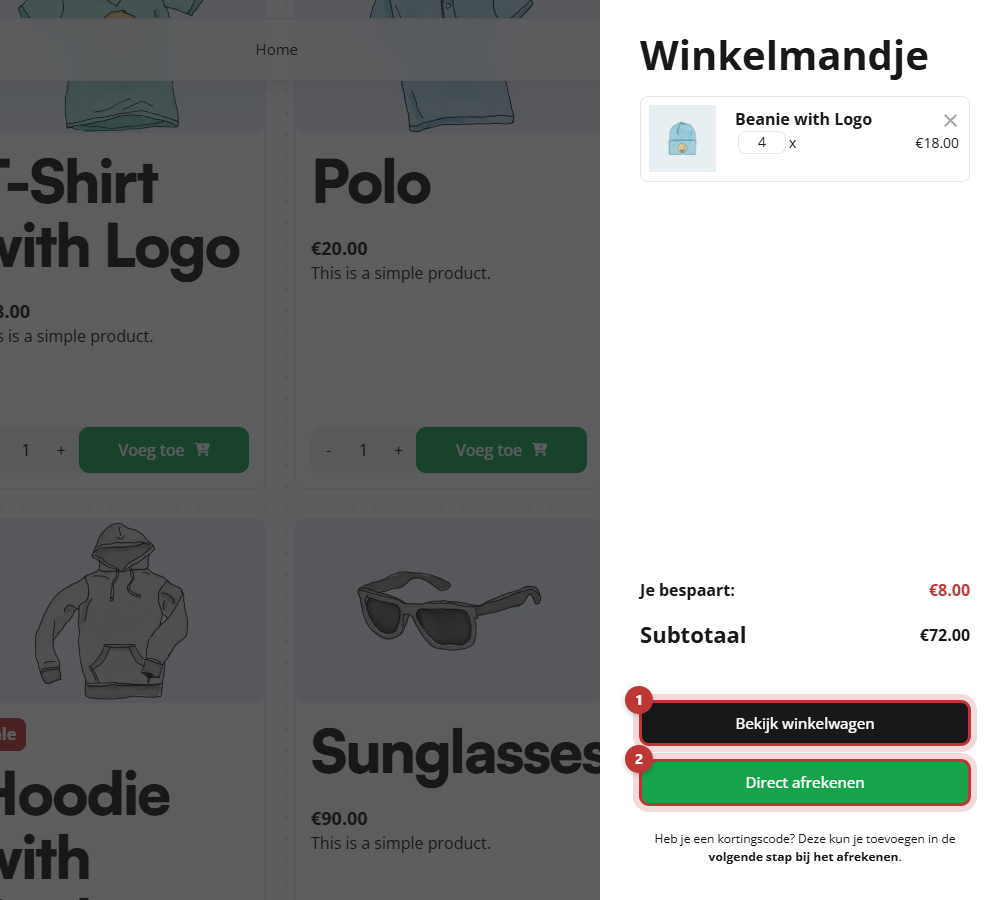
When a visitor adds a product to their cart, a cart slides in from the right: the sidecart. In it, they can see what they have chosen, the subtotal, and two buttons to proceed. In leflite, you determine which buttons are displayed, what is shown when the cart is empty, and whether you want the sidecart at all.
In short
- The settings are located at General options → Webshop, tab Cart & Checkout.
- Each button can be Standard, Hidden, or Custom.
- Use the URL
#close-side-cartfor a button that closes the sidecart, such as “Continue Shopping”. - With Disable webshop sidecart, you go directly to the cart page.
What is the sidecart?
The sidecart opens when someone adds a product, and when they click on the cart icon in the menu. At the top are the products, with the quantity and a cross to remove them. At the bottom are what the customer saves, the subtotal, and the buttons View Cart and Checkout Now. Below that is a short sentence about discount codes.
Step 1: Open the Cart & Checkout tab
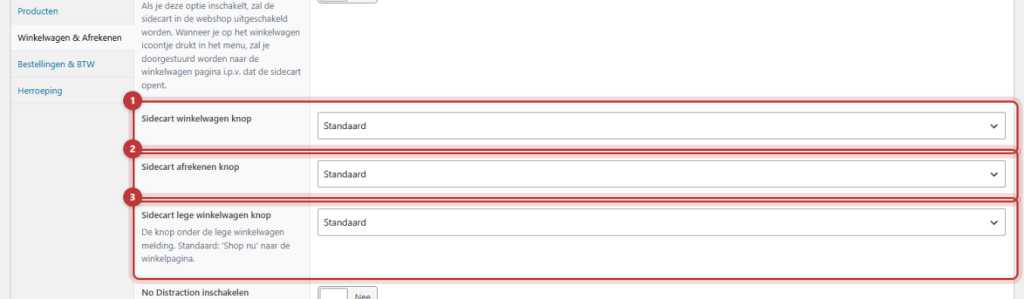
Go to General options → Webshop and click on the Cart & Checkout tab. At the top are the settings for the sidecart. After making a change, click Update.
Nog geen website op leflite?
Wij bouwen hem samen met jou. Daarna pas je alles zelf aan, precies zoals in dit artikel.
- Online binnen een week
- Hosting, SSL en back-ups inbegrepen
- Vanaf €49,95 per maand

Step 2: Choose what the buttons do
There are three buttons, each with its own dropdown list:
- Sidecart cart button: default “View Cart”.
- Sidecart checkout button: default “Checkout Now”.
- Sidecart empty cart button: the button when the cart is empty; default “Shop Now” to the shop page.
For each button, choose:
- Standard: the button as it is.
- Hide: the button disappears.
- Custom: a link field appears. The link text becomes the text on the button, the URL determines where it goes.
A Continue Shopping button
Do you want a button that simply closes the sidecart so the customer can continue browsing? Choose Custom, type “Continue Shopping” as the link text, and fill in the URL #close-side-cart. Many shops replace the View Cart button with Continue Shopping, while keeping Checkout Now.
Extra shipping information
In the Orders & VAT tab, there is Extra shipping information text. This sentence appears in the sidecart and on the cart page. Use it for example for “Shipping costs and options are shown at checkout.” Leave the field empty if you do not want to display anything.
When the cart is empty
Type in Empty cart message what the customer sees when there is nothing in their cart yet, for example, a reference to your most popular category. Below that is the button you set in Sidecart empty cart button.
An image with payment methods
In Payment methods image, choose an image with the logos of your payment methods, such as iDEAL and credit card. This appears at the bottom of the sidecart and on the product pages. Use a wide, low image with a transparent background.
Cross-sells in the cart
Enable Display cross sells on cart page to show products on the cart page that match what the customer has already chosen. In Cross sells introduction, type a heading or sentence above, such as “Don’t forget these?”. Products will only appear if you have set cross-sells for at least one product in the cart (in the product: Product data → Related products).
Disable the sidecart
Prefer not to have a sliding cart? Enable Disable webshop sidecart. A click on the cart icon in the menu will then go directly to the cart page.
Tip: Keep Checkout Now. The fewer steps to payment, the more orders you complete. You can make the checkout itself even calmer with No Distraction.
Do you offer free shipping from a certain amount? Then also read hide shipping methods with free shipping. All webshop features at a glance: everything about your webshop.
Not working?
- The link field does not appear. First choose Custom for the button; then the field will appear.
- The Continue Shopping button goes to another page. Check the URL: exactly
#close-side-cart, without spaces or your domain name in front. - The sidecart does not open. Is Disable webshop sidecart enabled? And is the cart icon in your menu? You can add that with Cart item in Menus.
- No cross-sells appear. Set cross-sells in the products themselves. Without cross-sells, the block remains empty.
Can’t figure it out? Contact us, call 06 35 66 47 73 or email info@lefcreative.nl.
Share this article

Robert Oosterloo
Robert Oosterloo is eigenaar en UX/UI-designer van Lef Creative in Kollum. Hij ontwerpt websites, webshops en software voor ondernemers in Noord-Nederland.
Read also
Display categories as buttons or cards
How do I set how products are displayed in the overview?
How do I set quick category links and text on a category page?






Want a website like this?
Here you can read how easy it is to maintain a leflite site yourself. Want one too? We will think along with you, no strings attached.
Prefer direct contact? Call Robert at 06 35 66 47 73 or send a WhatsApp.