
How do I set up the cart and checkout (No Distraction)?

Robert Oosterloo
Updated on · 3 min read
During checkout, you don’t want your customer to click away to your blog or menu. With No Distraction, the cart, checkout, and thank you page no longer display a menu and footer, but only your logo and the steps to complete the order. Additionally, you can set the colors for the checkout and the message after an order.
In short
- Enable No Distraction on the Cart & Checkout tab.
- Optionally choose your own No Distraction logo and No Distraction background color.
- Set the background colors for the cart and order summary.
- The text after an order can be found on the Orders & VAT tab.
What is No Distraction?
With No Distraction enabled, the cart, checkout page, and “order completed” page look different. The menu and footer disappear. At the top, only your logo, the steps Cart, Order, and Pay are displayed, along with a link back to the website. This keeps the focus on completing the order.
Step 1: Enable No Distraction
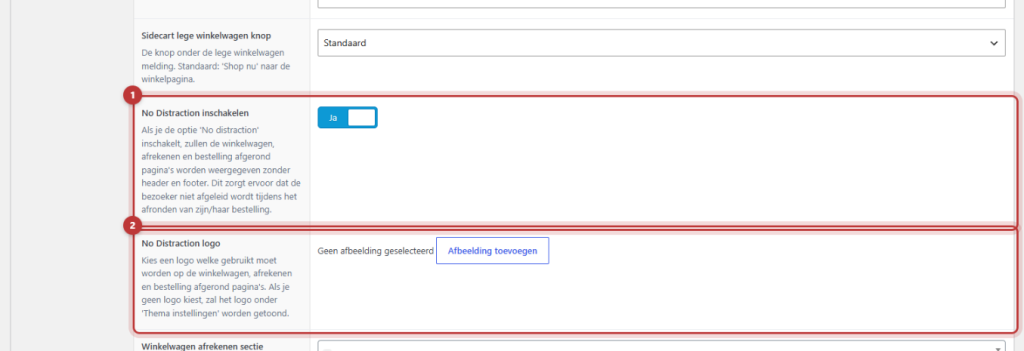
- Go to General Options → Webshop, tab Cart & Checkout.
- Enable No Distraction.
- Click on Update.
Nog geen website op leflite?
Wij bouwen hem samen met jou. Daarna pas je alles zelf aan, precies zoals in dit artikel.
- Online binnen een week
- Hosting, SSL en back-ups inbegrepen
- Vanaf €49,95 per maand

Step 2: Choose the logo and background color
After enabling, two fields will appear:
- No Distraction logo: a logo for the cart, checkout, and thank you page. If you choose nothing, leflite will use your regular logo.
- No Distraction background color: the background color of those pages. This field appears once you have chosen a logo.
Having a custom logo is useful if your regular logo is white and the checkout page is light.
The colors of the sections
These two fields also work without No Distraction:
- Cart checkout section background color: the background of the cart and checkout page.
- Checkout summary section background color: the background of the order summary (the products and total) during checkout.
Choose colors from your brand style with enough contrast so that all text remains easily readable.
The discount code field on mobile
On a phone, the order summary is collapsed into a bar, and the field for a discount code is hidden within it. Enable Discount code field under order summary bar (mobile) to always show the field directly below that bar. Handy if you often work with discount codes.
The message after an order
Go to the Orders & VAT tab:
- Order completed message: the message that the customer sees after completing the order, for example, “Thank you for your order! You will receive a confirmation via email.”
- Order completed extra text: extra text on the thank you page, such as when you ship or a link to your return policy. Leave it blank if you do not want any extra text.
Tip: After enabling, order a product yourself (using a payment method like “Bank Transfer” or a test mode). This way, you can see exactly what your customer sees, from cart to thank you page. Then cancel the test order in WooCommerce → Orders.
Good to know: The thank you page also contains the cancellation button, which allows a consumer to undo their purchase. See how the cancellation button works. If you sell to businesses, also read showing and transferring VAT.
The sliding cart after adding is set separately: adjust the sidecart. More features: everything about your webshop.
Having trouble?
- The menu is still there. Refresh the page with Ctrl+F5. If your site uses a cache, clear it or wait a moment.
- You do not see the field for the background color. First choose a No Distraction logo; then the field will appear.
- The logo is invisible. Your logo is likely white on a white background. Choose a dark logo for No Distraction logo.
Still having issues? Contact us, call 06 35 66 47 73 or email info@lefcreative.nl.
Share this article
Robert Oosterloo
Robert Oosterloo is eigenaar en UX/UI-designer van Lef Creative in Kollum. Hij ontwerpt websites, webshops en software voor ondernemers in Noord-Nederland.
Read also
Display categories as buttons or cards
How do I enable a wishlist in my webshop?
How do I customize the top of the shop page (header and USPs)?






Want a website like this?
Here you can read how easy it is to maintain a leflite site yourself. Want one too? We will think along with you, no strings attached.
Prefer direct contact? Call Robert at 06 35 66 47 73 or send a WhatsApp.