
How do I customize the top of the shop page (header and USPs)?

Robert Oosterloo
Updated on · 4 min read
The top of your shop page is the first thing a visitor sees from your assortment. In leflite, you determine what appears there (breadcrumb, title, intro), whether it is a colored bar or a photo, and in what order your products appear by default. The same header also appears at the top of your category pages.
In short
- Go to General options → Webshop, tab Webshop.
- WooCommerce header content layout determines the content, with placeholders like
{{lef_shop_title}}. - WooCommerce header display: a bar with color or photo, or compact above the products.
- Default sorting option determines the order of your products.
Step 1: Open the Webshop tab
Go to General options → Webshop. The tab Webshop is already open. All fields in this article are on this tab. Click Update after making a change.
Step 2: Determine the content of the header
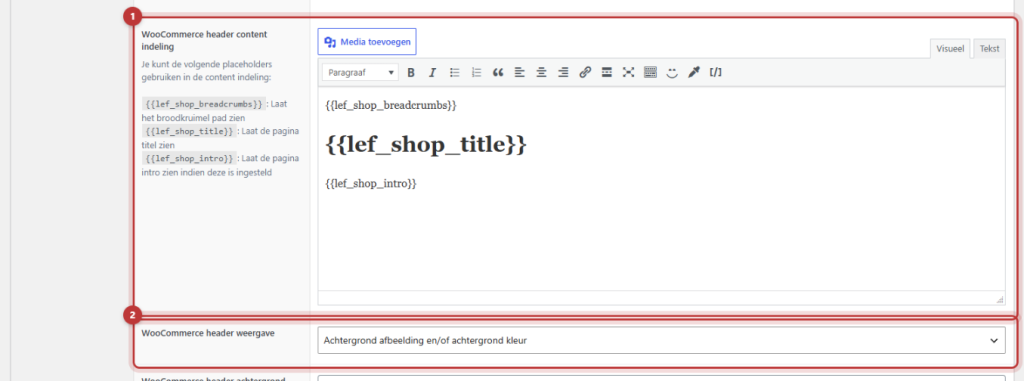
The field WooCommerce header content layout is a text box where you build the header. You use plain text and three placeholders that leflite fills in per page:
{{lef_shop_breadcrumbs}}: the breadcrumb, for example Home / Shop / T-shirts.{{lef_shop_title}}: the title of the page, such as Shop or the name of the category.{{lef_shop_intro}}: the intro of the page, if it is set. For a category, this is the description of the category.
By default, the breadcrumb appears, followed by the title as Heading 1 and then the intro. You can change the order or add your own sentence. Do not remove the title: it is the most important heading of the page for Google. More about this in using headings effectively.
Nog geen website op leflite?
Wij bouwen hem samen met jou. Daarna pas je alles zelf aan, precies zoals in dit artikel.
- Online binnen een week
- Hosting, SSL en back-ups inbegrepen
- Vanaf €49,95 per maand

Step 3: Choose a bar with color or photo, or compact
In WooCommerce header display, you choose:
- Background image and/or background color: a wide bar at the top, across the full width. Then three extra fields appear:
- WooCommerce header background color: a color from your branding.
- WooCommerce header image: a photo as background. Choose a wide photo, for example, 1920 pixels wide.
- WooCommerce header image overlay: a dark layer over the photo, so that white text remains readable.
- Above content (above products on shop pages): no bar, but the header is compact above the products, next to the filter. Calmer, and your products are higher on the page.
Tip: A photo behind text only works if the contrast is good. If in doubt, turn on the overlay or choose a solid color.
The text below the products (outro)
Below the products, you can display a text per category, for example, an explanation about the products for Google. You fill in that text in the category itself; see category links and category text. Here you only determine where it appears, with WooCommerce archive outro display:
- Below all content (products and filter) on the archive page: across the full width, below the filter and the products. With WooCommerce archive outro background color, you give that part its own background.
- Below all products on the archive page: only in the column of the products, next to the filter.
The default sorting
With Default sorting option, you determine the order in which products appear if the visitor has not chosen anything yet:
- Default order: the order you set in WooCommerce (by dragging products).
- Date descending or ascending: newest or oldest first.
- Alphabetical ascending or descending: A to Z or Z to A.
- Price ascending or descending: cheapest or most expensive first.
If you have a sorting filter in your sidebar, that filter will also start with this choice. See setting the filter.
Note: This tab also contains the field Webshop USPs. In the current version of leflite, that list is not displayed anywhere on the shop page. If you want USPs like “Free shipping from …” above your entire site, use the top bar: see a top bar with USPs above the menu.
You can also customize the cards themselves: set up product cards. An overview of all webshop features can be found in everything about your webshop.
Having trouble?
- The title appears twice. Check in WooCommerce header content layout if
{{lef_shop_title}}is there twice, or if you have also included the title as text. - The intro does not appear.
{{lef_shop_intro}}only shows something if there is an intro. For a category, you fill in the description via Products → Categories. - The photo does not appear. The photo and color only work with the display Background image and/or background color.
- The text is poorly readable on the photo. Turn on WooCommerce header image overlay.
Can’t figure it out? Contact us, call 06 35 66 47 73 or email info@lefcreative.nl.
Share this article
Robert Oosterloo
Robert Oosterloo is eigenaar en UX/UI-designer van Lef Creative in Kollum. Hij ontwerpt websites, webshops en software voor ondernemers in Noord-Nederland.
Read also
Display categories as buttons or cards
How do I enable a wishlist in my webshop?
How do I set how products are displayed in the overview?






Want a website like this?
Here you can read how easy it is to maintain a leflite site yourself. Want one too? We will think along with you, no strings attached.
Prefer direct contact? Call Robert at 06 35 66 47 73 or send a WhatsApp.