
How do I set a top bar with USPs or buttons above the menu?

Robert Oosterloo
Updated on · 4 min read
The top bar is a narrow strip above your menu. You can include short benefits (USPs), a button, your phone number, or a small menu. It appears on every page. You set it up in the General options.
In short
- Choose the components in Top bar display in General options → Header. Empty = no top bar.
- Then fill in the USPs, buttons, text, or shortcode.
- Always choose a Top bar color and a Top bar items alignment.
- On mobile, the top bar is hidden.
Step 1: Go to General options → Header → Top bar display
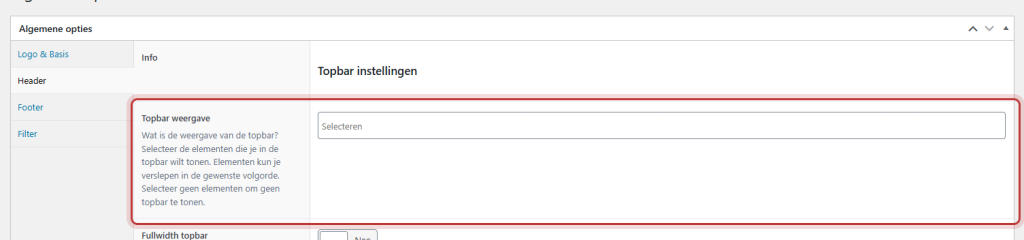
Open General options and the tab Header. At the top, you will find Top bar settings. In Top bar display, choose what will be in the top bar:
- Menu: a small menu with links.
- USPs: short benefits, with an icon.
- Buttons: one or more buttons.
- Text: a short text.
- Shortcode: for example, your phone number or opening status.
Each component can be added once. Drag them in the order you want. If you choose nothing, there will be no top bar.
Nog geen website op leflite?
Wij bouwen hem samen met jou. Daarna pas je alles zelf aan, precies zoals in dit artikel.
- Online binnen een week
- Hosting, SSL en back-ups inbegrepen
- Vanaf €49,95 per maand

Step 2: Fill in the components
After your selection, the corresponding fields will appear.
USPs with icon
In Topbar USPs, you can add a USP for each line. Choose an icon for USP icon (for example, a checkmark) and type the text for USP. Keep it short: three USPs of a few words read best. Shortcodes work in the USP text.
Buttons
In Topbar buttons, you can add buttons. Choose the Button color for each button and fill in the page and text for Button link.
Text and Shortcode
Topbar text is a short text. Topbar shortcode is for a shortcode, such as [theme_option field="company_phone"] for your phone number as a link or [openstatus] to show whether you are open (see show whether you are open). Shortcodes work in both fields.
Menu
Choose your Menu, then the location Menus will appear as Topbar menu. Create a small menu (for example, ‘About Us’ and ‘Careers’) and link it to that location. A mega menu cannot be placed in the topbar.
Step 3: Color, alignment, width, and position
- Topbar color: choose a color from your brand style. Do not leave this empty, otherwise the topbar will have no background.
- Topbar items alignment: Left and right (empty space in the middle), Right and left (empty space in the middle), or Center.
- Fullwidth topbar: the content extends to the edges of the screen.
- Topbar position: Above the header (default; scrolls away) or Below the header. Below the header, the topbar collapses as soon as a visitor scrolls down.
Click on Update.

Hidden on mobile
On screens up to 991 pixels wide, the top bar is hidden. There is no space for it on a phone. If there is something important in it, like your phone number or a button, include that in the mobile menu as well. See setting the mobile menu.
Tip: a top bar is for fixed information. If you want to announce something temporarily, like a holiday closure, use a notification at the top of your website. You can set it with a start and end date. More header settings can be found in setting the header and organizing the menu bar.
Not working?
- You do not see the top bar. Nothing has been chosen in Top bar display, or you are viewing on a phone or narrow tablet.
- The top bar has no background color. Choose a Top bar color.
- You cannot find the Top bar menu location. It only appears when you choose Menu in Top bar display and save.
- You see a shortcode as text. Check the spelling.
[openstatus]only works if the opening hours are enabled. - Can’t figure it out? contact us.
Frequently asked questions
The top bar is hidden on mobile. Include important links or your phone number in the mobile menu as well.
Share this article
Robert Oosterloo
Robert Oosterloo is eigenaar en UX/UI-designer van Lef Creative in Kollum. Hij ontwerpt websites, webshops en software voor ondernemers in Noord-Nederland.
Read also
Create a subpage
An anchor link to a section
A search function on your website






Want a website like this?
Here you can read how easy it is to maintain a leflite site yourself. Want one too? We will think along with you, no strings attached.
Prefer direct contact? Call Robert at 06 35 66 47 73 or send a WhatsApp.