
How do I set the header (scrolling, color, width)?

Robert Oosterloo
Updated on · 4 min read
The header is the bar at the top of every page with your logo and menu. You decide whether it scrolls with the page, what color it has, and whether it uses the full width of the screen. A transparent header over a large photo is also possible. You set this once for the entire website.
In short
- Everything is in General options, tab Header.
- Fixed header (navigation) allows the menu to scroll with the page.
- Header color is the color at the top of the page, Header color fixed header is the color after scrolling.
- A transparent header over your photo only works with Fixed header (navigation) enabled.
Step 1: Go to General options → Header
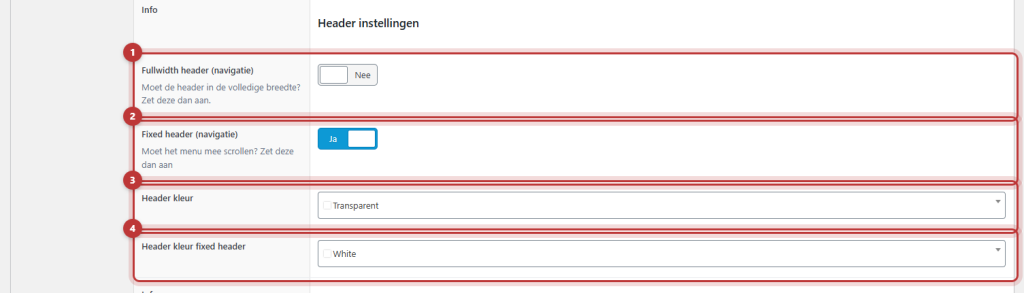
Click on General options in the left menu in WordPress and open the tab Header. At the top are the settings for the top bar, below that is the heading Header settings. There you will find the four options from this article. Click Update after making changes.
Nog geen website op leflite?
Wij bouwen hem samen met jou. Daarna pas je alles zelf aan, precies zoals in dit artikel.
- Online binnen een week
- Hosting, SSL en back-ups inbegrepen
- Vanaf €49,95 per maand

Fullwidth header (navigation)
By default, the logo and menu are as wide as the content of your pages, with space on the sides. If you enable Fullwidth header (navigation), the logo and menu will move to the edges of the screen. On a wide screen, the logo will be all the way to the left and the menu all the way to the right. The bottom bar and the message under the menu will follow the same width.
Fixed header: the menu scrolls with the page
The explanation for Fixed header (navigation) is: ‘Should the menu scroll with the page? Enable this option.’ With this option enabled, the header stays at the top of the screen while you scroll down. Your visitors will always have the menu at hand.
Why the first section gets extra space
With a fixed header, the header overlaps the top of the page. Therefore, the first section of each page automatically gets extra space at the top, so the menu does not cover your text. If you see a lot of empty space at the top, that is the reason.
Header color and Header color fixed header
You choose two colors from your branding:
- Header color: the color at the top of the page. Default is white.
- Header color fixed header: the color once a visitor has scrolled down more than 200 pixels. Default is the main color of your website. This only works with Fixed header (navigation) enabled.
The text color of the menu adjusts to the background color. You can read which colors you can choose in colors and fonts of your website.
Transparent over your hero
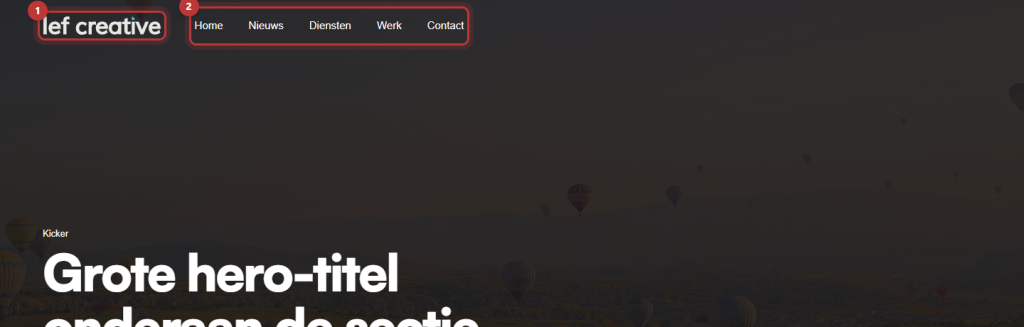
If you choose Header color as Transparent, the header will overlay the first section. If that section has a large photo, the photo and header will blend together. The menu will then be white. After scrolling, the header will take on the Header color fixed header, so the menu remains readable above the rest of the page.

Only with Fixed header
Without Fixed header (navigation), a transparent header does not overlay your photo, but simply sits above the page. You will see white text on a light background, which is unreadable. So choose Transparent only together with Fixed header, and ensure that the first section of each page has a dark photo or color.
Tip: your logo also belongs to the header. You can read how to replace it in change your logo and favicon. What appears next to the logo is determined in organizing the menu bar. You can create a bar above the header with the top bar.
Having trouble?
- There is a lot of empty space at the top of your page. With Fixed header, the first section gets extra space. That is normal. If there is a white section without content at the top, remove it.
- The menu is unreadable (white on white). You have chosen Transparent without Fixed header, or the first section is light. Enable Fixed header or choose a different Header color.
- The color does not change when scrolling. Fixed header is off, or both colors are the same.
- When logged in, the header falls halfway under the black bar of WordPress. Only you see this when logged in. Visitors are not affected.
- Can’t figure it out? contact us.
Frequently asked questions
With Fixed header, the first section of each page gets extra space at the top, so the menu does not cover your text.
Share this article
Robert Oosterloo
Robert Oosterloo is eigenaar en UX/UI-designer van Lef Creative in Kollum. Hij ontwerpt websites, webshops en software voor ondernemers in Noord-Nederland.
Read also
Create a subpage
An anchor link to a section
A search function on your website






Want a website like this?
Here you can read how easy it is to maintain a leflite site yourself. Want one too? We will think along with you, no strings attached.
Prefer direct contact? Call Robert at 06 35 66 47 73 or send a WhatsApp.