
How do I place a Google Maps map or other code?

Robert Oosterloo
Updated on · 4 min read
Do you want a map with your location on your contact page, or a booking widget from another service? Such components are usually provided as a piece of code to embed. With the block Code, you can place that code on your page. Here’s how, using Google Maps as an example.
In short
- Copy the code from Google Maps via Share → Embed map.
- Add the block Code in a column.
- Paste the code in the field Code.
- Only paste code from sources you trust.
- A map or widget from another source may place cookies. Keep this in mind in your cookie policy.
Nog geen website op leflite?
Wij bouwen hem samen met jou. Daarna pas je alles zelf aan, precies zoals in dit artikel.
- Online binnen een week
- Hosting, SSL en back-ups inbegrepen
- Vanaf €49,95 per maand

What do you need?
- The embed code: a piece of code that starts with
<iframe. You get this from the service itself, like Google Maps or your booking system. - A column on your page where the map or widget should go, for example on your contact page next to your address.
Step 1: Copy the code from Google Maps
- Go to Google Maps and search for your business or address.
- Click on Share.
- Select the tab Embed map.
- Choose a format if necessary and click on Copy HTML.
The names of the buttons in Google may change from time to time. Look for ‘embed’ or ‘embed code’.
Step 2: Add the Code block
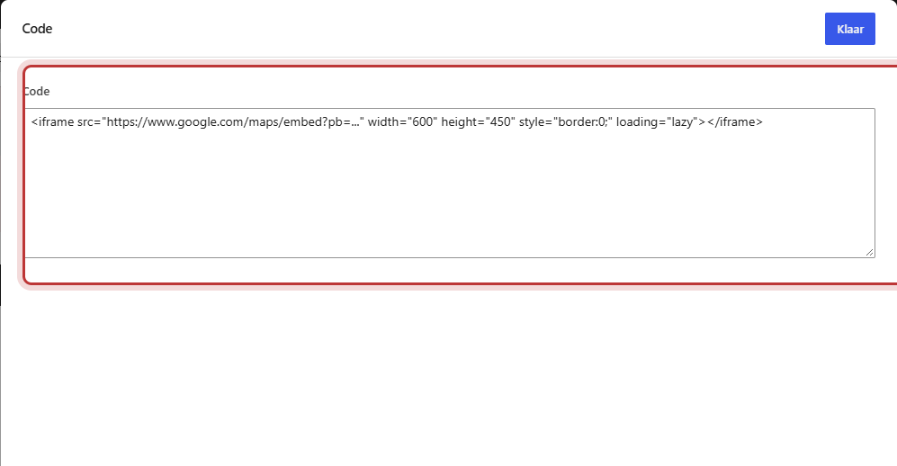
Click on the + (Add block), type ‘code’ and choose Code. The editing window will open with one large text box: Code.
Step 3: Paste the code
Click in the box Code and paste the code (Ctrl+V). Do not change anything. Click on Done and then on the top right Save. View the page on the website: the map is now in the column.
Tip: the map takes the full width of the column. If you want it smaller, place it in a narrower column, for example next to your contact details.
Other embeds: booking widget, form, social post
In the same way, you can place other code to embed, such as a booking widget, a calendar, a form from another service, or a social media post. Look for ‘embed’, ‘embed code’, or ‘code for your website’ with that service, copy the code, and paste it into the Code block.
For a video from YouTube or Vimeo, you do not need this block. For that, use the Video block. See placing a video from YouTube or Vimeo. You also place a form from your own website in a different way; see placing a form on a page.
Note: speed, privacy, and cookies
- Speed. Each embed loads something from another website. Embedded maps and other iframes only load when the visitor scrolls nearby, but do not place too many on one page. See also why your website is slow.
- Privacy and cookies. A map, video, or widget from another party may place cookies or send data from your visitor. Mention this in your cookie and privacy policy. If in doubt, consult with us.
- Security. Code in this block is placed on your page without verification. Only paste code from sources you trust.
Note: this block is for code in one place. Tracking codes and scripts that need to be on every page, such as Google Analytics or a chat widget, do not belong here. We manage those centrally on your website. Contact us if you want to add something like that.
Code that doesn’t work
Not every code works in this block. A regular iframe, like the one from Google Maps, usually works fine. Code with a script in it can break because WordPress converts certain characters. If a widget doesn’t work, send us the code. We’ll see how we can get it to work on your site.
Is it not working?
- You see the code as text on the page. You pasted it into a Text block. Use the block Code.
- The map remains empty or gray. Copy the code again from Google Maps and paste it in full, from
<iframeto</iframe>. - The map is too high or too low. Choose a different size in Google, or adjust the number after
height=in the code. - The map shows the wrong address. First search for your business in Google Maps and only then copy the code.
- A widget with a script does nothing. Contact us.
You can adjust your address in the business details; see change your address site-wide. Other blocks can be found in all blocks in a row.
Frequently Asked Questions
No. Tracking and scripts for the entire site are managed centrally by us. Please contact us.
Share this article
Robert Oosterloo
Robert Oosterloo is eigenaar en UX/UI-designer van Lef Creative in Kollum. Hij ontwerpt websites, webshops en software voor ondernemers in Noord-Nederland.
Read also
Automatically display posts or pages
Setting up a slider
Using the Text block






Want a website like this?
Here you can read how easy it is to maintain a leflite site yourself. Want one too? We will think along with you, no strings attached.
Prefer direct contact? Call Robert at 06 35 66 47 73 or send a WhatsApp.