
How do I set up a search function on my website (including live search)?

Robert Oosterloo
Updated on · 3 min read
If your website has many pages, posts, or products, visitors prefer to search rather than click. Your website has a search function that displays in three ways. With live search, visitors see results as they type.
In short
- A magnifying glass in the menu: the Search item in Menus.
- A search field: the shortcode
[lef_search], in the menu bar, the top bar, or a text. - Live search can be enabled in General options → Search.
- On mobile, you won’t see the search field in the menu bar. Add the Search item to the mobile menu.
Three ways
- A search button in the menu: a magnifying glass that goes to the search page.
- A search field in the menu bar, the top bar, a footer widget, or on a page.
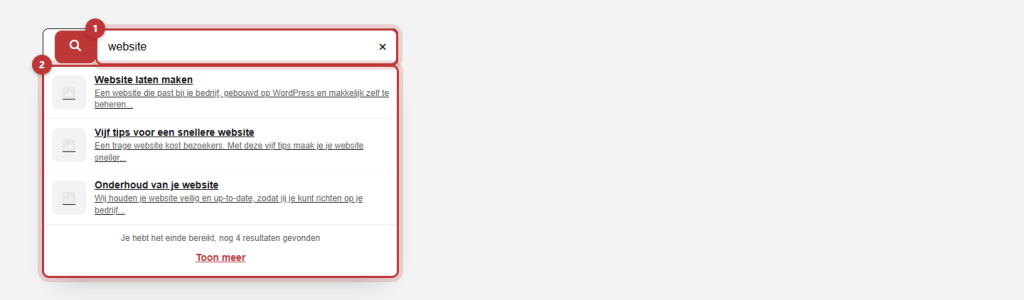
- A search field with live search: results appear below the field as you type.
A search button in the menu (Search item)
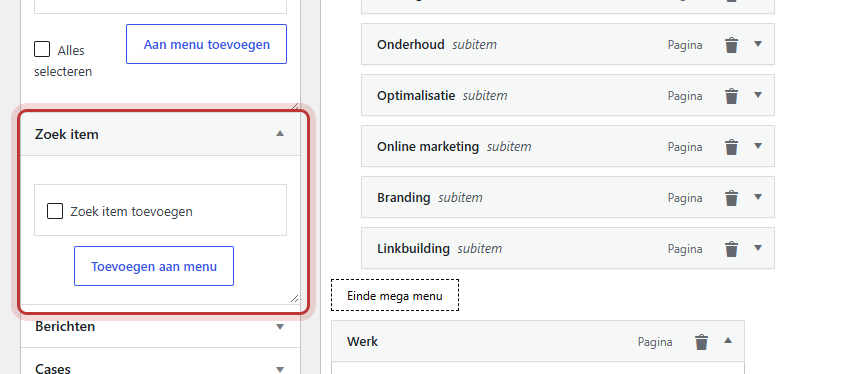
Go to Menus and open the menu. On the left, you will see the block Search item. Check Add search item and click Add to menu. An item named [Search] will appear in your menu. Leave that name as is: on your website, it will become a magnifying glass. Click on Save menu.
The magnifying glass links to your website’s search page. No search field will pop up. Also read customizing the main menu.
Nog geen website op leflite?
Wij bouwen hem samen met jou. Daarna pas je alles zelf aan, precies zoals in dit artikel.
- Online binnen een week
- Hosting, SSL en back-ups inbegrepen
- Vanaf €49,95 per maand

A search field with the shortcode
The shortcode [lef_search] places a search field. You can use it in these locations:
- In the menu bar: choose Shortcode in Menu bar display and place the shortcode in Menu bar shortcode. See organizing the menu bar.
- In the top bar: in Top bar shortcode.
- On a page or in the footer: in a Text block or Text widget.
Place only one search field on a page. Two search fields on the same page can interfere with each other.
Enable live search
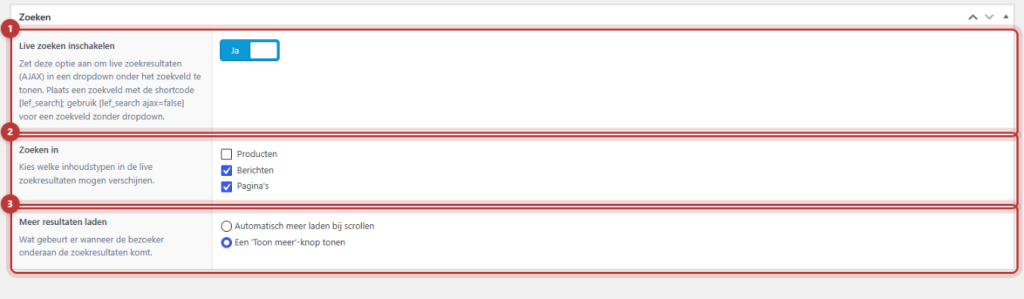
Go to General options and click on Search. Turn on Enable live search. From then on, every search field with [lef_search] will show results in a list below the field as soon as a visitor has typed three letters. If you want a regular search field in one place, use [lef_search ajax=false] there.
Searching in
In Searching in, choose what can appear in the live results: Products, Posts, and Pages. Products will only show if your website has a webshop.
Load more results
In Load more results, choose what happens when a visitor reaches the bottom of the results: Automatically load more when scrolling or Show a ‘Show more’ button. Click on Update.
The search results page and sidebar
When a visitor presses Enter or clicks on the magnifying glass, they will be taken to the search results page. Do you want a sidebar there, for example with your most popular pages? Enable Search page sidebar in General options, tab Footer, and fill in the area Search page sidebar in Widget’s. See using widgets.
Tip: on mobile, the menu bar shortcode and the top bar are hidden. Therefore, also add the Search item to your mobile menu. A search field is also handy on your own ‘page not found’.
Not working?
- In your menu, the text
[Search]is present. You only see this in the admin area. On your website, it is a magnifying glass. Do not change the name. - No live results are appearing. Turn on Enable live search and type at least three letters. If there is ajax=false in the shortcode, remove that.
- Products or pages are not appearing in the results. Check them in Searching in.
- The search field is missing on your phone. It is in the menu bar or top bar, which are hidden on mobile. Add the Search item to the mobile menu.
- Can’t figure it out? Contact us.
Share this article
Robert Oosterloo
Robert Oosterloo is eigenaar en UX/UI-designer van Lef Creative in Kollum. Hij ontwerpt websites, webshops en software voor ondernemers in Noord-Nederland.
Read also
Automatically inserting phone number in text
Giving a section a background color
Link your social media






Want a website like this?
Here you can read how easy it is to maintain a leflite site yourself. Want one too? We will think along with you, no strings attached.
Prefer direct contact? Call Robert at 06 35 66 47 73 or send a WhatsApp.