
How do I find my way in the WordPress dashboard?

Robert Oosterloo
Updated on · 4 min read
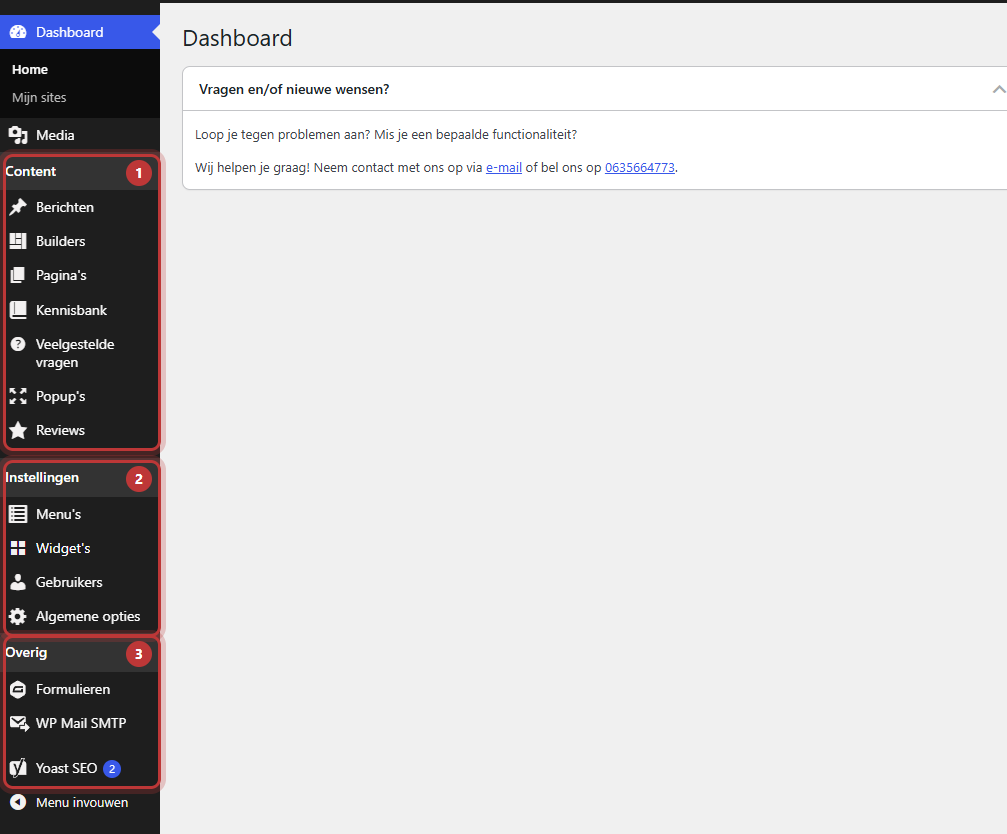
After logging in, you will enter the dashboard: the management of your website. On the left, there is a menu with everything you can adjust. In this article, we will go through the menu so that you know where to find what. The management of a leflite website has been streamlined: you only see what you need.
In short
- On the left is the menu, grouped with headings such as Content, Settings, and Other.
- Your texts and pages are located under Pages, Posts, and Media.
- Settings for the entire site can be found under General options; the menu at the top under Menus.
- Don’t see something? It may belong to a module that is turned off, or to a role with fewer permissions.
What do you need?
- An account on your website. You can read about logging in in how do I log in to my website.
Step 1: The dashboard
The first screen after logging in is called Dashboard. In a leflite website, there are intentionally few boxes here: ads from plugins and news from WordPress have been removed, and the screen has a maximum of two columns. At the bottom of each management page, it says Website developed by Lef Creative.
Nog geen website op leflite?
Wij bouwen hem samen met jou. Daarna pas je alles zelf aan, precies zoals in dit artikel.
- Online binnen een week
- Hosting, SSL en back-ups inbegrepen
- Vanaf €49,95 per maand

Step 2: The menu on the left
The menu is divided into groups with a gray heading. For each section:
Pages, Posts, and Media
- Pages: the static pages of your site, such as Home, About Us, and Contact.
- Posts: news and blogs, with a date and a category. You can read the difference in page or post.
- Media: all the photos, videos, and PDFs you have uploaded.
Builders and Popups
- Builders: sections that you create once and use on multiple pages.
- Popups: pop-ups that appear on your site.
- If you have activated a module, you will also find Frequently Asked Questions or Reviews here.
General options
Everything that applies to the entire website: logo, header, footer, company details, opening hours, a notification at the top of your site, and the emails from WordPress. At the top of the page, there is a row of buttons for quick switching. See everything about the General options.
Menus and Widgets
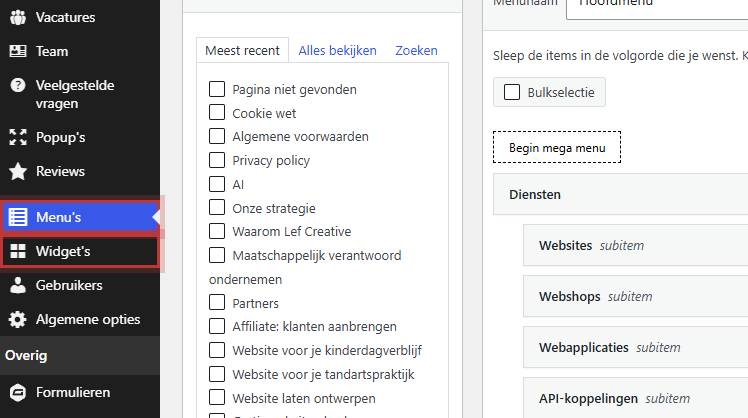
Under Menus, you can adjust the main menu, the mobile menu, and the other menus. Under Widgets, you fill in the footer and sidebars. In a standard WordPress, these are found under Appearance; in your leflite website, they are listed separately in the menu.
Forms and Yoast SEO
Under Forms, you will find your contact forms and the submissions. With Yoast SEO, you manage how your pages appear in Google.
Step 3: The top bar
At the top, there is a dark bar. On the left is the name of your website: click on it to view your site. If you are on your site and logged in, the same bar appears above your page, with a button to edit the page you are viewing immediately. On the right is your name; there you will find your Profile and Log out.
Don’t see a section?
- Missing Frequently Asked Questions or Reviews: they only appear when the module is turned on. You can turn them on under General options, on the module page, with Enable Frequently Asked Questions or Enable Reviews. See which modules leflite has.
- No Comments: comments under posts are turned off in leflite. In a webshop, you manage product reviews under the products.
- No Appearance, Plugins, Tools, or Settings: these technical components are hidden so that you do not accidentally change something that causes the site to malfunction.
- No Menus or General options: your account has a role with fewer permissions. See which role you choose for a user.
Developer mode
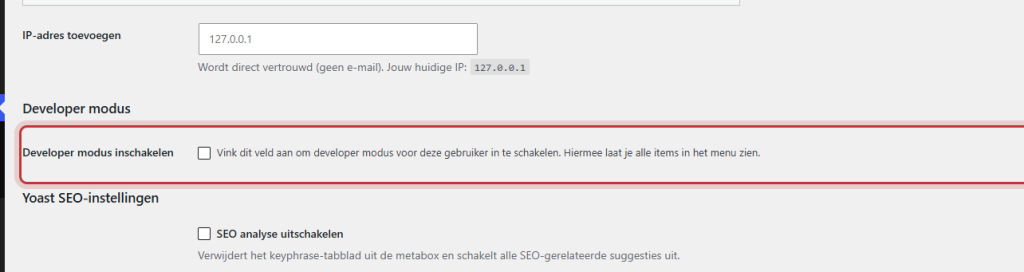
Administrators see the section Developer mode in their profile with the checkbox Enable developer mode. This will make the hidden menu items visible again. This is intended for us as developers. Only turn it on if we ask you to.
Not working?
- You see a completely different management interface: check if you are at the right address. A red bar over a development or staging environment means you are working on a test version.
- A menu item has disappeared: check if a module has been turned off, or ask an administrator what role you have.
- A page is not loading or you see an error message: refresh the page and log in again if necessary. If the issue persists, send us a screenshot via contact.
Frequently Asked Questions
Comments are turned off in leflite. In a webshop, you manage product reviews under your products.
Share this article
Robert Oosterloo
Robert Oosterloo is eigenaar en UX/UI-designer van Lef Creative in Kollum. Hij ontwerpt websites, webshops en software voor ondernemers in Noord-Nederland.
Read also
Page or post?
This is how your leflite website is structured
Draft, preview, and previous versions






Want a website like this?
Here you can read how easy it is to maintain a leflite site yourself. Want one too? We will think along with you, no strings attached.
Prefer direct contact? Call Robert at 06 35 66 47 73 or send a WhatsApp.