
How do I turn on a ‘coming soon’ page?

Robert Oosterloo
Updated on · 5 min read
Are you working on a new website, or on a major change that is not yet finished? With the plugin Lef Creative Coming Soon, visitors will see a neat ‘coming soon’ page while you, as the administrator, continue working. In this article, you will activate it, schedule it, and grant access to others.
In short
- Go to Settings → Coming Soon.
- Turn on Coming Soon mode and click Save Settings.
- Logged-in administrators see the regular website; all other visitors see the coming soon page.
- With Scheduled Activation, it will turn on and off automatically.
- You can grant access to others via the IP whitelist or a Share link.
When do you use this?
- Your new website is still under construction, but the domain is already online.
- You are undergoing a major renovation and do not want visitors to see a half-finished website.
- You are launching on a specific date and time.
For small adjustments, it is not necessary: work with a draft or a sample, see draft, sample, and previous versions.
What do you need?
- An account with the role Administrator. Other roles do not see the settings.
- The plugin Lef Creative Coming Soon, active. It is included by default in your website, see which plugins are included by default in your website.
Nog geen website op leflite?
Wij bouwen hem samen met jou. Daarna pas je alles zelf aan, precies zoals in dit artikel.
- Online binnen een week
- Hosting, SSL en back-ups inbegrepen
- Vanaf €49,95 per maand

Step 1: Open Coming Soon
Go to the menu on the left and select Settings → Coming Soon. The page has two tabs: General and Design.
Step 2: Turn it on
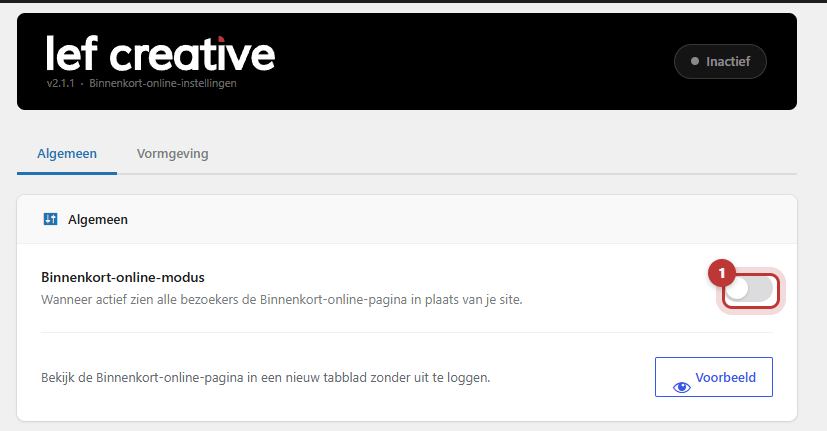
On the General tab, turn on the switch Coming Soon mode: “When active, all visitors will see the Coming Soon page instead of your site.” Click at the bottom on Save Settings. The black bar at the top will then show Coming Soon mode active. You can click on that later to quickly return to the settings.
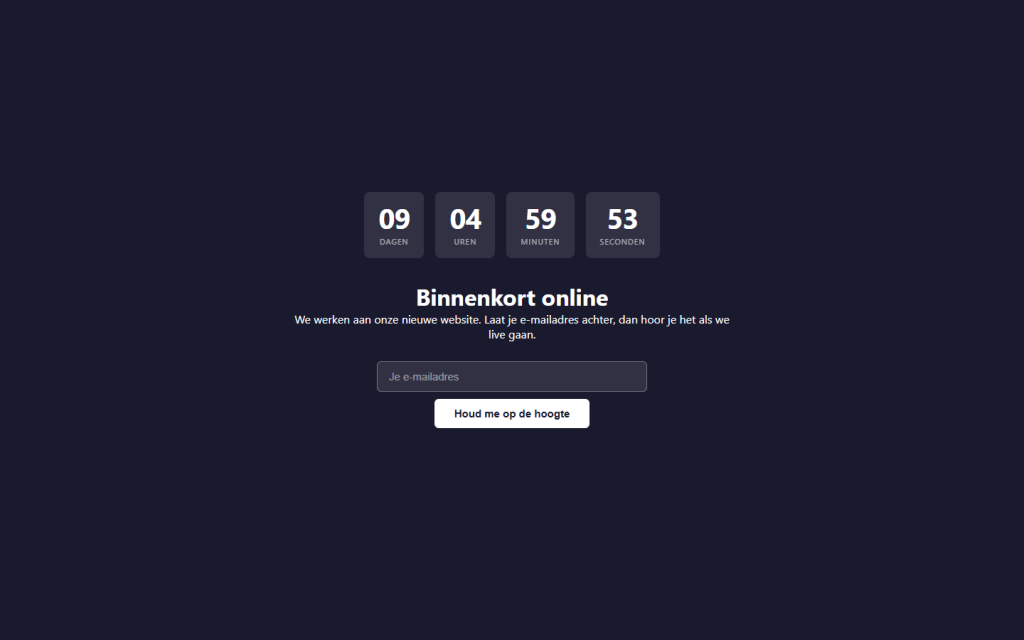
With Preview, you can view the page in a new tab without logging out.
Step 3: Fill in the page
On the Design tab, you determine what visitors see. In Page content, type the text, possibly with a logo or photo from the media library. In Background color, choose the color behind the content. Then click on Save Settings.
Step 4: Schedule (start and end time)
Should the page turn on or off automatically? Under Schedule, turn on the switch Scheduled Activation. Fill in:
- Activate from: when the coming soon page goes live.
- Deactivate at (optional): when it goes offline again. If you leave this blank, it will remain active after the start time.
With Show countdown clock, visitors will see a clock counting down to the end time. For this, Deactivate at must be filled in. Below the fields is the Server time: this is what the times are based on. The regular switch Coming Soon mode still works as a manual override.
Step 5: Grant access to others
Logged-in administrators always see the regular website. Do you want someone else, like a colleague or client, to be able to view the website as well? There are two ways to do this, under Access Management:
- IP whitelist: enter an IP address per line. “Visitors from these addresses will always see the normal site, even when Coming Soon is active.” With Add my IP, you can add your own address.
- Share link: copy the link with Copy and send it. Anyone who opens the link will be automatically added to the whitelist. With Refresh, you can immediately invalidate previously shared links.
In the Visitor log, you can see which IP addresses have viewed the coming soon page. With Add, you can immediately whitelist an address from the log.
Note: other logged-in users than administrators, such as an editor, will also see the coming soon page. Whitelist their IP address or send them the share link.
Collecting email addresses
Under Email subscribers, turn on the switch Email registration to place a sign-up form on the page. Visitors can leave their email address, and you can download the list with Download CSV. Mention in your privacy statement what you do with those addresses.
What does Google see?
As long as the coming soon page is active, search engines will be notified that the website is temporarily unavailable, with a request to come back later. The page itself will not be indexed by Google. So do not keep it active longer than necessary. Why a new website is not yet in Google can be read in why your website is (still) not in Google.
Having trouble?
- I do not see Coming Soon in the menu. You are not an administrator, or the plugin is turned off. Ask us.
- I do not see the coming soon page myself. Correct: as an administrator, you see the regular website. Use Preview, or open your website in a private window.
- My colleague sees the page but needs to see the website. Add their IP address to the IP whitelist or send the Share link.
- The page does not turn on or off at the scheduled time. Check the Server time: it may differ from your own clock.
- I turned it off, but visitors still see it. Click on Save Settings, and check if Scheduled Activation is still on.
Read more about maintenance in keeping your website safe and up to date.
Can’t figure it out? Call us at 06 35 66 47 73, email us at info@lefcreative.nl or contact us.
Share this article
Robert Oosterloo
Robert Oosterloo is eigenaar en UX/UI-designer van Lef Creative in Kollum. Hij ontwerpt websites, webshops en software voor ondernemers in Noord-Nederland.
Read also
The default plugins of your website
Confirm your login via email
Logging in to your website






Want a website like this?
Here you can read how easy it is to maintain a leflite site yourself. Want one too? We will think along with you, no strings attached.
Prefer direct contact? Call Robert at 06 35 66 47 73 or send a WhatsApp.