
How do I place a button or icon in the menu (and show an item only on mobile)?

Robert Oosterloo
Updated on · 4 min read
A prominent ‘Contact’ or ‘Request a quote’ button on the right side of your menu stands out more than a regular link. Each menu item can become a button or have an icon. You also determine for each item who can see it and on which device it is visible.
In short
- Expand the menu item in Menus.
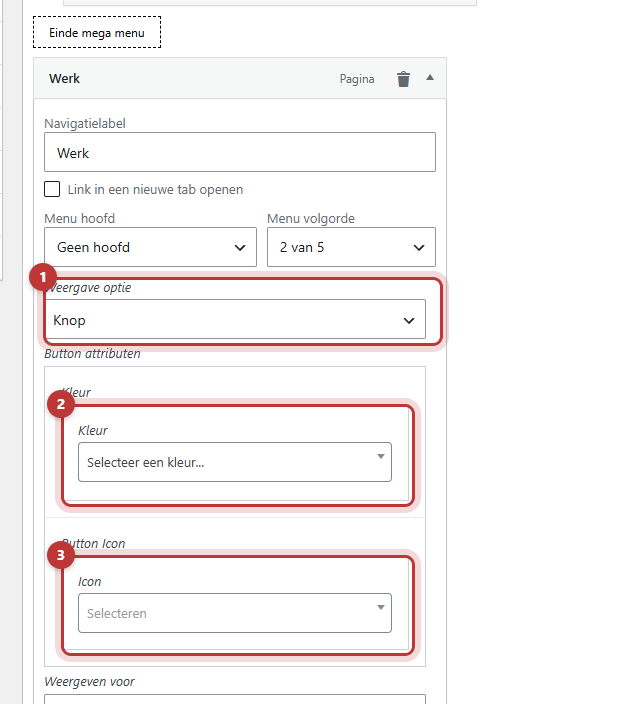
- Choose Display option for Button or Icon, and select a color or icon.
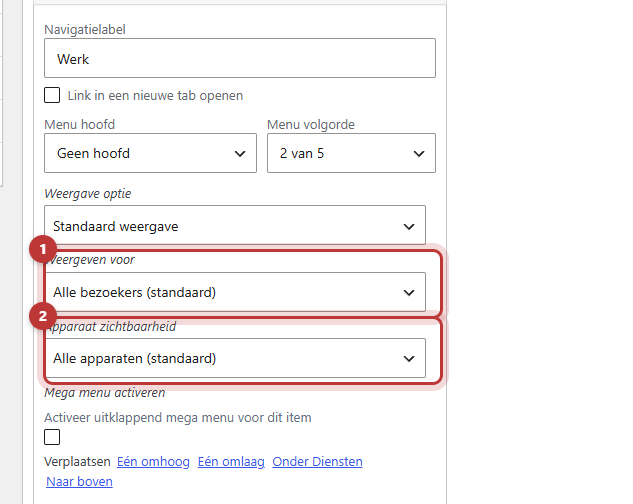
- With Show for, you can display an item only to logged-in or logged-out visitors.
- With Device visibility, you can show an item only on mobile or only on desktop.
Step 1: Open the menu item
Go to Menus and select the menu. Click the arrow on the right in the Menu structure. The item expands. Below the WordPress fields, you will see the extra options for your website.
Step 2: Choose Button or Icon in Display option
In Display option, you have three choices:
- Standard display: a regular link.
- Button: the item becomes a button.
- Icon: an icon for the text.
Button color
If you choose Button, the button settings will appear. Choose a color from your brand colors. If you leave the color empty, the button will take the primary color of your website. You can also choose an icon for the button.
Choosing an icon
In Icon, select an icon from the list. The icon always appears before the text. You cannot place it after the text.
Click on Save menu and check the result on your website.

Nog geen website op leflite?
Wij bouwen hem samen met jou. Daarna pas je alles zelf aan, precies zoals in dit artikel.
- Online binnen een week
- Hosting, SSL en back-ups inbegrepen
- Vanaf €49,95 per maand

Only show for logged-in or logged-out visitors
With Show for, you choose who sees the item:
- All visitors (default)
- Only logged-in visitors: for example, a link to a members page.
- Only logged-out visitors: for example, a link ‘Log in’ or ‘Become a member’.
Only show on mobile or desktop
With Device visibility, you choose All devices (default), Only mobile or Only desktop. Useful for a call button that you only want to show on a phone.
This works on the type of device
For visitors, the website looks at the device they enter with, not the width of the screen. If you are logged in, it does work based on screen width. If you narrow your browser window, you will see something different than a visitor on a phone. If your website uses page caching, a visitor may sometimes see the version from another device. Therefore, always test logged out on a real phone and a real computer.
Tips: one button, on the right
- Use a maximum of one button in the menu. Two buttons next to each other both attract attention, and then neither stands out.
- Place the button on the right, as the last item. If your header has two menus, the button often appears only in the second menu. See organizing the menu bar.
- Choose a short, active text: ‘Schedule a conversation’, ‘Request a quote’.
- You can also create regular buttons on your pages with a custom block: add a button.
Note: do not place a shortcode for your phone number, such as [theme_option field="company_phone"], in a menu label. It creates a link itself, and a link within a link does not work well. A status dot like [open_indicator] can work: see showing whether you are open. In the past, you created a button with the CSS class menu-item-button. That method works less well; use Display option.
Having trouble?
- You do not see the options. Expand the menu item with the arrow on the right.
- The button has a different color than expected. Without a chosen color, the button takes the primary color. Choose a color and save.
- An item for mobile only is still visible on your computer. You are logged in: then the website looks at the width of your window. Log out or use a private window to test.
- An item does not disappear on desktop. It may be due to caching, so clear the cache. Or contact us.
- The button is in the menu but not on mobile. The mobile menu is a separate menu. Place the item there as well: setting up the mobile menu.
Frequently asked questions
Yes. Add a Custom link with the URL tel: and your number, for example tel:+31612345678. Type the number itself in the link text and choose Button in Display option. A shortcode does not work well in a menu label.
Share this article
Robert Oosterloo
Robert Oosterloo is eigenaar en UX/UI-designer van Lef Creative in Kollum. Hij ontwerpt websites, webshops en software voor ondernemers in Noord-Nederland.
Read also
Create a subpage
An anchor link to a section
A search function on your website






Want a website like this?
Here you can read how easy it is to maintain a leflite site yourself. Want one too? We will think along with you, no strings attached.
Prefer direct contact? Call Robert at 06 35 66 47 73 or send a WhatsApp.