
How do I change my phone number, email address, or address across the entire site?

Robert Oosterloo
Updated on · 3 min read
Your phone number often appears in ten places: in the footer, on the contact page, in a button. On your website, you only need to change it in one place. After that, it will be correct everywhere the shortcode is used.
In short
- Your information is located in General options → Company details.
- Everywhere on your site, there is a shortcode, such as
[theme_option field="company_phone"], that retrieves the information. - Edit the field, click on Update, and the new information will appear everywhere.
- A typed number will not change automatically. Replace it with the shortcode.
Nog geen website op leflite?
Wij bouwen hem samen met jou. Daarna pas je alles zelf aan, precies zoals in dit artikel.
- Online binnen een week
- Hosting, SSL en back-ups inbegrepen
- Vanaf €49,95 per maand

How does it work?
In Company details, you enter your information once. On your pages and in the footer, it will not show the number itself, but a shortcode. This shortcode will display the current number when the page is shown. Phone, mobile, fax, and email will automatically become clickable links.
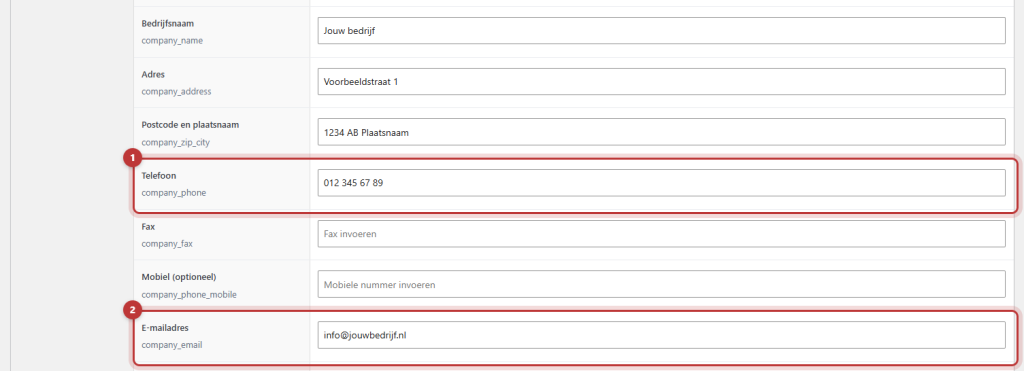
Step 1: Go to General options → Company details
Click on General options and then at the top on the button Company details. The tab Company details will be open.
Step 2: Edit the fields
You will see these fields. Under each field, the name you use in the shortcode is displayed:
- Company name (company_name)
- Address (company_address) and Postal code and city (company_zip_city)
- Phone (company_phone), Mobile (optional) (company_phone_mobile) and Fax (company_fax)
- Email (company_email)
- VAT number (company_btw) and Chamber of Commerce (company_kvk)
At the top of the tab, there is an explanation with all the possibilities of the shortcode.
Step 3: Click on Update
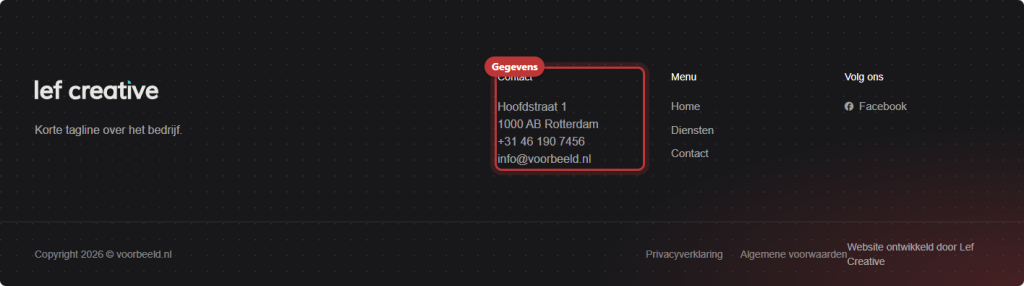
Click on Update. Open your website and check the footer and your contact page: the new information is now displayed there.
Check individual listings
If your number is typed somewhere instead of using the shortcode, it will not change there. Look for it: open your website, press Ctrl + F (on a Mac Cmd + F) and search for your old number. Replace it wherever you find it with the shortcode:
[theme_option field="company_phone"]for your phone number;[theme_option field="company_email"]for your email address;[theme_option field="company_address"]and[theme_option field="company_zip_city"]for your address.
If you list multiple pieces of information, add newline="true". If you want different text on the link, such as ‘Call us’, place that between an opening and closing shortcode. More examples can be found in automatically inserting your phone number into text.
Note: do not place the shortcode in the text of a button or menu item. The shortcode creates a link itself, and a link within a link does not work properly. Type the number there and use a link with tel:. See a button in the menu.
Webshop: your information in WooCommerce
Do you have a webshop? Then your address, company name, and email address will also be saved to the WooCommerce settings, for example, as the sender of order emails. If you do not want this, enable Do not synchronize company details to WooCommerce in General options → Webshop.
Your social media profiles and the WhatsApp button are on the second tab: see linking your social media and a WhatsApp button. You can read where your information is located in the footer in adjusting the footer.
Having trouble?
- On one page, the old number is still displayed. It has been typed there. Replace it with the shortcode.
- You see the shortcode as text on your website. Check the spelling: straight quotation marks and the field name exactly as it appears under the field.
- The number is not clickable. It is typed in the text. With the shortcode, it will automatically become a link.
- A button with your number behaves strangely. There is a shortcode in the button text. Type the number in the button.
- Can’t figure it out? contact us.
Frequently asked questions
There the number is typed instead of using the shortcode. Replace it with the shortcode for your phone number.
Share this article
Robert Oosterloo
Robert Oosterloo is eigenaar en UX/UI-designer van Lef Creative in Kollum. Hij ontwerpt websites, webshops en software voor ondernemers in Noord-Nederland.
Read also
Automatically inserting phone number in text
Giving a section a background color
A search function on your website






Want a website like this?
Here you can read how easy it is to maintain a leflite site yourself. Want one too? We will think along with you, no strings attached.
Prefer direct contact? Call Robert at 06 35 66 47 73 or send a WhatsApp.