
How do I enable animations on my website?

Robert Oosterloo
Updated on · 3 min read
With animations, the columns of your pages gently appear as a visitor scrolls down. This makes a page more lively. You can enable it for the entire website and choose a different animation for each column.
In short
- Go to General options → Animations and turn Enable animations on.
- Choose a Default animation for all columns, or None.
- For each column, choose a different animation in the panel Animation settings.
- Keep it calm: one gentle animation works best.
Nog geen website op leflite?
Wij bouwen hem samen met jou. Daarna pas je alles zelf aan, precies zoals in dit artikel.
- Online binnen een week
- Hosting, SSL en back-ups inbegrepen
- Vanaf €49,95 per maand

Step 1: Go to General options → Animations
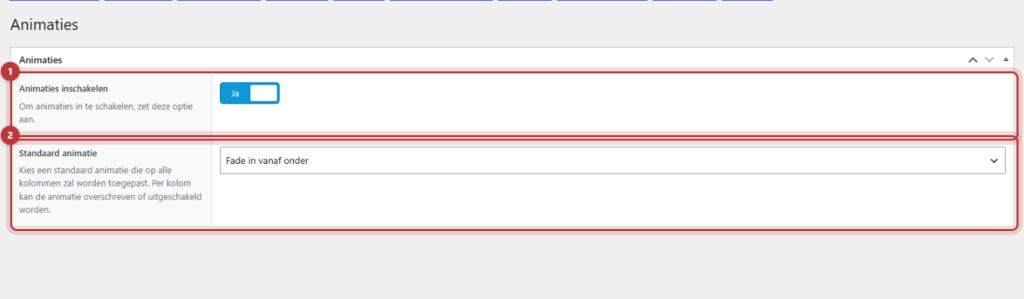
Click on General options and at the top on the button Animations.
Step 2: Turn on Enable animations
Turn Enable animations on. Then the option for the default animation will appear.
Step 3: Choose a Default animation
At Default animation it says: ‘Choose a default animation that will be applied to all columns.’ You can choose from:
- None
- Fade in: the column appears slowly.
- Fade in from above, Fade in from the left, Fade in from the right, Fade in from below: the column comes into view from that side.
- Fade in from the top left, Fade in from the top right, Fade in from the bottom left, Fade in from the bottom right: diagonally from a corner.
Click on Update. All columns on your website will now receive this animation. The background photo of a section will also gently come into view. Columns next to each other will appear shortly after one another.
A different animation for each column
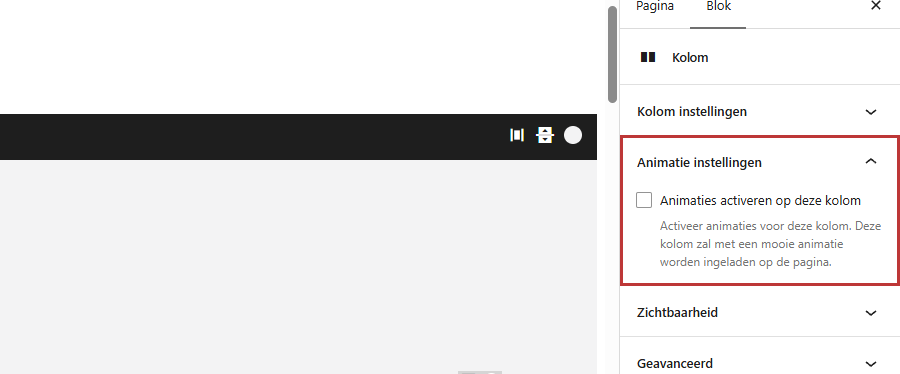
Do you want one column to move differently, for example, a photo coming in from the right? Open the page and click on the column. On the right in the sidebar, if animations are enabled, the panel Animation settings will appear. Turn Activate animations on this column on and choose the movement under Animation. Update the page. In the editor, you will see a small icon on the column indicating that it has its own animation.
How to create sections and columns is explained in adding a section and organizing in columns.
Only let a few columns move
If there is a default animation, then every column will move. One column without animation cannot. If you only want a few columns to move, then choose Default animation for None and turn on the animation for the columns where you want it.
Tip: stay calm. Choose one gentle animation, such as Fade in from below, and use it everywhere. Many different movements distract from your text. Animations do not noticeably slow down your website, but a calm page is more pleasant to read. You can read more about speed in why your website is slow.
Not working?
- You do not see the Animation settings panel. Enable animations is off, or you have selected a section instead of a column.
- Nothing is moving. Choose a Default animation that is not None, or turn on the animation for the column. Refresh your website.
- One column must stay still, but still moves. With a default animation, every column moves. Set the default to None and choose per column.
- A screenshot of your page is half empty. Columns only appear as you scroll past them. Scroll down slowly first.
- Can’t figure it out? Contact us. You can find more options in everything about General options.
Share this article
Robert Oosterloo
Robert Oosterloo is eigenaar en UX/UI-designer van Lef Creative in Kollum. Hij ontwerpt websites, webshops en software voor ondernemers in Noord-Nederland.
Read also
Automatically inserting phone number in text
Giving a section a background color
A search function on your website






Want a website like this?
Here you can read how easy it is to maintain a leflite site yourself. Want one too? We will think along with you, no strings attached.
Prefer direct contact? Call Robert at 06 35 66 47 73 or send a WhatsApp.