
I’m not receiving messages from my form: what now?

Robert Oosterloo
Updated on · 4 min read
You haven’t heard anything from your contact form, or a customer says they filled out the form and you haven’t received anything. Don’t panic: your website saves every submission. Go through these five checks in this order.
In short
- First, check if the submission is in WordPress, under Forms → Submissions.
- Check your email’s spam folder.
- Verify the address at Send to email address in the notification.
- Send a test email using WP Mail SMTP → Tools → Email Test.
- Check if the submission is under Spam.
Step 1: Is the submission in WordPress?
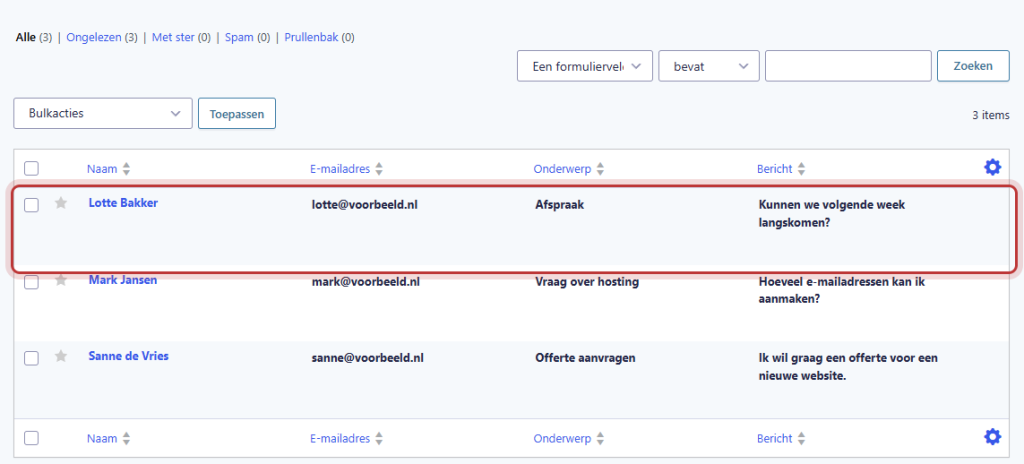
Go to Forms → Submissions and select the form. Every submission is saved here, even if the email doesn’t arrive.
- Is the submission there? Then the form works and the issue lies with the email. Proceed to step 2. You can read the request here in the meantime and reply to the customer.
- Is it not there? Then first check step 5 (spam). If it’s not there either, the form was not sent. Ask the visitor if they saw an error message and test the form yourself.
Nog geen website op leflite?
Wij bouwen hem samen met jou. Daarna pas je alles zelf aan, precies zoals in dit artikel.
- Online binnen een week
- Hosting, SSL en back-ups inbegrepen
- Vanaf €49,95 per maand

Step 2: Check your spam folder
Look in the Spam or Junk Email folder of your email program, and also in any other folders or filters you have set up. Is the message there? Mark it as “not spam”. Your email program learns from this and will place future messages back in your inbox.
Step 3: Check the address in the notification
Open the form, click on Settings → Notifications and open the notification for the administrator. Check under Send to email address if the address is correct. Watch out for typos, an old address from a former colleague, or {admin_email} (this is the admin address of WordPress, which may not be the address you expect). Also, check in the list if the notification is set to active. How to adjust this: set who receives the form messages.
Step 4: Send a test email with WP Mail SMTP
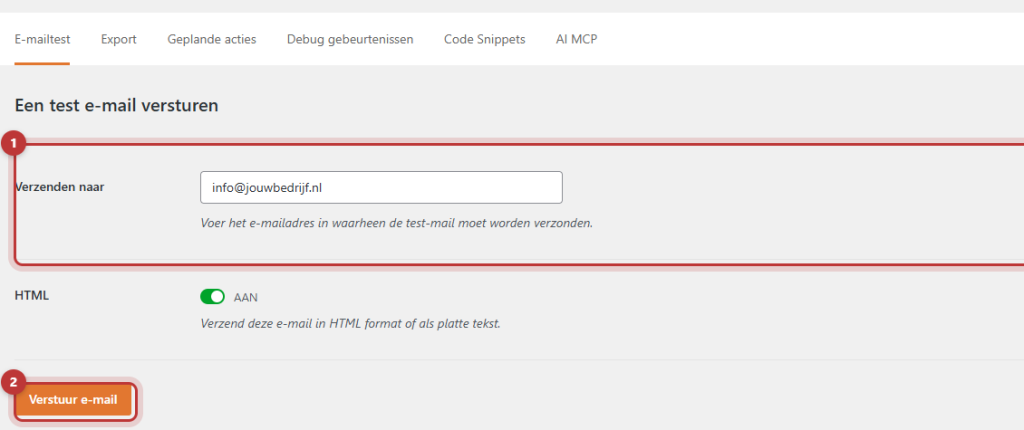
Your website sends emails via the WP Mail SMTP plugin. Here’s how to test if it works:
- Go to WP Mail SMTP → Tools.
- Open the Email Test tab.
- Enter your own email address in Send to.
- Click on Send Email.
Do you receive a green notification and the test email arrives? Then your website can send emails, and the issue is likely with the address in the notification (step 3) or your spam filter (step 2). Do you receive an error message? Send us that notification, and we will resolve it. More explanation: ensuring that the email from your website arrives.
⟦T0Good to know: if you don’t see the WP Mail SMTP menu, then your account does not have permissions for that. Please ask us to perform the test.
Step 5: Is the submission marked as spam?
Go to Forms → Submissions and click on Spam above the list. Submissions that are marked as spam do not send notifications. Is there a real request among them? Open it and select Not Spam. Do you want to receive the notification anyway? Then use Resend in the submission. Also read preventing spam in your forms.
Tip: test your form after every change, and also occasionally just for fun. Fill it in with your own details and the word “test” in the message. This way, you’ll notice a problem before a customer does.
Still nothing?
Is the submission in WordPress, is the address correct, is it not in your spam folder, and does the test email work? Then it may be that the recipient’s mail server is rejecting the email. You won’t see that in WordPress. Contact us or call 06 35 66 47 73, and we will investigate. Provide the date and time of a missed submission, so we can look into it specifically. How long submissions are kept can be read in viewing and retaining submissions.
Share this article
Robert Oosterloo
Robert Oosterloo is eigenaar en UX/UI-designer van Lef Creative in Kollum. Hij ontwerpt websites, webshops en software voor ondernemers in Noord-Nederland.
Read also
How do I ensure that the email from my website arrives?
How do I set who receives the form messages?
View, export, and retain submissions






Want a website like this?
Here you can read how easy it is to maintain a leflite site yourself. Want one too? We will think along with you, no strings attached.
Prefer direct contact? Call Robert at 06 35 66 47 73 or send a WhatsApp.