
How do I set who receives the form messages?

Robert Oosterloo
Updated on · 4 min read
Every time someone fills out your form, your website sends an email. In Gravity Forms, this is called a notification. You decide which address it goes to, or to multiple addresses, and that you can reach the visitor directly with Reply.
In short
- Open the form and go to Settings → Notifications.
- Open the notification for the administrator (usually Admin Notification or Admin Notification).
- Set under Send to email address one or more addresses, separated by a comma.
- Choose under Reply To the email field of the form.
- Keep the sender on your own domain.
Step 1: Open the notifications of the form
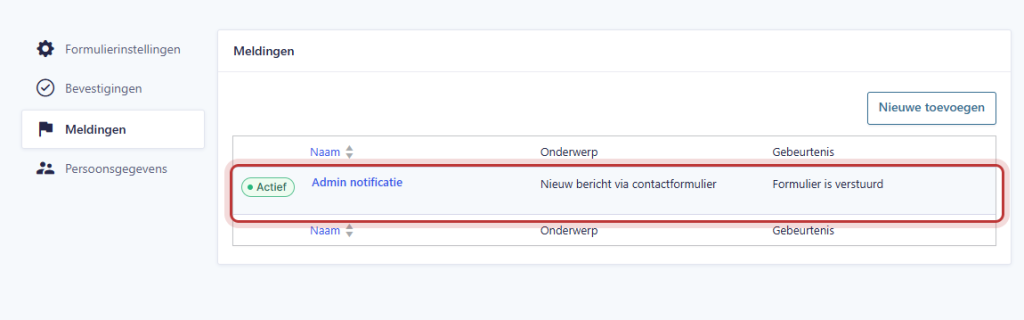
Go to Forms → Forms. Hover over the form and click on Settings. Then select the Notifications tab. You will see a list of all notifications for this form.
Step 2: Open the notification for the administrator
A new form has one notification by default: the Admin Notification. For forms we have set up for you, it may also have Admin Notification or a custom name. Click on the name to open it.
There may be more notifications, such as a confirmation to the visitor. Look for Send to in the list to see which notification goes to whom.
Nog geen website op leflite?
Wij bouwen hem samen met jou. Daarna pas je alles zelf aan, precies zoals in dit artikel.
- Online binnen een week
- Hosting, SSL en back-ups inbegrepen
- Vanaf €49,95 per maand

Step 3: Enter the address in Send to email address
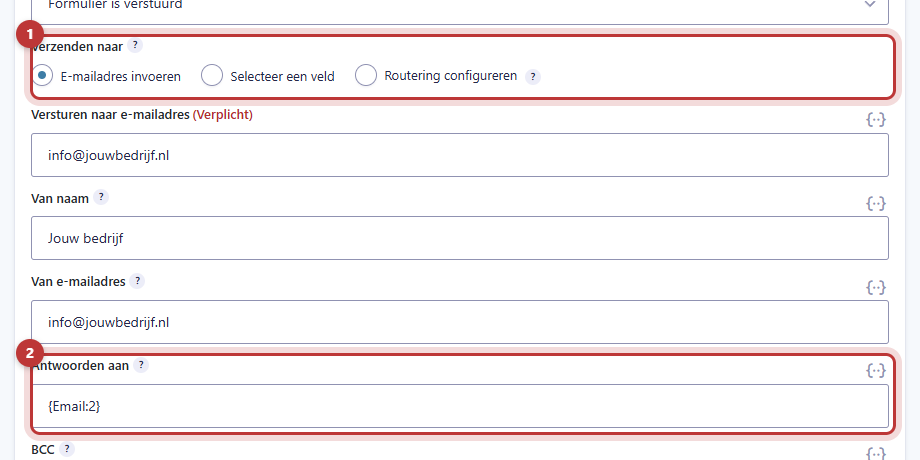
Choose under Send to the option Enter email address. Then enter the address in Send to email address that should receive the messages.
- Multiple recipients? List the addresses one after another with a comma:
info@yourcompany.com, jan@yourcompany.com. - Is there
{admin_email}? That is the default address for new forms: the admin address of WordPress (under Settings → General). Replace it with a real address, then you know exactly where the messages are going. - Do you want a copy at another address without the recipients seeing it? Use the BCC field.
Step 4: Reply To: the email field of the visitor
Set under Reply To the email address of the visitor. Click on the icon next to the field (Insert Merge Tag) and choose the email field of your form. It will then display something like {Email:2}.
If you click Reply in your email program, your reply will go directly to the visitor. You don’t need to retype the address.
Click at the bottom on Update Notification to save.
The sender: keep it on your own domain
Under From email address is the address from which the email originates. Let that be an address on your website’s domain, for example info@yourcompany.com. Never put the visitor’s address here. Emails that come “from” a Gmail address but are sent via your website appear fake to email programs and end up in spam. Therefore, you use Reply To for the visitor’s address.
Your website sends the email via WP Mail SMTP. You can read about what that does in ensuring that the email from your website arrives.
A confirmation to the visitor
Do you want the visitor to also receive an email (“Thank you, we have received your message”)? Click on Add New in the list of notifications. Choose under Send to the option Select a Field and choose the email field. Write a short subject and message and save the notification.
This email is slightly different from the thank you message on the screen. You set that in the thank you notification after submission.
Tip: send a test message via the form on your website after every change. This way, you can be sure that the new address works.
Not working?
- Nothing is coming in at all. Go through the steps in I am not receiving messages from my form.
- Only the first recipient receives the email. Check the commas between the addresses and ensure there are no typos in an address.
- Reply goes to your own address. Reply To is empty or refers to a field that no longer exists. Choose the email field again.
- The email is going to spam. Is there an address from another domain under From email address? Put an address on your own domain there.
- The notification is no longer there. A notification can be set to inactive. In the list, you can turn it back on with the switch.
Can’t figure it out? Contact us or call 06 35 66 47 73. We are happy to help.
Frequently Asked Questions
Yes. List both addresses under Send to email address, separated by a comma.
Share this article
Robert Oosterloo
Robert Oosterloo is eigenaar en UX/UI-designer van Lef Creative in Kollum. Hij ontwerpt websites, webshops en software voor ondernemers in Noord-Nederland.
Read also
How do I ensure that the email from my website arrives?
I’m not receiving messages from my form: what now?
View, export, and retain submissions






Want a website like this?
Here you can read how easy it is to maintain a leflite site yourself. Want one too? We will think along with you, no strings attached.
Prefer direct contact? Call Robert at 06 35 66 47 73 or send a WhatsApp.