
How do I customize the thank you message after submission?

Robert Oosterloo
Updated on · 4 min read
When someone submits your form, they see a thank you message. In Gravity Forms, this is called the confirmation. You can customize the text or redirect the visitor to a custom thank you page.
In short
- Open the form and go to Settings → Confirmations.
- Open the Default Confirmation.
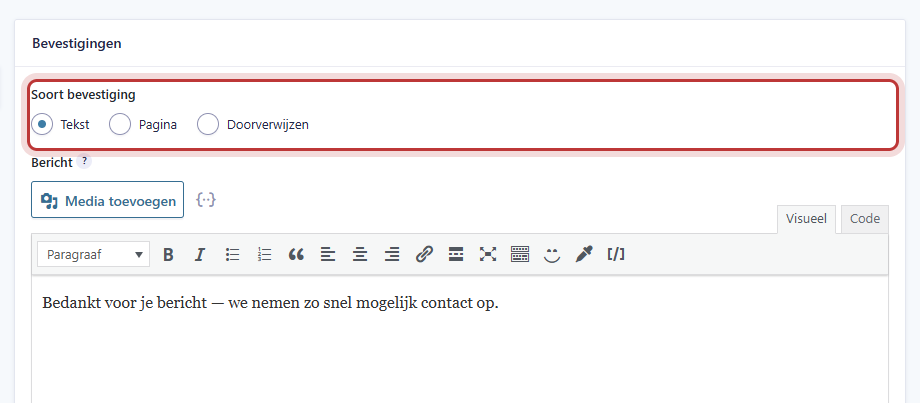
- Choose under Confirmation Type: Text, Page, or Redirect.
- Write a thank you message that explains what happens next.
- Click on Save Confirmation.
Step 1: Open the confirmations for the form
Go to Forms → Forms, hover over the form and click on Settings. Choose the Confirmations tab. Click on Default Confirmation (for forms we set up, it may be called Standard Confirmation).
Step 2: Choose Text, Page, or Redirect
Under Confirmation Type, you have three choices:
- Text: the visitor stays on the page and sees your text. If the form with
ajax=trueis on the page, the text will appear in place of the form without reloading the page. - Page: the visitor goes to a page on your own website, for example, “Thank you for your request”.
- Redirect: the visitor goes to a web address that you fill in at Redirect URL. This can also be an address outside your website.
Nog geen website op leflite?
Wij bouwen hem samen met jou. Daarna pas je alles zelf aan, precies zoals in dit artikel.
- Online binnen een week
- Hosting, SSL en back-ups inbegrepen
- Vanaf €49,95 per maand

Step 3: Write a good thank you message
If you choose Text, fill it in the text field below. The default text is “Thank you for your message! We will contact you soon.” This can be improved. A good thank you message:
- confirms that it was successful: “Thank you, your message has been sent.”
- explains what happens next: “We will respond within one business day.”
- provides an alternative for those in a hurry: “Prefer direct contact? Call us.” Make sure to include your phone number.
You can also use data from the form, such as the name: “Thank you {Name:1}!” Choose that via Insert Merge Tag next to the text field.
Click on Save Confirmation.
Tip: keep the text short. Two or three sentences are enough. The visitor mainly wants to know that it was successful.
Create a thank you page (and measure it)
A separate thank you page is useful if you want to measure how many requests you receive. In Google Analytics or an advertising program, you can count a visit to that page as a request.
- Create a new page, for example, “Thank You” with the URL
/thank-you/. See add a new page. - Put a short thank you message on it and possibly a few links, for example, to your work or your blog.
- Do not include the page in the menu. Visitors should only come here after submitting.
- Make sure Google does not display the page. You can do this in Yoast: see remove a page from Google.
- Choose Page in the confirmation and select your thank you page.
Good to know: if you have multiple forms, you can send them all to the same thank you page. If you want to measure per form, create a separate thank you page for each form.
Thank you message on screen or confirmation by email?
The confirmation is what the visitor sees on the screen. If you want to send the visitor an email as well, you do that with an additional notification. You can read how that works in set who receives the form messages.
Is it not working?
- The visitor still sees the old text. Did you click on Save Confirmation? Refresh the page. If your website uses a cache, wait a moment.
- The page jumps to the top after submission and the text is somewhere else. Set
ajax=truein the shortcode. See place a form on a page. - The visitor sees the generic text “Thank you for your message” and not your text. Then the submission was likely seen as spam. In case of spam, Gravity Forms uses the default text. Check the submissions under Spam.
- The thank you page gives an error message. The page may have been deleted or is still a draft. Publish the page or choose another one.
Can’t figure it out? Contact us or call 06 35 66 47 73. We are happy to help.
Share this article
Robert Oosterloo
Robert Oosterloo is eigenaar en UX/UI-designer van Lef Creative in Kollum. Hij ontwerpt websites, webshops en software voor ondernemers in Noord-Nederland.
Read also
How do I ensure that the email from my website arrives?
How do I set who receives the form messages?
I’m not receiving messages from my form: what now?






Want a website like this?
Here you can read how easy it is to maintain a leflite site yourself. Want one too? We will think along with you, no strings attached.
Prefer direct contact? Call Robert at 06 35 66 47 73 or send a WhatsApp.