
How do I prevent spam in my forms?

Robert Oosterloo
Updated on · 4 min read
Every form on the internet attracts spam: robots that automatically fill out forms with advertisements or links. Your website already blocks most of it. If spam still gets through, you can enable a few extra things yourself.
In short
- The plugin Gravity Forms Zero Spam is already enabled and filters out most robots.
- Spam submissions do not send notifications. You can find them under the filter Spam.
- You can enable extra security for each form under Settings → Spam Detection.
- A field for a website address attracts spam. Only ask for it if necessary.
- A CAPTCHA is possible, but it can be annoying for visitors. Please consult with us first.
What is already enabled?
Gravity Forms Zero Spam
The plugin Gravity Forms Zero Spam is active on your website. It adds a secret check to each form without visitors noticing. A real visitor won’t notice it, but most spam robots will be blocked by it. Visitors do not have to solve puzzles or click on traffic lights.
If a submission is seen as spam, this happens:
- no notification is sent, so you won’t receive an email;
- the submission appears in the list under Spam;
- the sender sees the general thank you message from Gravity Forms.
For each form, you can see if it is enabled: open the form, click on Settings and look for the switch Prevent spam with Gravity Forms Zero Spam. Keep it enabled.
Extra: the honeypot of Gravity Forms
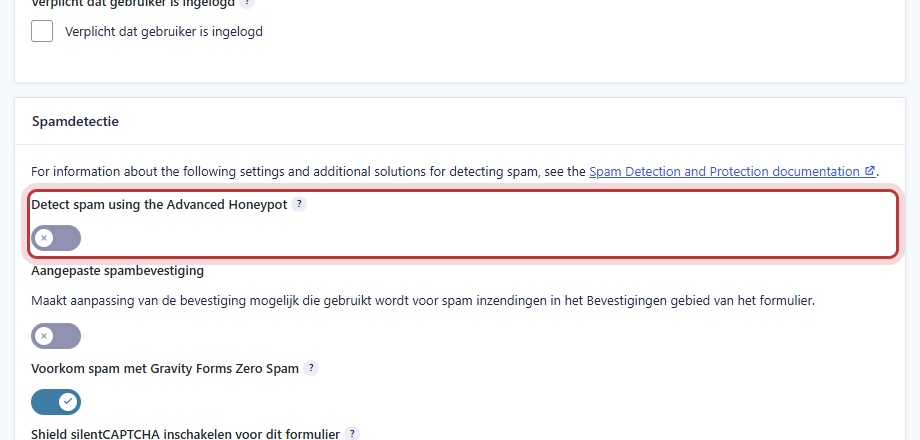
Gravity Forms also has its own spam filter, the honeypot: a hidden field that only robots fill out. Enable it if you are still receiving a lot of spam despite Zero Spam.
- Open the form and click on Settings.
- Go to the block Spam Detection.
- Enable the honeypot. In your version of Gravity Forms, this setting may be in English: Detect spam using the Advanced Honeypot.
- Choose what should happen with a suspicious submission. Create an item and mark it as spam is the safest option: then you can always check if there was a real request among them.
- Click on Save Settings at the bottom.
Nog geen website op leflite?
Wij bouwen hem samen met jou. Daarna pas je alles zelf aan, precies zoals in dit artikel.
- Online binnen een week
- Hosting, SSL en back-ups inbegrepen
- Vanaf €49,95 per maand

Extra: CAPTCHA
Gravity Forms also has a reCAPTCHA field from Google, the well-known “I am not a robot” checkbox. For that, you first need keys from Google that are filled in the settings of Gravity Forms. A CAPTCHA can be annoying for visitors, loads extra code from Google, and may place cookies. We only recommend it if the other measures are not sufficient. Do you still want it? Please consult with us first.
View and clean spam submissions
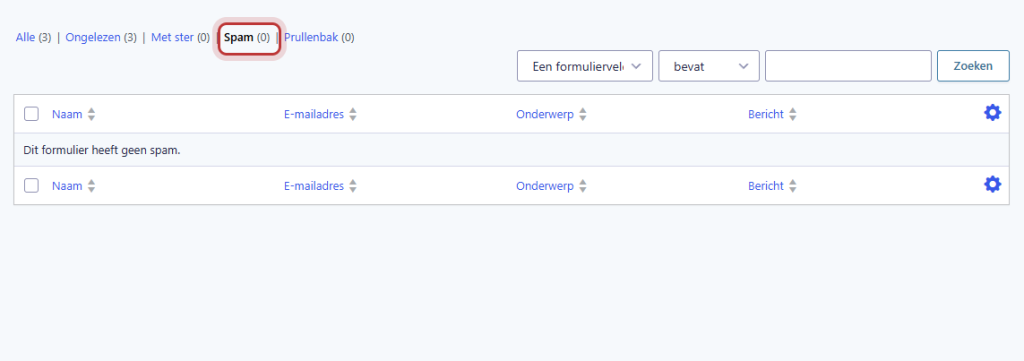
Go to Forms → Submissions and click on Spam above the list. Here are the submissions that have been blocked.
- Is there a real request among them? Open it and choose Not spam. It will then return to the regular list.
- Do you see spam among the regular submissions? Select them and choose Mark as spam in the bulk actions.
- Clean up spam occasionally by deleting the submissions.
Tip: check the spam list occasionally in the first weeks after a change. This way, you will quickly notice if a real request has accidentally slipped through.
A field that attracts spam
Spam robots are mainly after placing links. A field that asks for a website address, or a large message field without other questions, attracts more spam. Only ask for a website address if you really need it. A simple extra question, such as a dropdown list “What is your question about?”, makes the form harder for robots and more convenient for you.
You can read how to add or remove fields in how to customize a contact form.
Is it still coming?
If you are still receiving a lot of spam after these steps, or if real requests are being blocked, let us know. We will take a look at the form and the settings. You can read which plugins are standard on your website in which plugins are standard on your website. Submissions are also automatically cleaned up, see how long submissions are retained.
Not working?
- You are missing requests, but no spam is coming in anymore. Check under Spam if there are any real requests and mark those as Not spam.
- Spam is coming in through one form. Check that form to see if the Zero Spam switch is on and enable the honeypot.
- Spam always contains links. Remove an unnecessary website field or add a simple choice question.
Can’t figure it out? Contact us or call 06 35 66 47 73.
Share this article
Robert Oosterloo
Robert Oosterloo is eigenaar en UX/UI-designer van Lef Creative in Kollum. Hij ontwerpt websites, webshops en software voor ondernemers in Noord-Nederland.
Read also
How do I set who receives the form messages?
How do I ensure that the email from my website arrives?
I’m not receiving messages from my form: what now?






Want a website like this?
Here you can read how easy it is to maintain a leflite site yourself. Want one too? We will think along with you, no strings attached.
Prefer direct contact? Call Robert at 06 35 66 47 73 or send a WhatsApp.