
How do I make a photo in the gallery clickable to another page?

Robert Oosterloo
Updated on · 3 min read
Normally, a photo opens large in the Gallery in a lightbox. If you want a click to go to another page or website, for example, in a row of partner logos, then you give the photo itself a link in the media library.
In short
- The link belongs to the image, not to the block.
- Open the photo in Media → Library and fill in the Link field.
- Enable Open link in new tab for links to other websites.
- A photo with a link will no longer open a lightbox.
Nog geen website op leflite?
Wij bouwen hem samen met jou. Daarna pas je alles zelf aan, precies zoals in dit artikel.
- Online binnen een week
- Hosting, SSL en back-ups inbegrepen
- Vanaf €49,95 per maand

How does it work?
Each image in your media library has two extra fields: Link and Open link in new tab. If you fill in a link, a click on that photo in the gallery will go to that address. If you leave it empty, the photo will open as always in the lightbox.
Since the link belongs to the photo, it applies in every gallery where that photo is located. If you use the same photo on two pages, it will link on both pages.
Step 1: Open the image in Media
Go to Media → Library and click on the photo or logo. You can also click on a chosen photo in the block Gallery: you will see the same details.
Step 2: Fill in the Link field
Scroll in Attachment Details to the Link field and paste the full web address, including https://. For example, https://www.example.com. For a page on your own website, copy the address from your browser’s address bar.
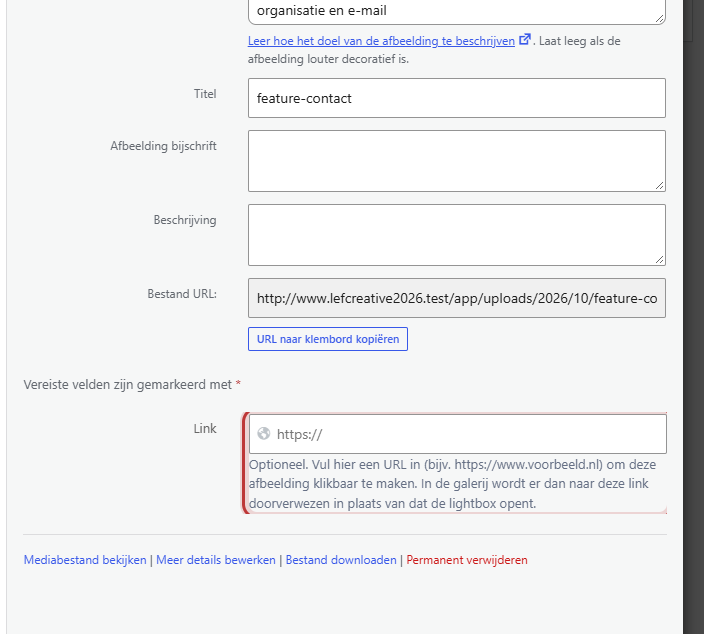
Step 3: In a new tab?
Once there is a link, Open link in new tab will appear. Enable it if the link goes to another website, so your own page stays open. For links within your own website, leave it off.
Step 4: View the gallery
The fields are saved immediately. Open the page with the gallery and hover over the photo with your mouse: you will see the web address at the bottom of your browser. Click it to check if it goes to the correct page.

Example: partner logos
A row of logos from partners or suppliers is the most well-known example. Place the logos in a Gallery with 6 Photos per row, and give each logo in the media library the link to that partner’s website, with Open link in new tab enabled. How to make the logos appear the same size is explained in creating a row of customer or partner logos.
Good to know: the link applies to the Gallery. Making a single photo clickable is done in the block Image with Image link (optional), see placing an image with caption or link.
Not working?
- I don’t see the Link field. First, click on the photo in the media library and scroll down in Attachment Details.
- The photo still opens the lightbox. Refresh the page. If it still doesn’t work, check if the link really belongs to this photo: maybe the same photo is in the library twice.
- The link gives an error message. Check if the address is complete, with https://.
- The link must work on one page but not on another. That cannot be done with one photo. Upload the photo a second time and give only that copy a link.
Read more about galleries in creating a photo gallery. Can’t figure it out? Contact us.
Share this article
Robert Oosterloo
Robert Oosterloo is eigenaar en UX/UI-designer van Lef Creative in Kollum. Hij ontwerpt websites, webshops en software voor ondernemers in Noord-Nederland.
Read also
Setting up a slider
A video as a background
A photo as the background of a section






Want a website like this?
Here you can read how easy it is to maintain a leflite site yourself. Want one too? We will think along with you, no strings attached.
Prefer direct contact? Call Robert at 06 35 66 47 73 or send a WhatsApp.