
How do I add a pattern to a page?

Robert Oosterloo
Updated on · 4 min read
A ready-made section, such as a contact block, a call to action, or your reviews, can be added to your page with one click. You do this with the button + Add Pattern. After this article, you will know how to choose a pattern, where it will appear, and whether you can adjust it afterwards.
In short
- Click on + Add Pattern at the bottom of the editor.
- Search in the Add Pattern window by name and click on the pattern.
- The label Synced means: linked, adjust in the builder. Copy means: freely adjustable on the page.
- You can insert between two sections with the block Pattern.
What do you need?
- At least one published builder. Don’t have any builders yet? Read how to create a pattern from a section.
- A page that is open in the editor.
Step 1: Click on + Add Pattern
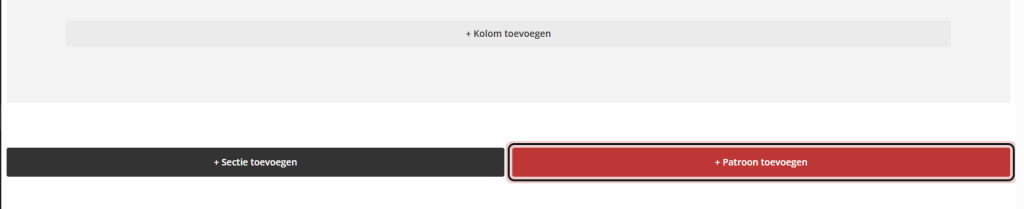
Scroll all the way down in the editor. Below your last section, there are two buttons: + Add Section and + Add Pattern. Click on + Add Pattern.
Nog geen website op leflite?
Wij bouwen hem samen met jou. Daarna pas je alles zelf aan, precies zoals in dit artikel.
- Online binnen een week
- Hosting, SSL en back-ups inbegrepen
- Vanaf €49,95 per maand

Step 2: Search and choose a pattern
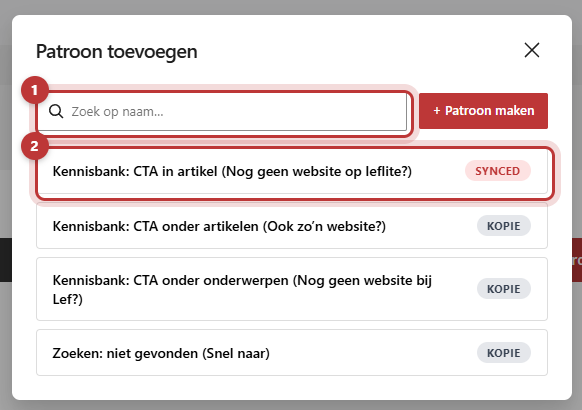
The Add Pattern window opens with a list of your builders, in alphabetical order. Type part of the name in the search field (Search by name…). Five patterns are displayed at a time; with Load more you can see the rest. Click on a pattern to insert it.
Is the pattern you are looking for not there? With + Create Pattern, you can open a blank builder in a new tab. Save it, go back to your page, and the list will refresh automatically.
Step 3: Synced or copy?
Behind each pattern in the list is a label.
Synced: a linked block
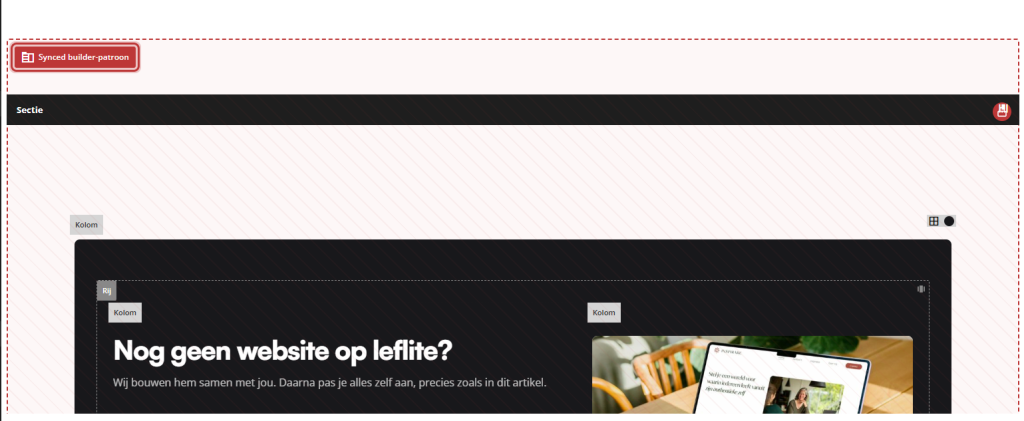
A pattern with the label Synced appears as one linked block on your page, with Synced builder pattern at the top. You can see the content, but you cannot adjust it on the page. The page always shows the current version of the builder. Adjustments are made in the builder itself, see how to adjust or unlink a synced pattern.
Copy: regular sections to adjust
A pattern with the label Copy (unsynced) is placed as regular sections on your page. You can adjust it like any other section: text, photos, colors. The builder remains unchanged, and later changes in the builder will not appear on your page.
Step 4: Place the pattern in the right spot
With + Add Pattern, the pattern will come after the section you selected, or at the bottom of the page. You can then move it with the arrows in the block toolbar, or drag it in the list view. How that works is explained in how to move, copy, or delete a block.
Do you want to place the pattern immediately between two sections? Click on the plus sign between the two sections, search for pattern, and choose the block Pattern. The window will open, and the pattern you choose will come exactly in that spot. If you close the window without choosing, the empty block will disappear again.
Don’t forget to click Save.
Tip: want to know more about the difference and when to choose what? Read synced or unsynced: the difference and the overview what are builders and patterns.
Having trouble?
- The list is empty (“No builders have been created yet to use as a pattern.”). First, create a builder, see how to create a pattern from a section.
- My new builder is not listed. Check if it is published, not just saved as a draft. Then go back to your page: the list will refresh automatically.
- I cannot adjust the text in the pattern. It is a synced pattern. Adjust it in the builder, or unlink it here: see how to adjust or unlink a synced pattern.
- The pattern is at the bottom instead of where I wanted it. Move it with the arrows, or use the block Pattern between two sections.
- I don’t see the + Add Pattern button. Scroll all the way down in the editor, below the last section.
Can’t figure it out? Contact us.
Share this article
Robert Oosterloo
Robert Oosterloo is eigenaar en UX/UI-designer van Lef Creative in Kollum. Hij ontwerpt websites, webshops en software voor ondernemers in Noord-Nederland.
Read also
Builders and patterns explained
Adjusting or unlinking a synced pattern
Adjusting an overview page






Want a website like this?
Here you can read how easy it is to maintain a leflite site yourself. Want one too? We will think along with you, no strings attached.
Prefer direct contact? Call Robert at 06 35 66 47 73 or send a WhatsApp.