
How do I set up a custom ‘page not found’ (404)?

Robert Oosterloo
Updated on · 3 min read
If someone clicks on an old link or types an address incorrectly, they will land on a page that does not exist: a 404 page. Your website has a simple standard page for that. With a custom page featuring a search field and useful links, you can keep that visitor engaged.
In short
- Create a regular page with a brief explanation, a search field, and links.
- Select that page under Set 404 page in General options → Logo & Basics.
- Your website will ensure that Google does not index the page.
- Test by typing in an address that does not exist.
What is a 404?
404 is the code for ‘page not found’. Without a custom page, your website shows a short standard text: ‘404: Page not found’, with links to the homepage and the previous page. That works, but it doesn’t match your branding and offers little help to the visitor.
Step 1: Create a regular page
Go to Pages and create a new page, for example, ‘Page not found’. Build it up with sections and blocks like any other page. See adding a new page. Publish the page, but do not add it to your menu.
What to include?
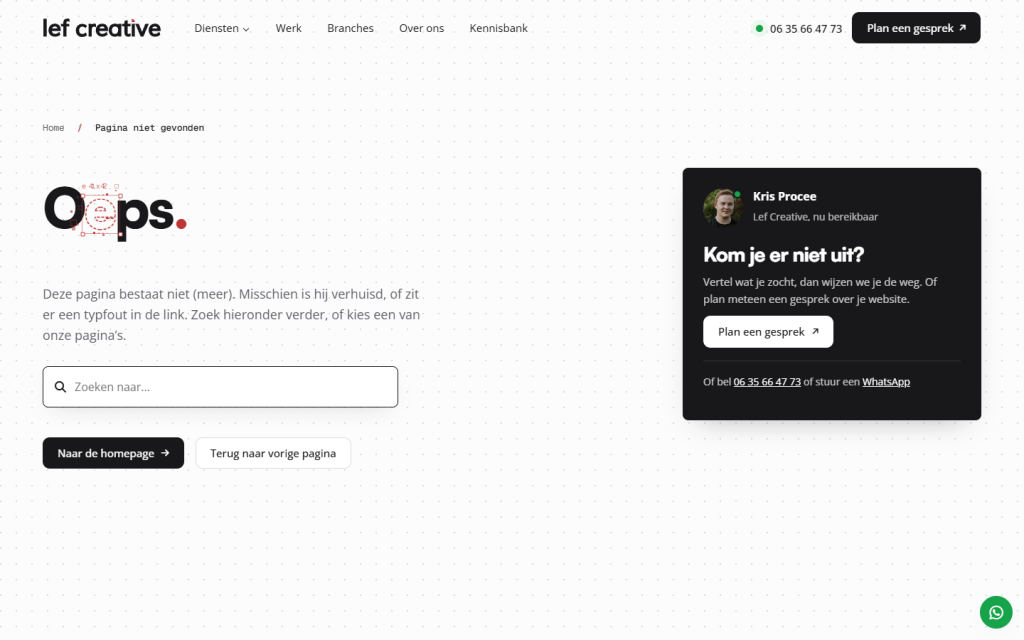
- A short, friendly headline and one sentence of explanation: this page does not (any longer) exist.
- A search field: place
[lef_search]in a Text block. See a search function on your website. - Buttons to your homepage and your main pages.
- Your contact details, for those who need assistance.
Nog geen website op leflite?
Wij bouwen hem samen met jou. Daarna pas je alles zelf aan, precies zoals in dit artikel.
- Online binnen een week
- Hosting, SSL en back-ups inbegrepen
- Vanaf €49,95 per maand

Step 2: Choose the page for setting the 404 page
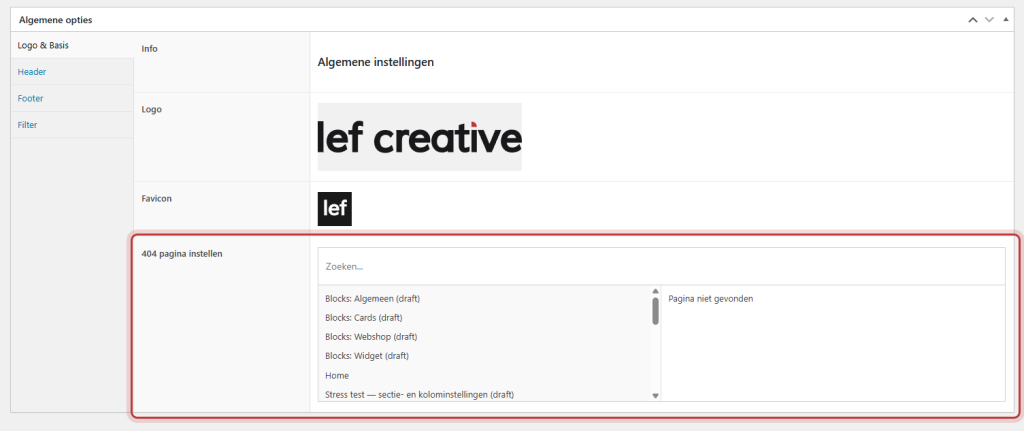
Go to General options, tab Logo & Basics. Find your new page under Set 404 page and click on it, so it appears on the right in the list. Click on Update.
Your website will then take care of a few things: the page is set to ‘do not index’ for Google, it is not included in the sitemap, and in the overview of your pages, ‘Custom 404 page’ appears behind the name.
Step 3: Testing
Type your domain name in your browser with an address that does not exist, for example, /does-not-exist/. You should now see your own page. Also check the search field and the buttons.
Keep 404s low: redirects
A good 404 page catches visitors, but it’s better if they don’t end up there. If you change the URL of a page or remove a page, redirect the old address to a new page. Read setting up a redirect when a URL changes and changing the URL of your page.
Note: do not delete the 404 page and do not set it to draft. Otherwise, your website will revert to the standard text. If you want to use a different page, select it first under Set 404 page.
Not working?
- You still see the standard text. The page has not been selected under Set 404 page, or it has not been published.
- The search field is missing. Check the shortcode
[lef_search]in the Text block. - The 404 page is in your menu. Remove it from the menu in Menus.
- Still having trouble? Contact us.
Share this article
Robert Oosterloo
Robert Oosterloo is eigenaar en UX/UI-designer van Lef Creative in Kollum. Hij ontwerpt websites, webshops en software voor ondernemers in Noord-Nederland.
Read also
Automatically inserting phone number in text
Giving a section a background color
A search function on your website






Want a website like this?
Here you can read how easy it is to maintain a leflite site yourself. Want one too? We will think along with you, no strings attached.
Prefer direct contact? Call Robert at 06 35 66 47 73 or send a WhatsApp.