
How do I customize the emails for new users and password recovery?

Robert Oosterloo
Updated on · 3 min read
If you create an account for a colleague or member, they will receive an email from WordPress. Anyone who has forgotten their password will also receive an email. By default, these are plain, English-sounding texts. You can write them in your own words and have them sent in your brand colors.
In short
- Go to General options → Emails.
- Enabling styled HTML emails gives the emails your brand colors.
- Fill in a subject and message for each email. Empty = the default email from WordPress.
- Use variables like {display_name} and always include the link to set the password.
Nog geen website op leflite?
Wij bouwen hem samen met jou. Daarna pas je alles zelf aan, precies zoals in dit artikel.
- Online binnen een week
- Hosting, SSL en back-ups inbegrepen
- Vanaf €49,95 per maand

Which emails are they?
- New user: the email someone receives when you create an account for them, with a link to set a password.
- Forgot password: the email someone receives when they request a new password on the login screen.
Emails about orders in a webshop are not included here. You set those up in WooCommerce. Emails from forms are also not included: see set who receives the form messages.
Step 1: Go to General options → Emails
Click on General options and at the top on the button Emails.
Step 2: Enable Styled HTML emails
Turn Enable styled HTML emails on if you want the emails to be ‘formatted with simple HTML styling in the brand colors of the website’. The email will then have a header in your main color and a neat layout. This also works if you do not adjust the texts.
Step 3: The email for new users
Under New user email fill in the Subject and the Message. For example, as a subject ‘Your account for {site_name}’ and as a message:
Hello {display_name},
An account has been created for you on {site_name}. Your username is {username}. Set your password here: {set_password_url}
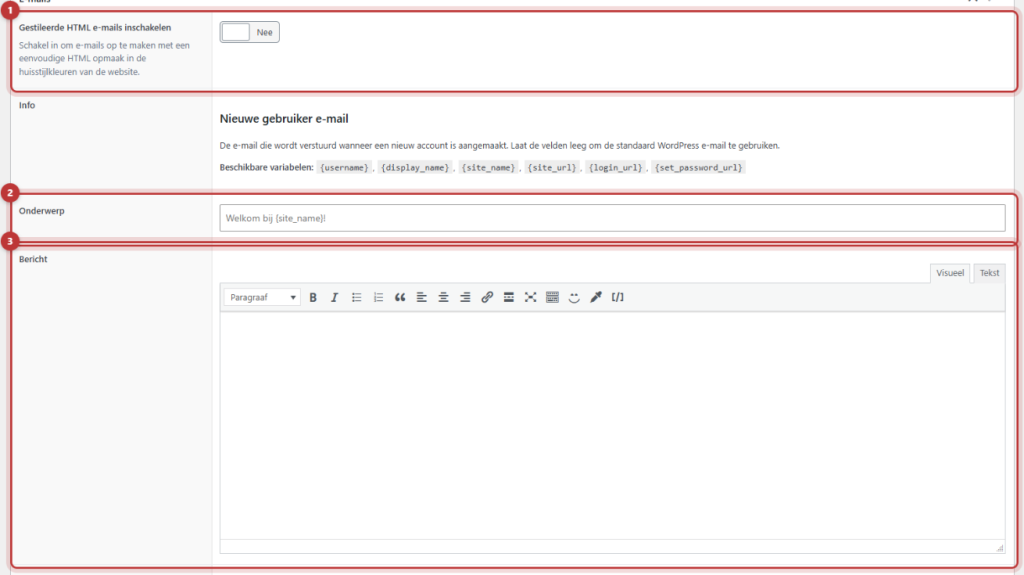
Note: always include {set_password_url} in the email for new users. Without that link, the new user cannot set a password. Always include {reset_link} or {reset_url} in the password email.
Step 4: The email for password recovery
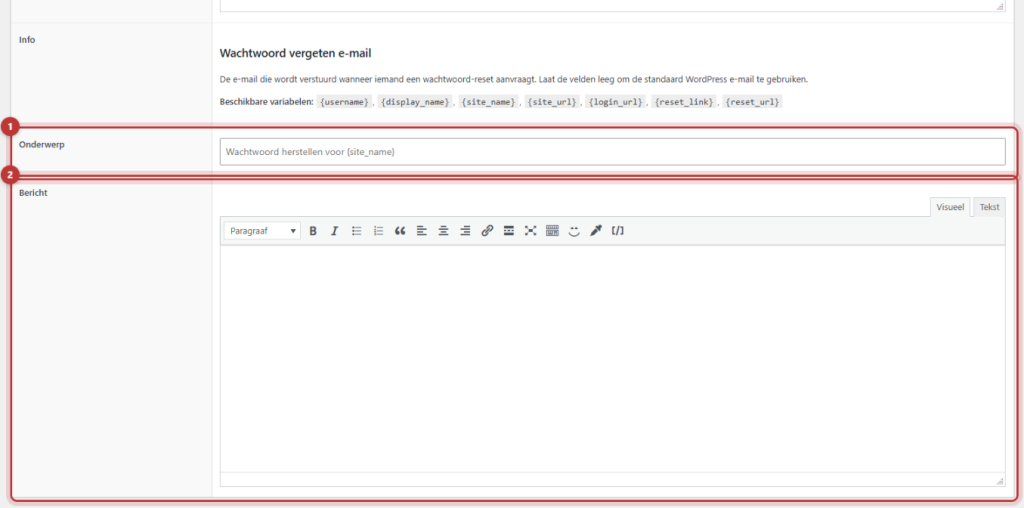
Under Forgot password email fill in again a Subject and Message. For example:
Hello {display_name},
You have requested a new password for {site_name}. Click this link to set it: {reset_link}
Did you not request anything? Then you can ignore this email.
If you leave the subject empty, WordPress will use its own subject. In the formatted email, ‘Recover Password’ will be the header. Click on Update.
Variables in the text
Variables in curly braces will be replaced when sending. The list is also on the page itself.
- {username}: the username.
- {display_name}: the name of the user.
- {site_name}: the name of your website.
- {site_url}: the address of your website.
- {login_url}: the link to the login screen.
- Only in the email for new users: {set_password_url}, the link to set a password.
- Only in the password email: {reset_link} (a clickable link) and {reset_url} (just the address).
A variable that does not exist or is misspelled will be removed. In the subject, only {site_name} works.
Testing
Create a test account with your own email address (see add a user) and check if the email arrives correctly. Then request a new password on the login screen with that account. You can read how to log in in logging in to your website. After that, delete the test account.
Having trouble?
- There is still the default text. The field Message is empty. Fill it in and click Update.
- A piece of text is missing. A variable is misspelled and removed. Check the spelling, with curly braces.
- The new user cannot set a password. {set_password_url} is missing in the message.
- The email is not arriving or is in spam. This is usually due to the sending of emails from your website. Read how to ensure that the email from your website arrives.
- Can’t figure it out? Contact us.
Share this article
Robert Oosterloo
Robert Oosterloo is eigenaar en UX/UI-designer van Lef Creative in Kollum. Hij ontwerpt websites, webshops en software voor ondernemers in Noord-Nederland.
Read also
Automatically inserting phone number in text
Giving a section a background color
A search function on your website






Want a website like this?
Here you can read how easy it is to maintain a leflite site yourself. Want one too? We will think along with you, no strings attached.
Prefer direct contact? Call Robert at 06 35 66 47 73 or send a WhatsApp.