
How do I place a notification at the top of my website?

Robert Oosterloo
Updated on · 3 min read
Are you closed during the holidays, do you have a promotion, or is there a malfunction? With a notification, you can place a colored bar with a short message under the menu on every page. You can set it to start and stop automatically.
In short
- Go to General options → Notification and turn Notification under menu on.
- Choose a color and write a short message.
- With exactly one link in the message, the entire bar is clickable.
- A start and end date is optional. With caching, the switch can happen later.
Nog geen website op leflite?
Wij bouwen hem samen met jou. Daarna pas je alles zelf aan, precies zoals in dit artikel.
- Online binnen een week
- Hosting, SSL en back-ups inbegrepen
- Vanaf €49,95 per maand

Step 1: Go to General options → Notification
Click on General options and at the top click the button Notification.
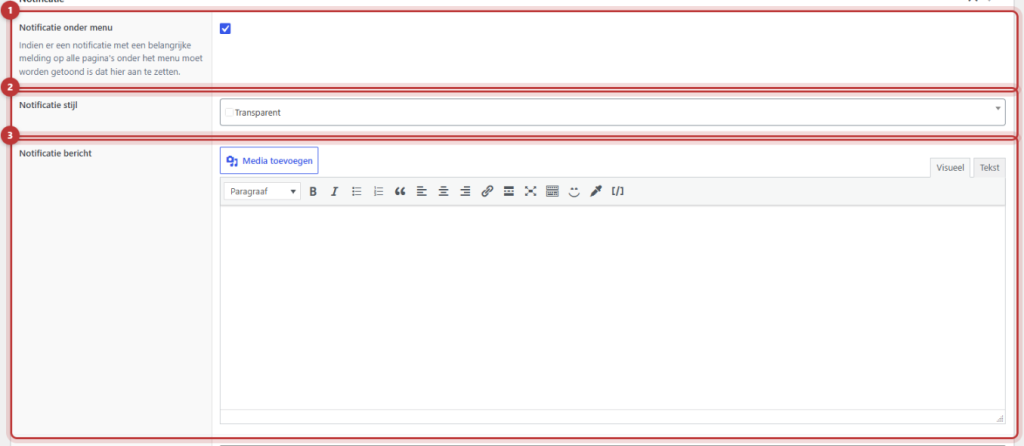
Step 2: Turn on Notification under menu
Turn Notification under menu on. Then the other fields will appear.
Step 3: Choose a color
In Notification style, choose a color from your branding. Choose a color that stands out but remains easy to read. The text color will adjust automatically.
Step 4: Write the message
Type your notification in Notification message. Keep it to one sentence, for example: ‘We are closed from December 23 to January 1.’ You can make the text bold, add a link, and use shortcodes.
With one link, the entire bar is clickable
If you include exactly one link in the message, the entire bar is clickable and goes to that link. Handy for a promotion: ‘Until Friday, 20% off. Check out the offer.’ With two or more links, only the link itself works.
Step 5: Start and end (optional)
Fill in Notification start date and time and Notification end date and time for when the notification is visible. If you leave them empty, the notification will stay until you turn it off. You can also fill in only an end date: then it will appear immediately and disappear automatically. Click on Update.
Be careful with caching
In the date fields, it states: ‘These options only work well when no caching is set and are based on server time.’ If your website uses page caching, the notification may appear later or disappear later than you have set. Therefore, check it on the day itself, and turn the notification on or off manually if necessary.

Turn off notification
Turn Notification under menu off and click Update. Your message will be saved so you can use it again later.
Tip: to create a notification on one page, for example above a form, use the block Note / notification: see text in a prominently colored box. If you are closed during the holidays, also adjust your special opening hours. Fixed information, such as your USPs, fits better in the header or top bar.
Having trouble?
- The notification is not appearing. Is Notification under menu on? Is the start date in the future or the end date in the past?
- The notification does not disappear on the end date. Due to caching, that may happen later. Turn it off manually or clear the cache.
- The entire bar is not clickable. There are zero or more than one link in the message. Use exactly one link.
- The text is poorly readable. Choose a different Notification style.
- Can’t figure it out? Contact us.
Frequently asked questions
If your website uses caching, that may happen later. Turn the notification off manually.
Share this article
Robert Oosterloo
Robert Oosterloo is eigenaar en UX/UI-designer van Lef Creative in Kollum. Hij ontwerpt websites, webshops en software voor ondernemers in Noord-Nederland.
Read also
Automatically inserting phone number in text
Giving a section a background color
A search function on your website






Want a website like this?
Here you can read how easy it is to maintain a leflite site yourself. Want one too? We will think along with you, no strings attached.
Prefer direct contact? Call Robert at 06 35 66 47 73 or send a WhatsApp.