
How do I set up tiered discounts?

Robert Oosterloo
Updated on · 3 min read
With tiered discounts, your customer receives a discount when they buy more items: for example, 5% off from 10 items and 10% off from 50. In leflite, you create tier groups for this purpose. A group applies to the products, categories, or brands you choose, and you can make exceptions for each product.
In short
- Enable the module via General options → Tiered discounts.
- Create a group under Tier groups with Tiers: from which quantity, what discount.
- Choose for which products the group applies: products, categories, brands, or attributes.
- Determine whether the tier table is visible, collapsible, or hidden.
Step 1: Enable the module
- Go to General options → Tiered discounts.
- Enable Tiered discounts and click Update.
Then the item – Tier groups will appear in the menu under General options. On the module page, you will also find the buttons Manage tier groups and Add new tier group. You can read more about modules in which modules leflite has.
Step 2: Create a tier group
Click on Add new tier group. Give the group a recognizable title, for example “Tier T-shirts”. Only you will see that title.
Nog geen website op leflite?
Wij bouwen hem samen met jou. Daarna pas je alles zelf aan, precies zoals in dit artikel.
- Online binnen een week
- Hosting, SSL en back-ups inbegrepen
- Vanaf €49,95 per maand

Step 3: Set the tiers
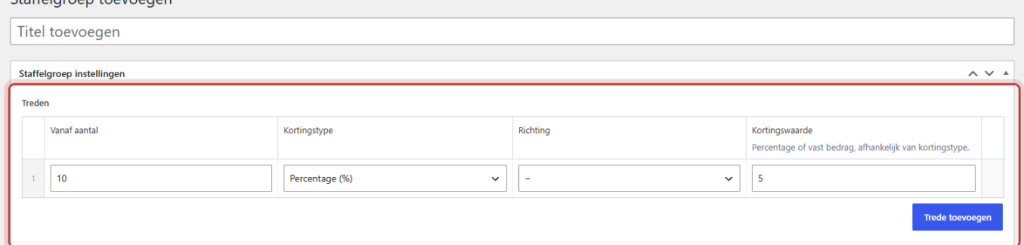
A tier is one step in the tiered discount. Click on Tiers and click Add tier and fill in:
- From quantity: from how many items the discount applies.
- Discount type: Percentage (%) or Fixed amount (€).
- Direction: − for discount. If you choose +, it becomes a surcharge.
- Discount value: the percentage or amount.
Example: tier 1 from 10 items, Percentage, −, 5. Tier 2 from 50 items, Percentage, −, 10.
Step 4: Choose for which products the group applies
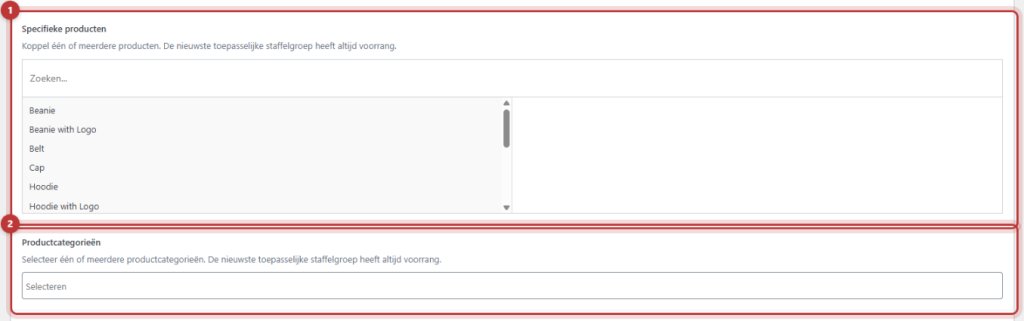
Fill in one or more of these fields:
- Specific products: individual products.
- Product categories: all products in those categories.
- Brands: all products from those brands.
- Product attributes: products with a specific characteristic. First, choose the Attribute (for example, Color); then the Values will load.
Step 5: Choose how the tier table looks
On the product page, leflite displays a table with the tier prices. Choose at Display tier table:
- Always visible: the table is open.
- Collapsible: a line of text that expands the table. You set that text at Text for collapsible tier table. Default: “This product has a tiered discount. Click for the overview.”
- Hidden (discount still active): no table, but the discount is still calculated.
Click on Publish.
Deviate per product
Open a product and look for the group Tiered discounts. If the product falls under a group, you will see at the top which tier group is active. Choose at Tiered discounts:
- Use tier group (default): the group determines the discount.
- Custom tiered discount: your own Tiers and your own Display tier table for this product.
- Disable tiered discount: no tier for this product.
Which group wins?
If a product fits into multiple tier groups, the newest applicable group applies. A setting at the product itself always takes precedence.
Tip: Test your tier by adding a product in the correct quantities to your cart. This way, you can immediately see if the discount is calculated correctly.
Having trouble?
- You do not see the Tier groups menu. Enable the module and click Update; the menu item will only appear afterwards.
- The discount is not being calculated. Check if the product falls under the group, and whether the product itself is not set to Disable tiered discount.
- A different discount applies than you expect. The product probably falls into multiple groups. The newest group wins.
- The price is higher. Is Direction set to +? Then it is a surcharge. Choose −.
Can’t figure it out? Contact us, call 06 35 66 47 73 or email info@lefcreative.nl.
Share this article
Robert Oosterloo
Robert Oosterloo is eigenaar en UX/UI-designer van Lef Creative in Kollum. Hij ontwerpt websites, webshops en software voor ondernemers in Noord-Nederland.
Read also
Display categories as buttons or cards
How do I customize the top of the shop page (header and USPs)?
How do I set how products are displayed in the overview?






Want a website like this?
Here you can read how easy it is to maintain a leflite site yourself. Want one too? We will think along with you, no strings attached.
Prefer direct contact? Call Robert at 06 35 66 47 73 or send a WhatsApp.