
A contact form, a quote request, or a job application: on your leflite website, you create forms with Gravity Forms. In this overview, you will read how forms work, what has already been arranged for you, and which article you need for each task.
In short
- You create and manage forms under Forms in the menu on the left.
- On a page, you place a form using a shortcode in a Text block.
- Each form sends an email (Notification) and shows a thank you message (Confirmation).
- All submissions are also stored in WordPress, by default for 730 days and without the IP address.
- Spam is blocked by the plugin Gravity Forms Zero Spam.
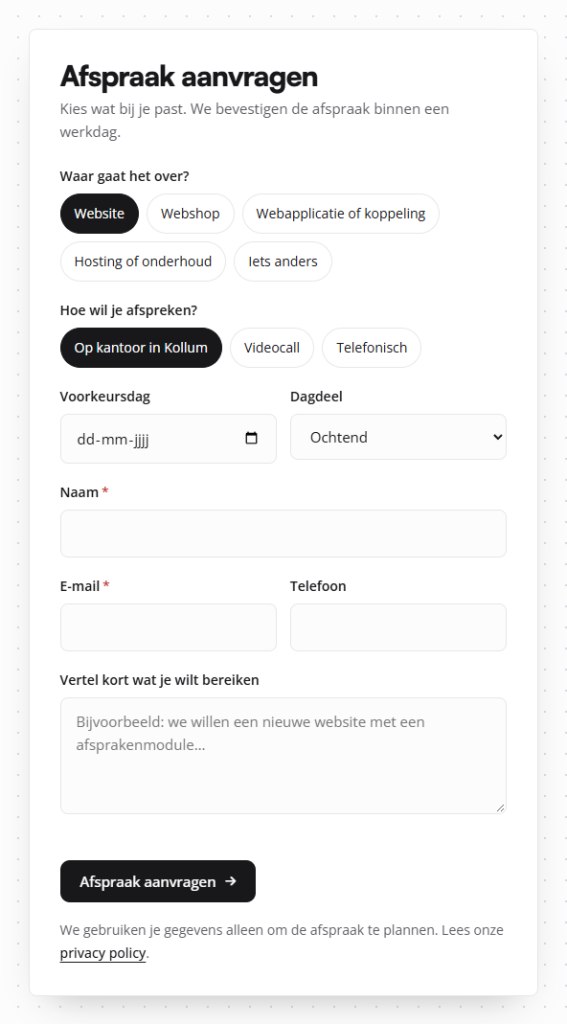
Forms in leflite: Gravity Forms
Your website uses the Gravity Forms plugin. With it, you build a form by dragging and dropping fields: name, email address, a dropdown list, a message. You don’t need to program anything.
The styling does not come from Gravity Forms but from your theme. leflite disables the default styling of Gravity Forms, so each form automatically adopts the fonts, colors, and buttons of your website. Therefore, you don’t need to do anything about the design.
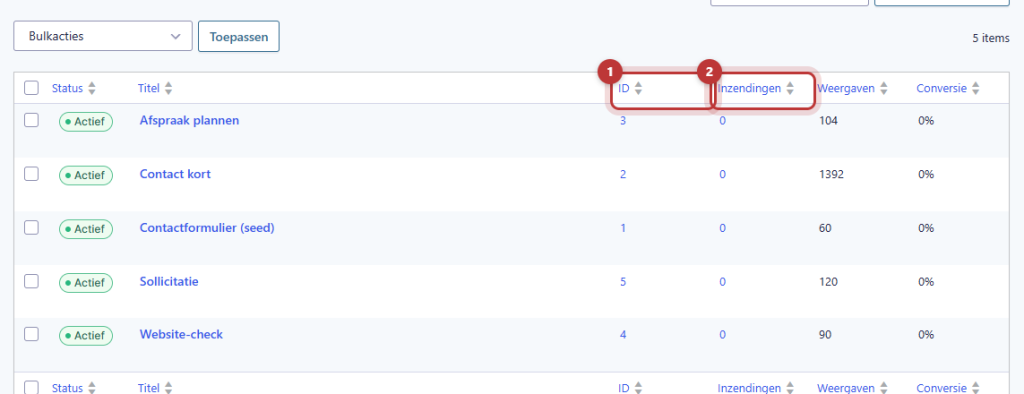
You can find everything under Forms in the menu on the left. There you will find your forms, the submissions, and the import/export options. Don’t see this menu? Then your account does not have the rights to manage forms. Feel free to ask us.
Nog geen website op leflite?
Wij bouwen hem samen met jou. Daarna pas je alles zelf aan, precies zoals in dit artikel.
- Online binnen een week
- Hosting, SSL en back-ups inbegrepen
- Vanaf €49,95 per maand

Editing a form
Do you want to add a field, make a field required, or add an extra option in a dropdown list? Open the form and edit it in the form editor. You can read how to do that in editing a contact form.
Placing a form
A form is only on your website when you place it on a page. In leflite, you do this with a shortcode in a Text block, for example [gravityform id=1 title=false description=false ajax=true]. The standalone Gravity Forms block is not in the editor. Step by step: placing a form on a page.
Do you want a button like “Request a quote” to open the form in a window? Then read showing a form in a pop-up.
Receiving messages
After each submission, the form sends an email: the notification. In the notification, you determine which address it goes to, and that you can reply to the visitor with one click on Reply. See setting who receives the form messages.
The email is sent by your website via the WP Mail SMTP plugin, so messages do not end up in spam. If nothing arrives, check the controls in I am not receiving messages from my form.
What does the visitor see after submitting?
After submission, the form shows a thank you message, the confirmation. This can be a text on the spot where the form was, or a separate thank you page. How to set that up: customizing the thank you message after submission.
Submissions, spam, and privacy
Each submission is also stored in WordPress, under Forms → Submissions. Handy if an email ever doesn’t arrive. You can also export submissions to Excel.
For GDPR compliance, leflite has a secure standard: submissions are automatically permanently deleted after 730 days (two years), and the visitor’s IP address is not stored. New forms get this immediately. Read more in viewing, exporting, and storing submissions.
The plugin Gravity Forms Zero Spam is already activated to combat spam. If you still receive junk, read blocking spam in your forms to see what else you can do.
Good to know: you can have multiple forms, for example, a short contact form for the footer and a detailed request form on its own page. Each form has its own number (ID), its own notifications, and its own submissions.
All articles about forms
- How do I place a form on a page?
- How do I edit a contact form?
- How do I set who receives the form messages?
- How do I customize the thank you message after submission?
- How do I view and export submissions, and how long are they stored?
- How do I prevent spam in my forms?
- How do I show a form in a pop-up?
- I am not receiving messages from my form: what now?
Share this article

Robert Oosterloo
Robert Oosterloo is eigenaar en UX/UI-designer van Lef Creative in Kollum. Hij ontwerpt websites, webshops en software voor ondernemers in Noord-Nederland.
Read also
How do I ensure that the email from my website arrives?
How do I set who receives the form messages?
I’m not receiving messages from my form: what now?






Want a website like this?
Here you can read how easy it is to maintain a leflite site yourself. Want one too? We will think along with you, no strings attached.
Prefer direct contact? Call Robert at 06 35 66 47 73 or send a WhatsApp.