
How do I create a list with checkmarks, icons, or prices?

Robert Oosterloo
Updated on · 4 min read
A list reads quickly. With the block List, you can create a bullet or numbered list, a row of benefits with checkmarks, or a price list with the price on the right. You choose one of six views and then fill in the lines.
In short
- Add the block List in a column.
- First, choose the List view; the fields will adjust accordingly.
- For checkmarks, choose Simple list with icons and one List icon.
- For a price list, choose List with text left / right.
- A different icon per line, or left in the list? Choose the Extended list with icons.
Step 1: Add the List block
Click on the + (Add block) in a column, type ‘list’ and choose List. The editing window will open.
Step 2: Choose the List view
Open the dropdown List view. Always choose this first: the fields you see afterwards depend on your choice. If you leave it empty, you will get a list without formatting.
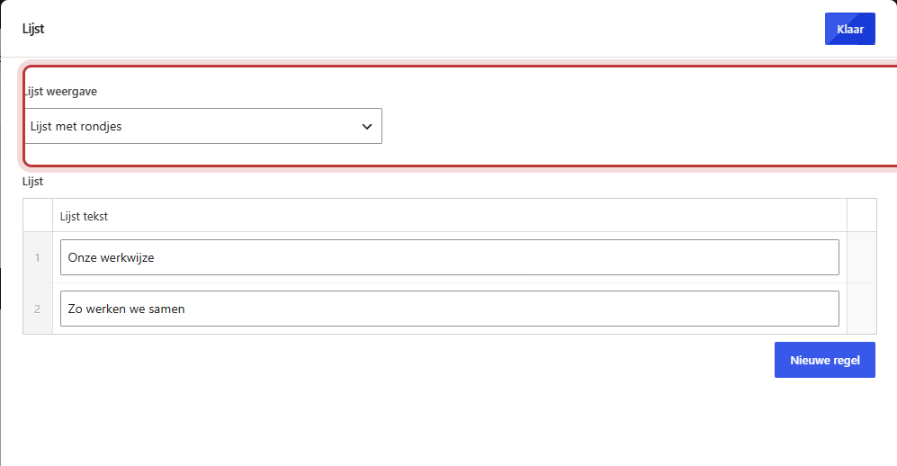
Circles, squares, numbering
List with circles and List with squares are regular bullet points. List with numbering puts 1, 2, 3 in front. Use numbers only when the order is important, such as in steps.
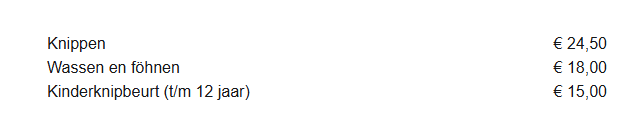
Text left / right (price list)
In List with text left / right (e.g., menu), each line has two fields: List text on the left and Text on the right. Useful for a price list, opening hours, or a short specification. For a complete menu with categories, the Restaurant menu block is better. See creating a menu with prices.
Simple list with icons
In Simple list with icons (same icon everywhere), you choose one icon for all lines at List icon, for example, a checkmark. This is the display for your benefits or USPs.

Nog geen website op leflite?
Wij bouwen hem samen met jou. Daarna pas je alles zelf aan, precies zoals in dit artikel.
- Online binnen een week
- Hosting, SSL en back-ups inbegrepen
- Vanaf €49,95 per maand

Extended list with icons (with links)
In Extended list with icons (different icon per item + option for links), you choose a unique Icon for each line. The List text is a small text field with a toolbar, so you can bold a word or add a link.
Step 3: Fill in the lines
Click on New line for each line in your list and fill in the text. Keep lines short: one benefit or one piece of information per line. You can change the order by dragging a line on the left. To delete a line, use the minus sign on the right next to the line.
Choosing an icon
In the dropdown of List icon or Icon, type an English name, such as ‘check’, ‘phone’, ‘envelope’, or ‘location-dot’. You will see the icon immediately next to the name. A large standalone icon, for example, above a service, is made with a different block. See placing a large icon.
Tip: do not use too many different icons in one list. One checkmark for all benefits reads more calmly than five different images.
Example: contact details with icons
You create a contact block with icons using the Extended list with icons:
- Line 1: icon ‘phone’, text: your phone number.
- Line 2: icon ‘envelope’, text: your email address.
- Line 3: icon ‘location-dot’, text: your address.
Do not enter the details as plain text, but with the button Add theme option in the toolbar of the text field. This way, it is always correct, even if your number changes. See your phone number automatically in text.
Having trouble?
- Your list has no circles or icons. No List view has been chosen. Choose one.
- You do not see a field for an icon. That field only appears in the two lists with icons.
- You cannot add a link. Only the Extended list with icons has a text field with a toolbar.
- You cannot find an icon. Search in English and try a synonym, such as ‘envelope’ for email.
- Your lines are not visible after switching views. The regular and extended lists use different fields. So choose the view before you start typing.
- Can’t figure it out? Contact us.
For a list in the middle of running text, simply use the list button in the Text block. See using the Text block.
Share this article
Robert Oosterloo
Robert Oosterloo is eigenaar en UX/UI-designer van Lef Creative in Kollum. Hij ontwerpt websites, webshops en software voor ondernemers in Noord-Nederland.
Read also
Automatically display posts or pages
Setting up a slider
Using the Text block






Want a website like this?
Here you can read how easy it is to maintain a leflite site yourself. Want one too? We will think along with you, no strings attached.
Prefer direct contact? Call Robert at 06 35 66 47 73 or send a WhatsApp.