
If you have created a new page, it will not automatically appear in the menu. You need to add it yourself. In this article, you will learn how to add a page to the main menu, change the order, and create a submenu.
In short
- Go to Menus and select the menu located at Primary menu.
- Check the pages on the left and click Add to menu.
- Drag items into the order you want. Dragging an item slightly to the right will create a submenu.
- Click Save Menu.
- The mobile menu is a separate menu. Make sure to adjust that as well.
Nog geen website op leflite?
Wij bouwen hem samen met jou. Daarna pas je alles zelf aan, precies zoals in dit artikel.
- Online binnen een week
- Hosting, SSL en back-ups inbegrepen
- Vanaf €49,95 per maand

What do you need?
- An account that allows you to see Menus (administrator).
- The page you want to add must be published.
Step 1: Go to Menus
Click on Appearance in the left menu in WordPress, then click on Menus. You will be taken to the Edit Menus tab.
Step 2: Choose the correct menu
At the top, it says Select a menu to edit:. Choose the menu that has a checkmark under Menu settings at the bottom next to Primary menu and click Select. If you’re unsure which menu that is, check the Manage Locations tab.
Step 3: Add pages or links
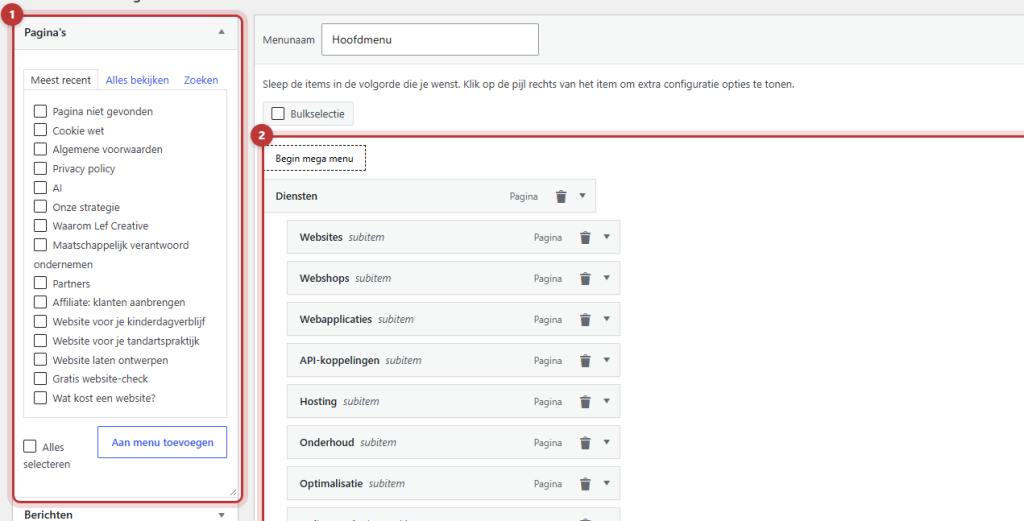
On the left, you will see Add menu items. Open Pages, check the pages, and click Add to menu. They will appear at the bottom of the Menu Structure.
- Don’t see a page? Click View All or use the search field.
- You can add a link to another website or a location on a page via Custom Links: fill in the URL and the Link Text.
- You can also add posts and categories this way.
Step 4: Arrange the items in the correct order
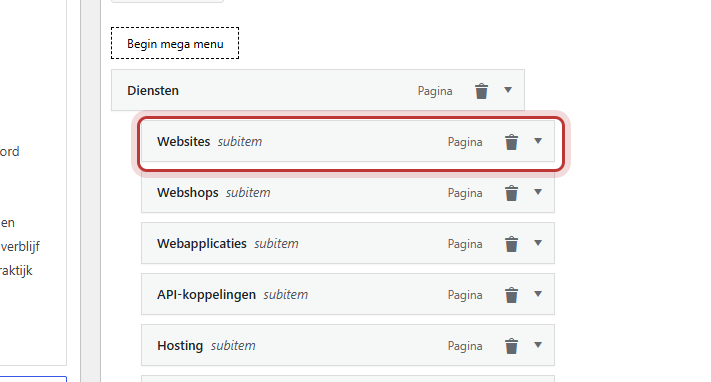
Drag an item up or down to change the order. If you want a submenu, drag the item slightly to the right, under the item it belongs to. It will then show subitem after the name.
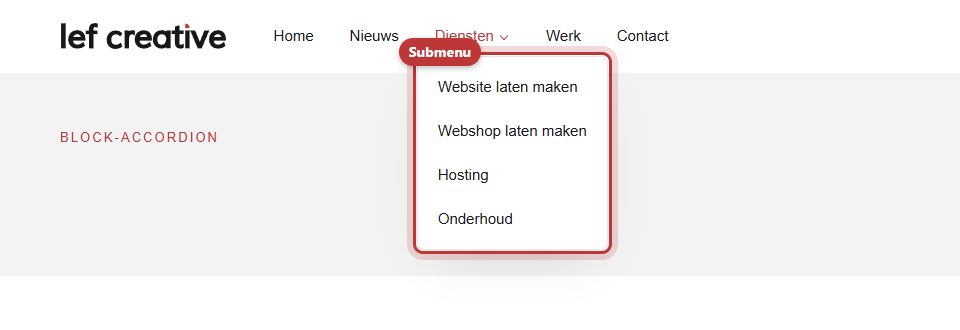
- A submenu will appear as a dropdown on the website when you hover over the main item. The main item will have an arrow.
- A third level (a subitem under a subitem) will expand to the right.
- Having trouble dragging? Expand the item and use the links below Move, such as Move Under ….
Step 5: Click on Save Menu
Click on Save Menu in the bottom right. Only then will the new menu appear on your website. If you leave without saving, you will lose your changes.
The menu in the right place
At the bottom, under Menu settings, you will find the menu locations. The main menu belongs to Primary menu (or Primary menu 1 if your header has two menus). The Mobile menu is a separate menu. A page you add to the main menu will not automatically appear in the mobile menu. Read how to set up the mobile menu.
Keep it short: otherwise, it will become a hamburger
At widths of 992 pixels and above, your website will display the menu next to the logo. If the menu cannot fit on one line, the website will automatically switch to the hamburger button, even on a laptop. This is not an error. The menu is too long.
- Keep the main menu to five to seven items.
- Group related pages into a submenu, or create a mega menu.
- Use short labels. The Navigation label of a menu item can be shorter than the title of the page.
Tip: if you want to link to a place further down on a page, use a custom link with an anchor, for example /services/#prices. Read how to link to a place on the page.
Note: do not put a shortcode with your phone number in a menu label. That shortcode creates a link itself, and a link within a link does not work well. Type the number in the label and use a custom link with tel:. A shortcode without a link, such as [open_indicator], can be used. See a button or icon in the menu.
Having trouble?
- You do not see the new page in the menu. Did you click Save Menu? And is the page in the menu linked to Primary menu?
- On your phone, the page is missing. Add it to the menu at the location Mobile menu as well.
- On your laptop, there is a hamburger button. The menu does not fit on one line. Make it shorter.
- A submenu does not expand. The item is not indented. Drag it slightly further to the right and save.
- You do not see extra options for a menu item. Click on the arrow to the right of the item to expand it.
- Still having trouble? contact us.
Frequently Asked Questions
The menu does not fit on one line. Make it shorter, use shorter labels, or place less important items in a submenu.
Yes. Add it via Custom Links. Then expand the item and check the box for ‘Open link in a new tab’ if you want the site to open in a new tab. If you do not see that checkbox, enable it via Screen Options at the top.
Share this article

Robert Oosterloo
Robert Oosterloo is eigenaar en UX/UI-designer van Lef Creative in Kollum. Hij ontwerpt websites, webshops en software voor ondernemers in Noord-Nederland.
Read also
Create a subpage
An anchor link to a section
A search function on your website






Want a website like this?
Here you can read how easy it is to maintain a leflite site yourself. Want one too? We will think along with you, no strings attached.
Prefer direct contact? Call Robert at 06 35 66 47 73 or send a WhatsApp.