
How do I set a video as a background?

Robert Oosterloo
Updated on · 4 min read
A moving background captures attention, for example in the top section of your homepage. In leflite, you can place a video from YouTube, Vimeo, or your own media library behind a section. It plays automatically, without sound and without buttons.
In short
- First, choose a Background image: this will be visible while the video loads.
- Paste the link at Background video → Video URL.
- Choose at Video loading on mobile whether to load the video on phones as well.
- A background video never has sound or buttons. For a regular video, use the block Video.
Nog geen website op leflite?
Wij bouwen hem samen met jou. Daarna pas je alles zelf aan, precies zoals in dit artikel.
- Online binnen een week
- Hosting, SSL en back-ups inbegrepen
- Vanaf €49,95 per maand

What do you need?
- The link of a video on YouTube or Vimeo, or an MP4 file in your media library.
- A short video (10 to 30 seconds) that works well without sound. It plays repeatedly.
- A photo as a still image during loading.
Step 1: First, choose a background image
Select the section and choose in the panel Background image a photo, for example, a still image from your video. This photo will be visible while the video is still loading. Choose at Image layout a layout with an overlay or gradient, so your text remains readable. You can read how that works in a photo as a background for a section.
If you use a YouTube video without your own photo, your website will take the image from YouTube. This does not happen with Vimeo.
Step 2: Open Background video
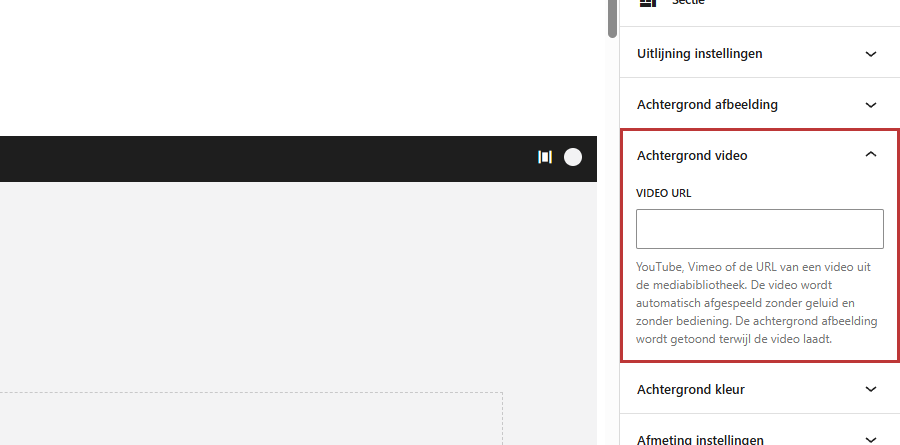
On the right side of the sidebar is the panel Background video. It is collapsed by default: click on the title to open it.
Step 3: Paste the Video URL
Paste the link of your video at Video URL. This can be:
- a YouTube link, such as the link from the address bar or via Share;
- a Vimeo link;
- the link of a video from your media library (open the video under Media and click on Copy URL to clipboard).
In the editor, you will only see the photo: the video itself will only play on your website.
Step 4: Load video on mobile?
After filling in a link, Video loading on mobile appears, with two choices:
- Load video on mobile: phones will also get the video.
- Do not load video on mobile: phones will only see the photo. This saves data for your visitors and makes the page faster.
Your website recognizes a phone or tablet by the device, not by the width of the window. If you make the window narrower on your computer, you will still see the video.

How does the video behave?
- It starts automatically, without sound, and plays repeatedly.
- There are no buttons: visitors cannot pause it or turn on the sound.
- It only loads after the rest of the page has loaded, so your page does not open slower.
- If the visitor scrolls further, the video pauses; when they come back into view, it continues playing.
- The video fills the entire section. A part is cut off at the edges.
Own video or YouTube?
An own video from your media library starts quickly and does not show logos or extras from another platform. Keep the file small: a short MP4 of a few MB. YouTube or Vimeo saves space on your hosting and loads via their servers. With YouTube, your website uses the more privacy-friendly variant (youtube-nocookie). If you are unsure what fits best with your site, ask us.
Note: the video does not work if the Image layout is set to No background. Choose a different layout then.
Remove the video
Open the panel Background video and click on Remove video. The photo will remain. Save the page.
Having trouble?
- The video does not play on your site: check if the link is correct and public (a private video on YouTube or Vimeo will not play). Also, check if the layout is not set to No background.
- You only see the photo on your phone: is Do not load video on mobile enabled? Then that is intentional. Some phones also do not play videos automatically in power-saving mode.
- Your text is poorly readable: choose a layout with overlay or gradient and a dark section color.
- The page is slow: make your own video smaller or shorter, or turn it off on mobile. See why your website is slow.
- You want a video with sound and a play button: place the block Video in a column. See placing a video from YouTube or Vimeo.
Do you want the video only on desktop and a different section on mobile? Read sections and columns on mobile.
Frequently asked questions
No. A background video always plays without sound and without buttons. Use the block Video for a regular video.
Share this article
Robert Oosterloo
Robert Oosterloo is eigenaar en UX/UI-designer van Lef Creative in Kollum. Hij ontwerpt websites, webshops en software voor ondernemers in Noord-Nederland.
Read also
More space between blocks
Tabs with Section tabs
Automatically display subpages as tiles






Want a website like this?
Here you can read how easy it is to maintain a leflite site yourself. Want one too? We will think along with you, no strings attached.
Prefer direct contact? Call Robert at 06 35 66 47 73 or send a WhatsApp.