
A clear delivery time helps your customer decide. leflite shows a delivery time banner for each product, with different text and color if the product is out of stock. You can set it for your entire shop, by category, or by product.
In short
- Enable Delivery time banner under General options → Delivery time.
- Fill in text and color for in stock and for out of stock.
- For each category, it can be different with Delivery time per category.
- For each product, you can choose a specific delivery time under Delivery time banner or turn it off.
Where do you see the delivery time?
The banner appears in two places:
- on the product page, above the price;
- in the product cards on the shop page, category pages, and in the Highlight Products block, below the image.
Step 1: Turn on the delivery time banner
- Go to General options → Delivery time.
- Turn Delivery time banner enabled on. The other fields will only appear afterwards.
Nog geen website op leflite?
Wij bouwen hem samen met jou. Daarna pas je alles zelf aan, precies zoals in dit artikel.
- Online binnen een week
- Hosting, SSL en back-ups inbegrepen
- Vanaf €49,95 per maand

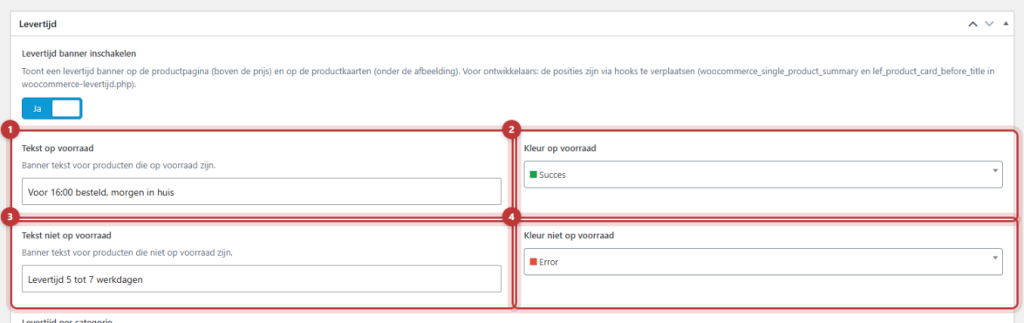
Step 2: Fill in text and color
- Text in stock: for example “Ordered by 16:00, delivered tomorrow”.
- Color in stock: standard the green success color.
- Text out of stock: for example “Delivery time 1 to 2 weeks”.
- Color out of stock: standard the red error color.
Click on Update. From now on, the banner will appear with all your products.
Note: Only promise a delivery time that you can actually meet. A text like “delivered tomorrow” also applies on weekends and holidays, unless you adjust it.
Different delivery time per category
Do you have products that take longer, such as custom-made items or articles that you order from a supplier? Then use Delivery time per category on the same page.
- Click on Add category rule.
- Choose under Category(ies) one or more product categories.
- Fill in Text in stock and Text out of stock, each with a Color. If you leave a text empty, the general text will apply.
- Do you want no banner at all in this category? Check Disable (“No banner for this category(ies)”).
If a product falls under multiple rules, for example because it is in two categories? Then the top rule applies. So place your most important rule at the top; you can drag rows.
Different delivery time per product, or none
- Open the product via Products.
- Find the group Delivery time.
- Choose under Delivery time banner:
- Use general delivery time (default): the setting of the category or the shop.
- Custom delivery time: fill in your own Text and Color.
- Disable delivery time banner: no banner for this product.
- Click on Update.

Which delivery time wins?
The order is always: product takes precedence over category, and category takes precedence over the general delivery time. A custom delivery time for a product always wins, even if the category says something different.
Not working?
- You don’t see a banner. Is Delivery time banner enabled on, and is there text filled in? Also check if the category or product is not disabling the banner.
- The wrong text is displayed for a product. First check the product itself (group Delivery time), then check the category rules. The top matching category rule wins.
- The change is not yet visible. Refresh the page with Ctrl+F5. If your site uses a cache, it may take a while.
Can’t figure it out? Contact us, call 06 35 66 47 73 or email info@lefcreative.nl.
Share this article

Robert Oosterloo
Robert Oosterloo is eigenaar en UX/UI-designer van Lef Creative in Kollum. Hij ontwerpt websites, webshops en software voor ondernemers in Noord-Nederland.
Read also
Display categories as buttons or cards
How do I set how products are displayed in the overview?
How do I customize the sidecart?






Want a website like this?
Here you can read how easy it is to maintain a leflite site yourself. Want one too? We will think along with you, no strings attached.
Prefer direct contact? Call Robert at 06 35 66 47 73 or send a WhatsApp.