
How do I set up a countdown to a date on my website?

Robert Oosterloo
Updated on · 3 min read
An opening, an event, or the end of a promotion: with a countdown, visitors can see exactly how much time is left. With the Countdown block, you can count down to a date and time of your choice, in days, hours, minutes, and seconds.
In short
- Add the Countdown block in a column.
- Choose the moment to count down to under Date and time.
- Select under Display whether it shows days, only hours, or only days.
- Choose under Alignment whether the boxes are side by side or fill the full width.
- After the countdown ends, it will show 00. Remove it yourself afterwards.
Nog geen website op leflite?
Wij bouwen hem samen met jou. Daarna pas je alles zelf aan, precies zoals in dit artikel.
- Online binnen een week
- Hosting, SSL en back-ups inbegrepen
- Vanaf €49,95 per maand

Step 1: Add the Countdown block
Click on the + (Add block) in a column, type ‘countdown’, and choose Countdown. The editing window will open with three settings.
Step 2: Choose Date and time
Click in the Date and time field. A calendar will open. Choose the date and set the hour and minutes below. For example: December 1, 09:00 for the start of a promotion.
Step 3: Choose the Display
Under Display, you have three options:
- Date and time (highest unit days DD H:i:s): days, hours, minutes, and seconds. This is the standard countdown and fits almost always.
- Time (highest unit hours H:i:s): only hours, minutes, and seconds. The number of hours can exceed 24. Useful for a promotion that lasts only a day or two.
- Days (only show the number of days): only the number of days. Calm, for a date that is still far away.
Always choose a display. Without a choice, the box will remain empty.
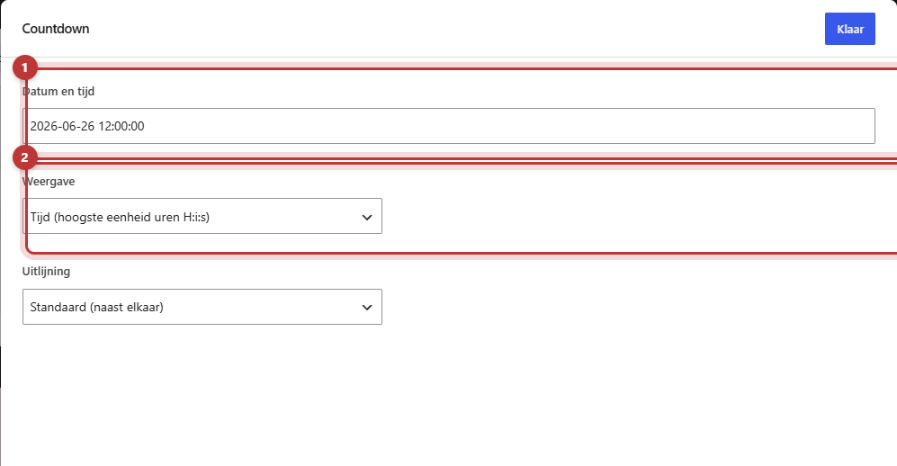
Step 4: Choose the alignment
Under Alignment, choose Standard (side by side) or Full width. In Standard, the boxes are compactly next to each other. In Full width, they together fill the entire column; this works well in a section that spans the full width.
Click on Done and then on Save.

What happens when the time is up?
When the moment has passed, all boxes will show 00. The countdown does not disappear automatically, and no other text appears. So, remove the block yourself afterwards, or replace it with a text like ‘The promotion has ended’. Set a reminder in your calendar for that.
Always include a short text so that visitors know what is being counted down to. For example, a Text block above with ‘Just a little longer until we open our new store’ and a button below. For a promotion that needs to stand out on every page, you can also place a notification at the top of your website. See a notification at the top of your website.
Note: only place one countdown on a page. Two countdowns on the same page interfere with each other. Also, check after saving whether the countdown appears at the correct time: see if the number of hours matches the time you have chosen. If it deviates, let us know.
Countdown or counter?
A countdown counts down to a moment. If you want to add numbers, such as the number of customers, use the counter instead. See adding numbers with the counter.
Is it not working?
- The box remains empty. There is no Display chosen. Choose one.
- The countdown is at 00. The date is in the past. Choose a date in the future.
- The number of hours is higher than 24. You have chosen the Time display. Choose Date and time to also show days.
- The countdown does not work properly with a second countdown present. Only place one on a page.
- The countdown appears at the wrong time. Check the time in the Date and time field. If it is correct, please contact us.
You can find all blocks in all blocks in a row.
Share this article
Robert Oosterloo
Robert Oosterloo is eigenaar en UX/UI-designer van Lef Creative in Kollum. Hij ontwerpt websites, webshops en software voor ondernemers in Noord-Nederland.
Read also
Automatically display posts or pages
Setting up a slider
Using the Text block






Want a website like this?
Here you can read how easy it is to maintain a leflite site yourself. Want one too? We will think along with you, no strings attached.
Prefer direct contact? Call Robert at 06 35 66 47 73 or send a WhatsApp.